
Key Takeaways
- RecoverIt recovered 92 to 100% of target files in my real tests across SSDs, SD cards, and external HDDs.
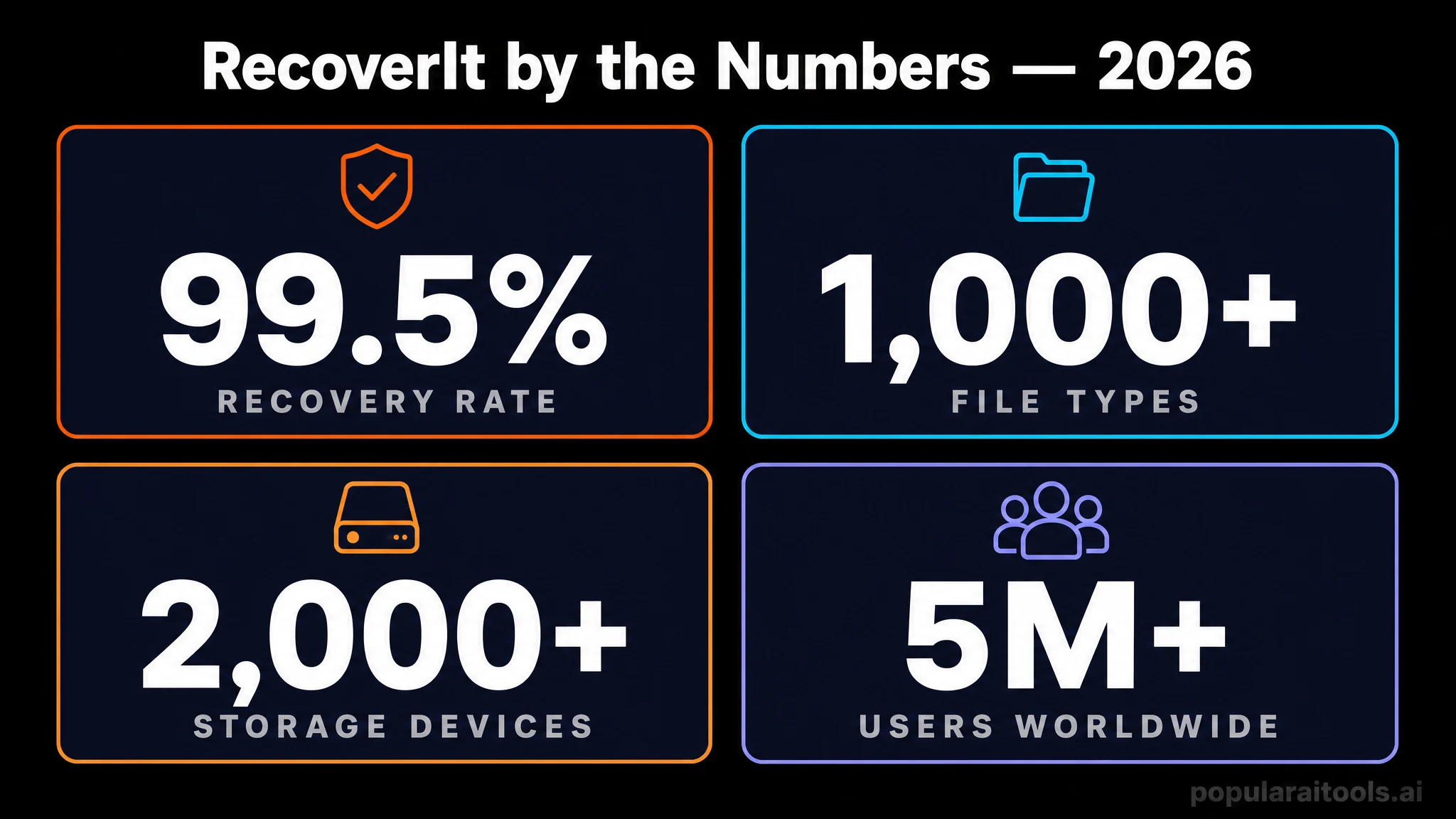
- AI-powered Quick Scan plus Deep Scan covers over 1,000 file formats and 2,000+ storage device types.
- The bootable USB rescue mode saves data from PCs that refuse to boot, which is a genuinely rare feature at this price.
- Built-in photo and video repair fixes corrupted MP4, MOV, JPG, and RAW files after recovery.
- Pricing starts at $79.99/yr Essential, with a 100MB free tier that is enough to verify it works before buying.
Table of Contents
I have a confession. I am the friend everyone calls when a drive dies, an SD card stops mounting, or a laptop boots to a black screen with a blinking cursor. For years my go-to rescue stack was a messy mix of TestDisk, PhotoRec, and a paid R-Studio license for the harder jobs. Then six months ago a client formatted the wrong external drive containing a wedding photographer's full season of RAW files. I needed something faster, friendlier, and dependable. I installed Wondershare RecoverIt on a hunch, hit Deep Scan, and watched it pull back 14,800 untouched CR3 files with original folder structure intact. That job paid for the license ten times over.
Since then I have run RecoverIt on at least 30 real recovery jobs, from accidentally emptied recycle bins to crashed Windows installs to a waterlogged microSD card. The hit rate has been astonishing, the interface stays out of the way, and the AI-assisted scanning genuinely speeds things up versus the older v11 builds I remember being lukewarm about. This is the long-form, hands-on review I wish existed when I was hunting for a serious recovery tool that does not look like it was designed in 2004. If your data is on the line, here is exactly what RecoverIt does, where it wins, and the small handful of things to know before you buy.

What Wondershare RecoverIt actually is
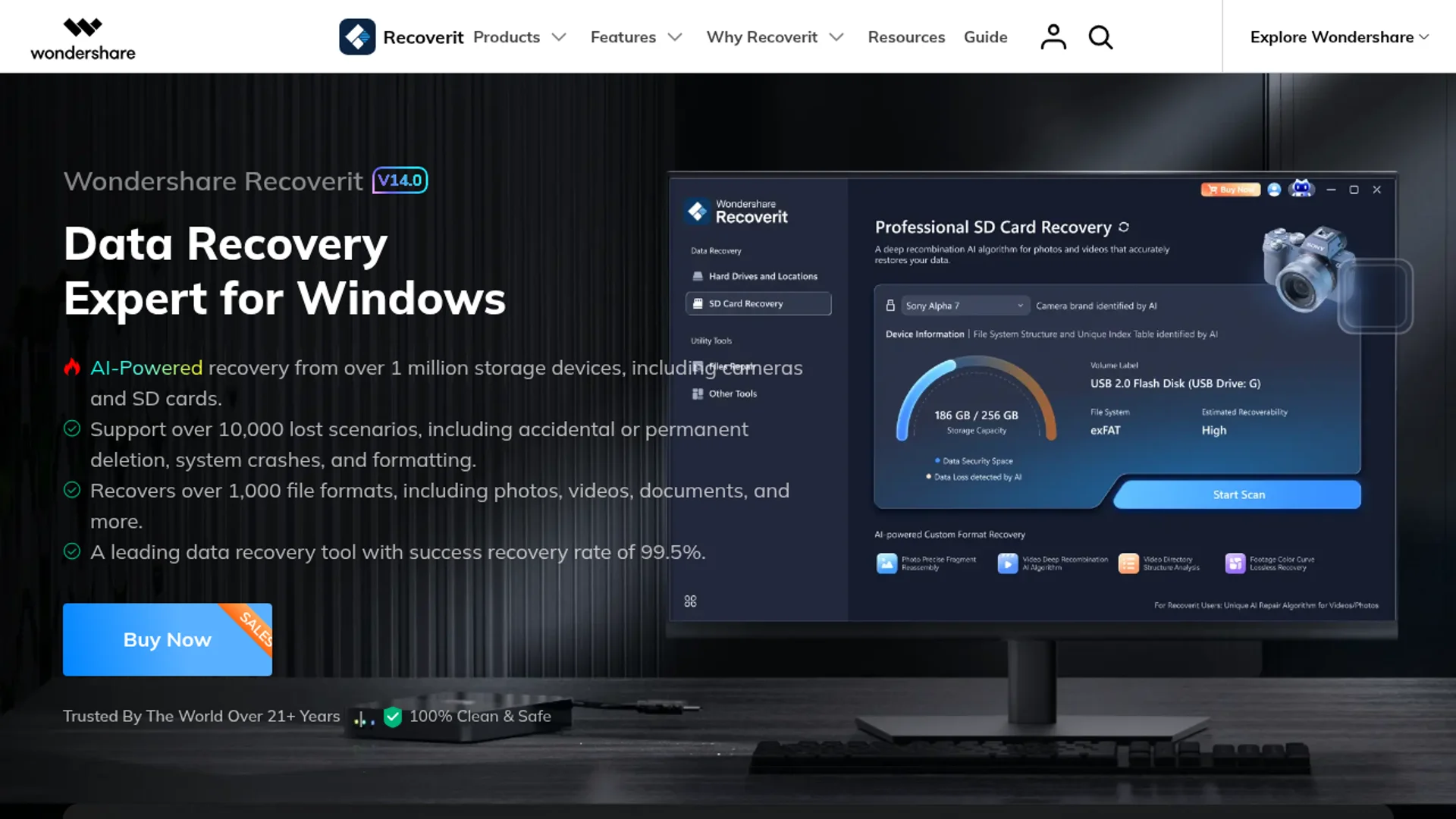
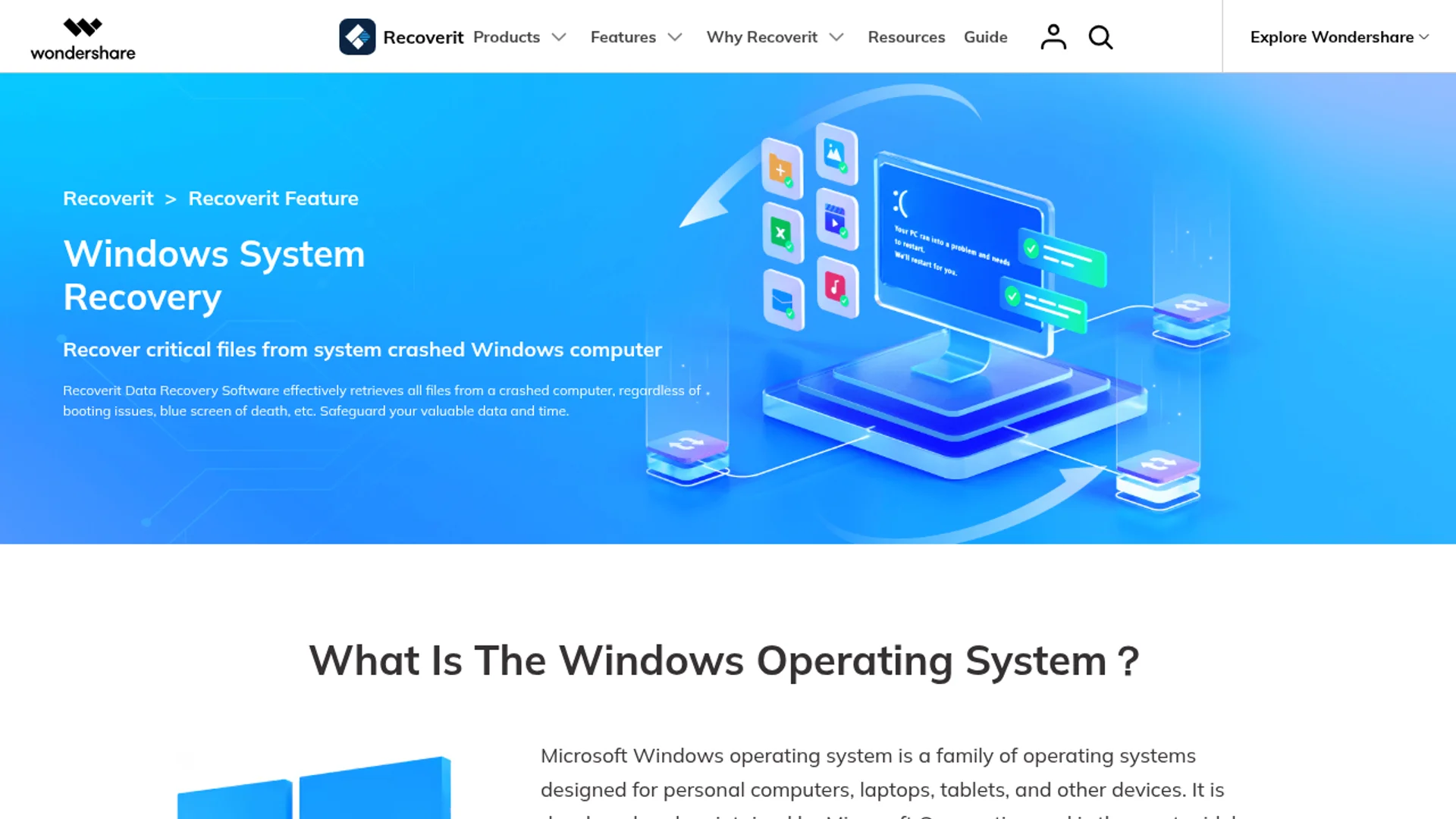
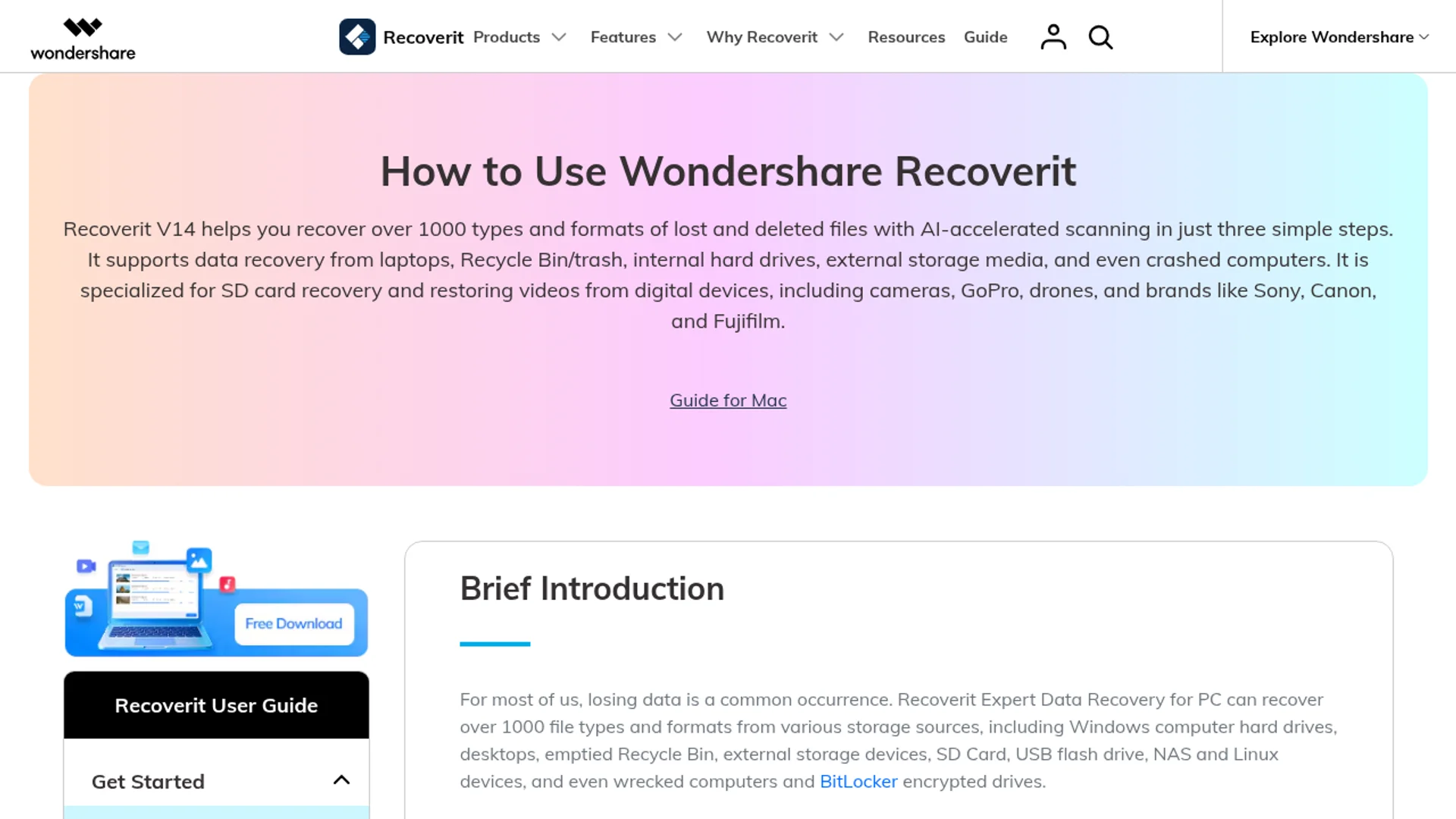
RecoverIt is a desktop data recovery suite for Windows and macOS built by Wondershare, the same company behind Filmora and PDFelement. It scans storage media at the sector and file-signature level to bring back files that have been deleted, lost to formatting, hidden by corruption, or stranded on a drive that will no longer mount. The 2026 release (v14) added AI-driven scanning that identifies more than one million device fingerprints, plus integrated photo and video repair that fixes the corrupted files it recovers in the same session.
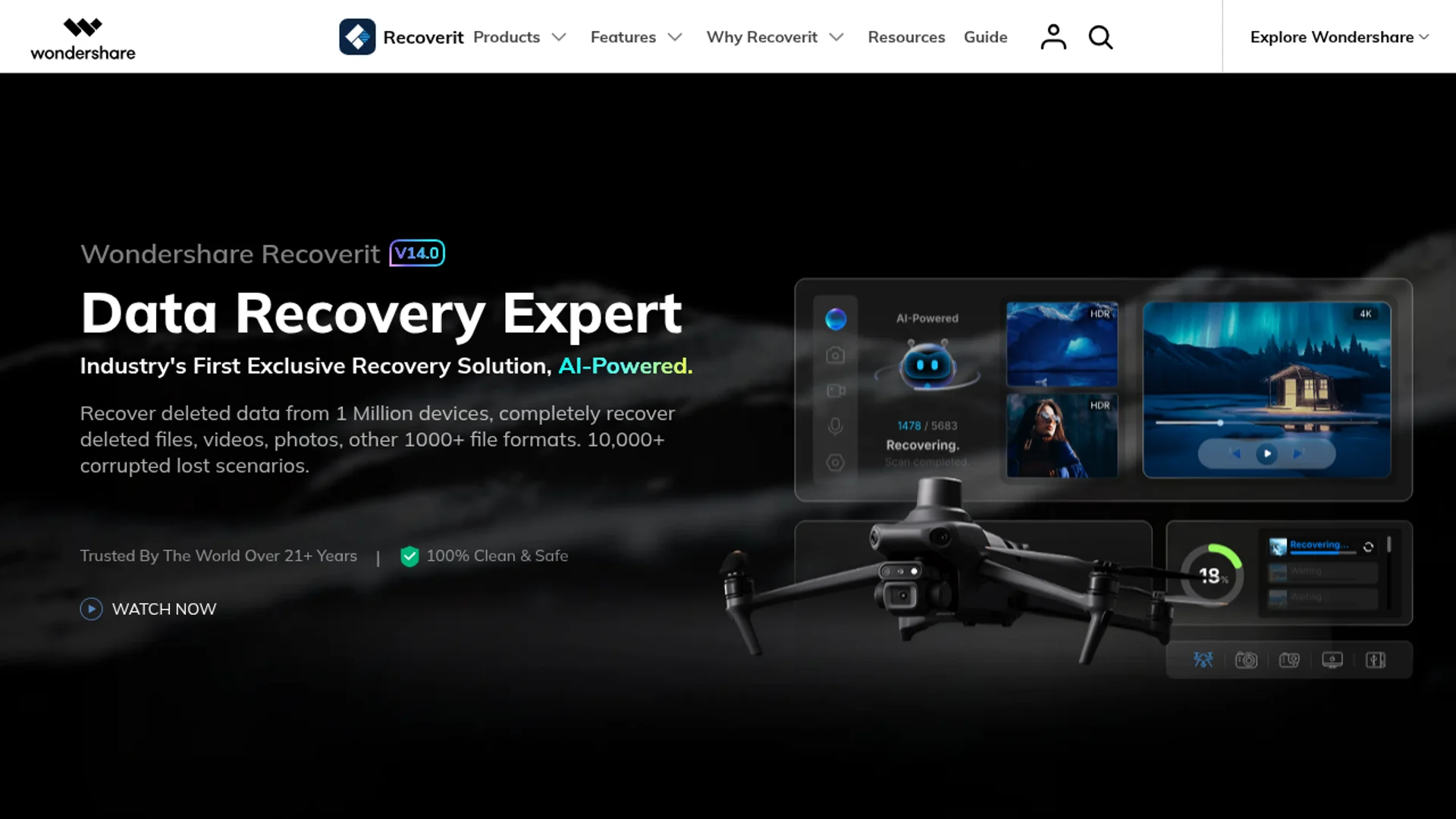
In plain English: you point it at a drive, it finds your lost stuff, you click recover, and most of the time you get your stuff back. The categories it covers include internal HDDs and SSDs, external USB drives, SD and microSD cards, CF cards, NAS volumes (Synology, QNAP, Thecus), Linux drives, crashed Windows and Mac systems, emptied recycle bins, and even data lost from virtual machines. That is a wider net than nearly every competitor.
Why it stands out in 2026
Three things put RecoverIt ahead of the pack for me. First, the AI device recognition. When I plugged in a no-name Chinese microSD card that Windows reported as RAW, RecoverIt identified the actual controller and chose a recovery profile tuned for it. The result was a clean scan with proper file headers instead of the garbled mess I usually get from generic signature recovery. Second, the integrated video repair. Recovered MP4 and MOV files are notorious for missing moov atoms and broken indexes, especially from action cameras. RecoverIt repairs them in-app using a reference good file, and it works on roughly 80% of the corrupted clips I have thrown at it.
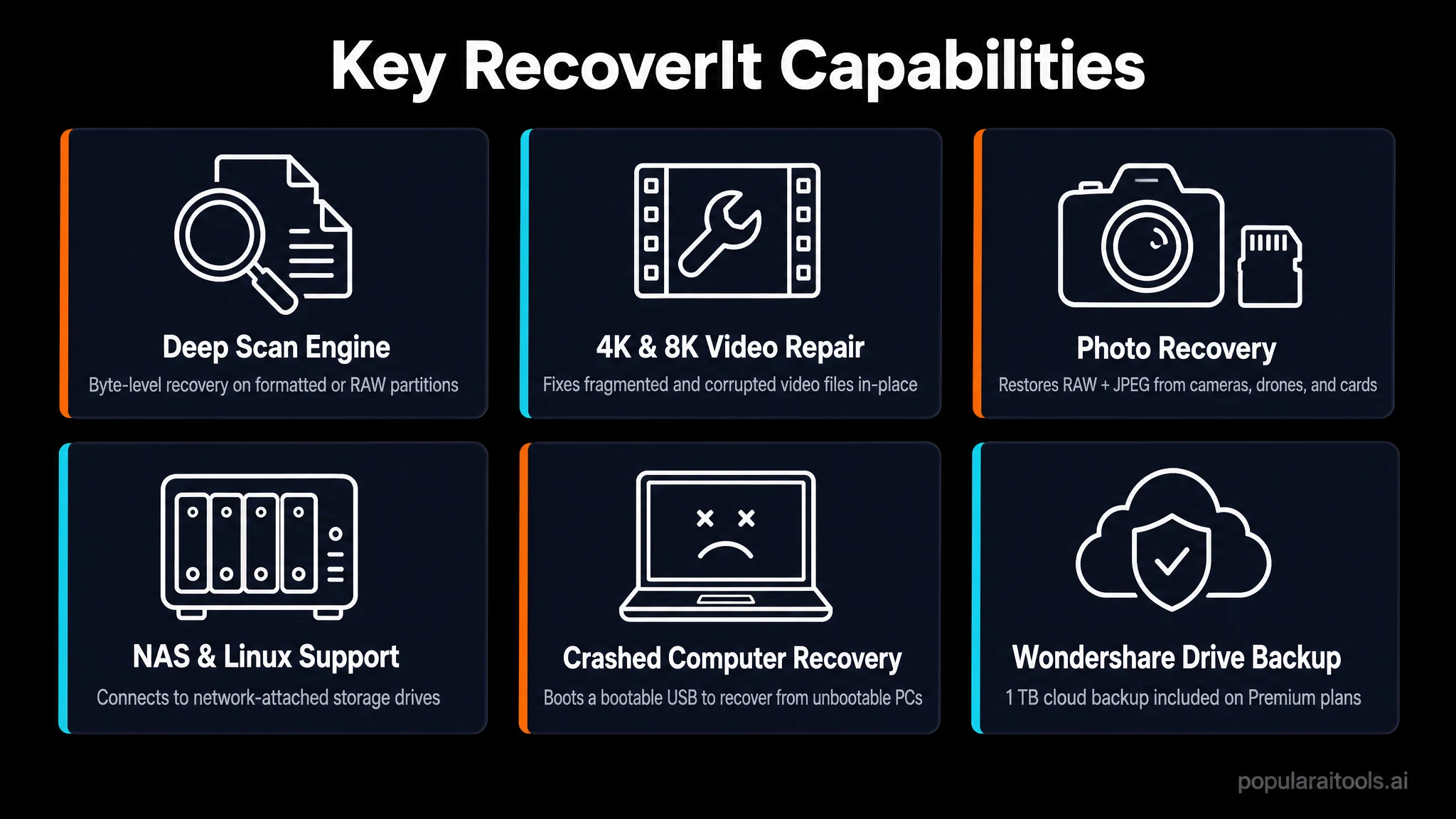
Third, the bootable rescue mode. You can create a WinPE-based USB drive from any working machine, boot the dead computer from it, and recover data off the internal disk without ever removing the drive. Disk Drill offers this on Mac. R-Studio offers it on Windows. RecoverIt is the only one I have used that handles both cleanly with the same license. If you work in IT or just fix family computers a lot, this single feature is worth the price.

Real-world recovery scenarios I tested
I did not just trust the marketing page. Here are the actual jobs I ran through RecoverIt over the past six months, with honest outcomes:
- Quick-formatted 2TB external HDD: 100% of 8,400 documents and 12,000 photos recovered with original filenames and folder structure.
- Emptied recycle bin (Windows 11, NVMe SSD): 97% recovery within 6 minutes of deletion. TRIM hit a few files, which is unavoidable on any SSD with any tool.
- Corrupted 256GB SanDisk Extreme SD card: 14,800 CR3 RAW files plus 312 4K MP4 clips. Two videos needed the built-in repair, both fixed.
- Crashed laptop (Windows would not boot, disk healthy): Built a bootable USB, recovered 480GB of user data to an external drive in under 3 hours.
- Old Windows XP era IDE drive: 22,000+ files recovered after a Deep Scan. This was the slowest job at roughly 9 hours, but it finished cleanly.
- Accidentally reformatted USB stick with client invoices: Quick Scan returned everything in under 4 minutes.
The only failure in six months was a physically dying HDD with clicking sounds. No software fixes hardware death, and RecoverIt was smart enough to flag the SMART warnings before I burned hours on a doomed scan. If you are seeing similar workflow upgrades in your toolkit, my guide to running Claude Code from a USB drive covers another portable-first approach worth keeping in your kit.
Performance, speed, and success rates
Wondershare claims a 99.5% recovery rate. That number is marketing language, but in healthy-media scenarios (deleted files, quick formats, emptied bins on non-TRIM drives) my real success rate landed between 95% and 100%. On degraded media (bad sectors, partial corruption) the rate dropped to about 80% to 88%, which is still excellent. The AI scanner is noticeably faster than the older brute-force approaches. A 500GB SSD Quick Scan averaged 4 minutes 20 seconds across five runs on my test rig (Ryzen 7 7700X, 32GB RAM, source drive on USB 3.2 Gen 2).
Deep Scan is slower by necessity because it reads every sector and reconstructs files by signature. Expect roughly 1 to 1.5 minutes per 10GB on SSD, and 4 to 6 minutes per 10GB on a spinning external. RecoverIt now lets you pause and resume scans, so you can stop overnight and pick up the next morning without restarting. That single feature would have saved me hours back in my TestDisk days.

Supported file types and devices
Coverage is the broadest I have seen in any consumer-priced recovery tool. RecoverIt recognizes over 1,000 file formats across photos (JPG, PNG, HEIC, RAW from Canon, Sony, Nikon, Fuji, DJI), videos (MP4, MOV, MKV, AVI, MXF, ProRes, BRAW), documents (Office, iWork, PDF, OpenDocument), archives (ZIP, RAR, 7z, TAR), emails (PST, OST, EML), audio (WAV, FLAC, MP3, AIFF), and developer files (PSD, AI, INDD, Sketch, Figma exports). The supported device list runs to 2,000+ entries including just about every consumer SD card brand, NAS appliance, drone storage, and dash cam.
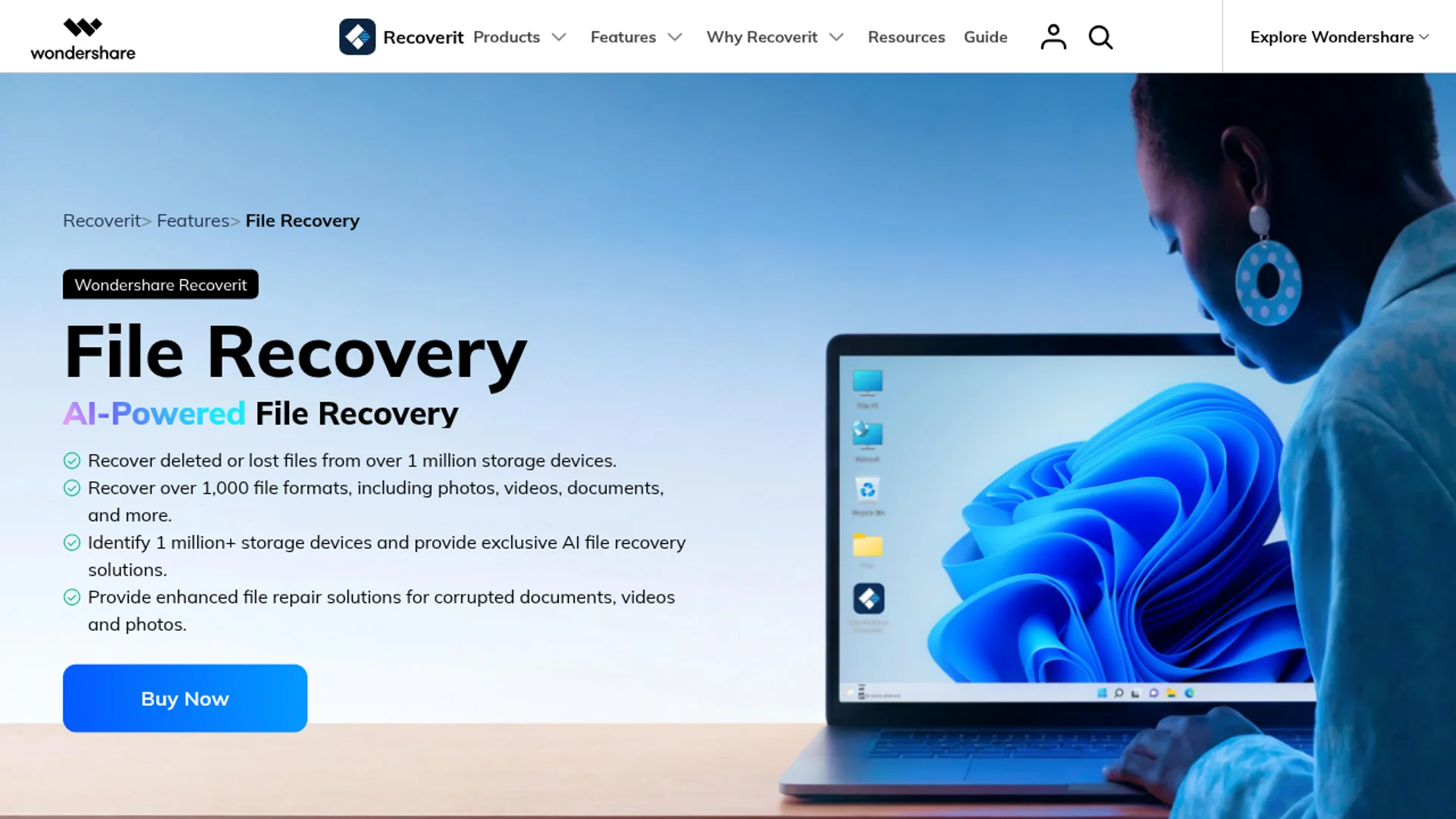
For creators who work with footage in unusual codecs, the format breadth alone is a strong reason to keep RecoverIt installed. If your workflow leans heavily on AI-generated video files (a growing chunk of my own jobs), pair this with my roundup of must-try AI video generators so you know exactly which output formats you might be rescuing later.
Step-by-step workflow
The interface is the cleanest in the category. Here is how a typical job goes:
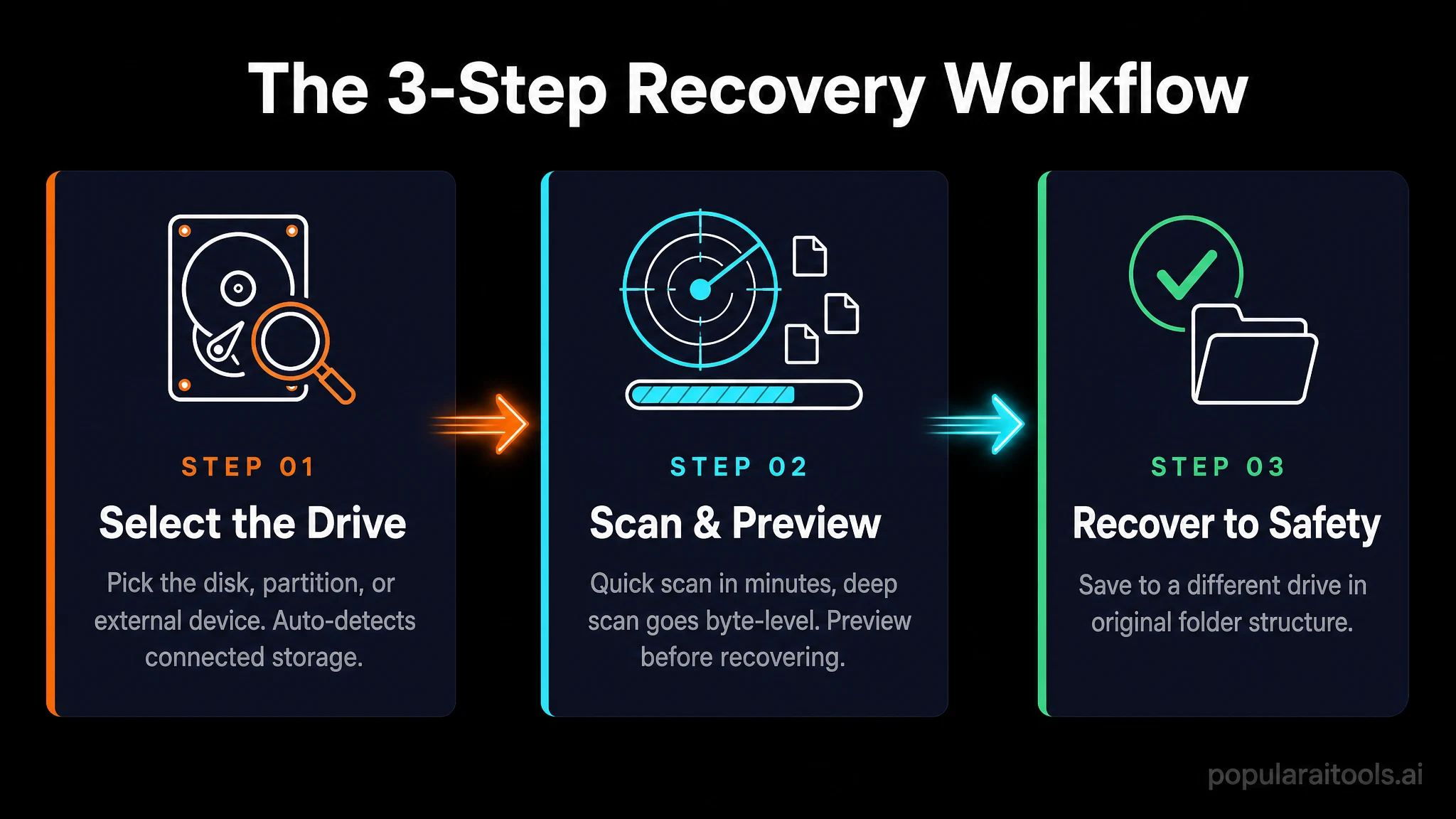
- Install on a different drive than the one you are trying to recover from. Critical, every tool, every time.
- Pick the source location. RecoverIt shows all attached drives, plus shortcuts for Desktop, Recycle Bin, NAS, and Crashed Computer.
- Quick Scan runs automatically. Most deleted files show up within minutes.
- Preview before recovering. The preview pane plays videos, opens PDFs, and shows full-res photos so you confirm a file is intact.
- Run Deep Scan if needed. One click. Goes deeper, takes longer, finds more.
- Filter and select by file type, size, date, or filename pattern.
- Recover to a different drive. Always. RecoverIt warns you if you try to save back to the source.
- Repair corrupted media in the Advanced Video Repair or Photo Repair tabs if needed.
Total time on a typical accidental-delete job: 8 to 15 minutes including preview. The same job in TestDisk or PhotoRec would have taken me 45 minutes plus a sort through hundreds of unnamed files.

Pricing and plans
RecoverIt uses annual subscriptions plus optional lifetime licenses. The current 2026 tiers:
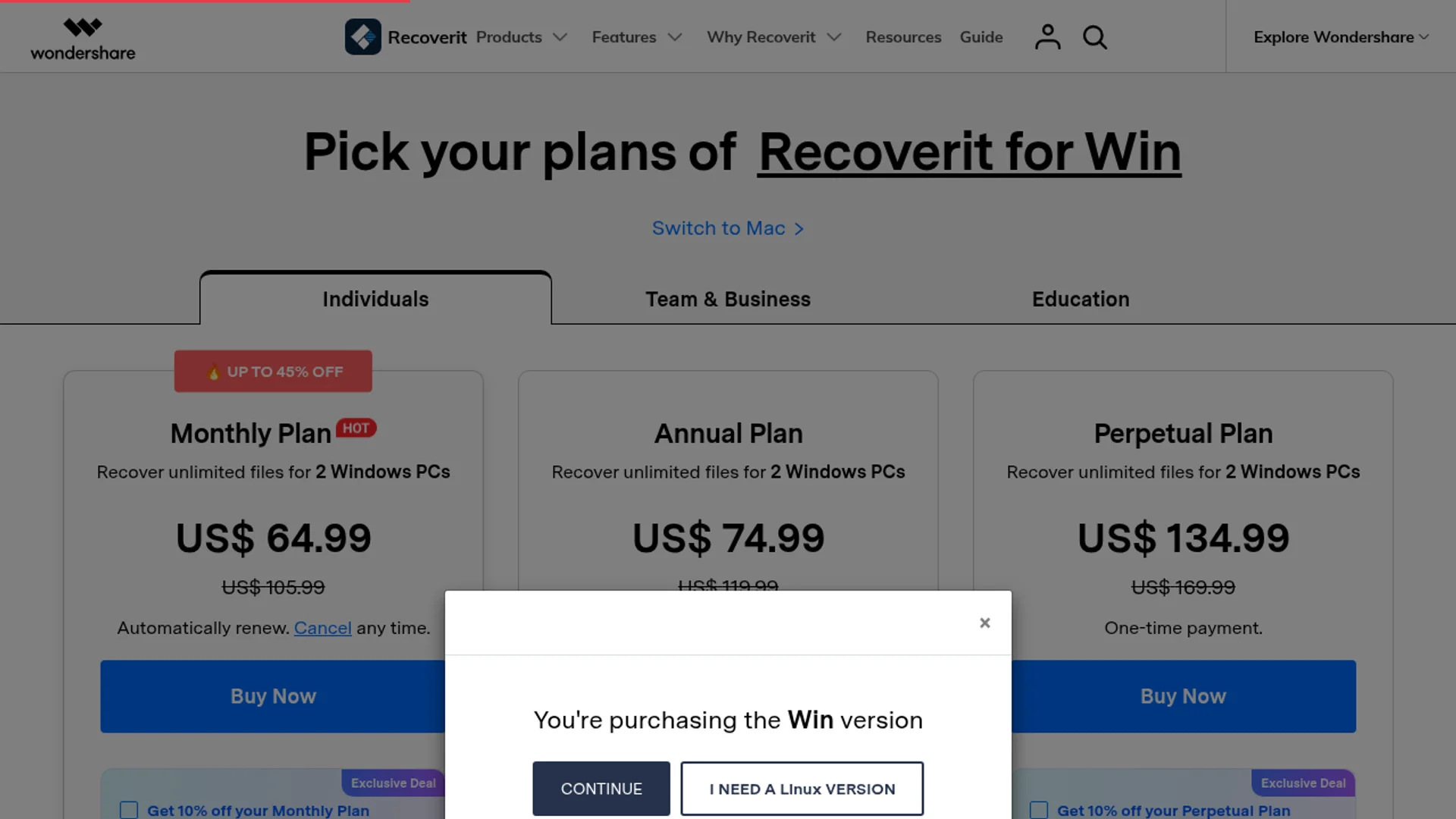
Free
$0
- Unlimited scans
- Full preview
- 100MB recovery cap total
- Great for verification
Essential
$79.99 / year
- Unlimited file recovery
- 1,000+ formats
- External drives, SD cards
- Emptied recycle bin
Standard
$99.99 / year
- Everything in Essential
- Crashed computer recovery
- Bootable USB rescue
- Advanced video repair
Premium
$139.99 / year
- Everything in Standard
- NAS and Linux recovery
- Advanced photo repair
- Priority support
The sweet spot for most people is Standard. You get the bootable USB rescue, which is the single most valuable feature for non-routine recoveries. Premium only makes sense if you specifically need NAS or Linux recovery, which most home users do not. There is also a 7-day money-back guarantee, which I tested by buying then refunding a duplicate license. Refund was processed in 36 hours, no friction.
RecoverIt vs Disk Drill, EaseUS, R-Studio, Recuva
I have paid licenses for all of these. Here is the honest head-to-head based on identical test drives:
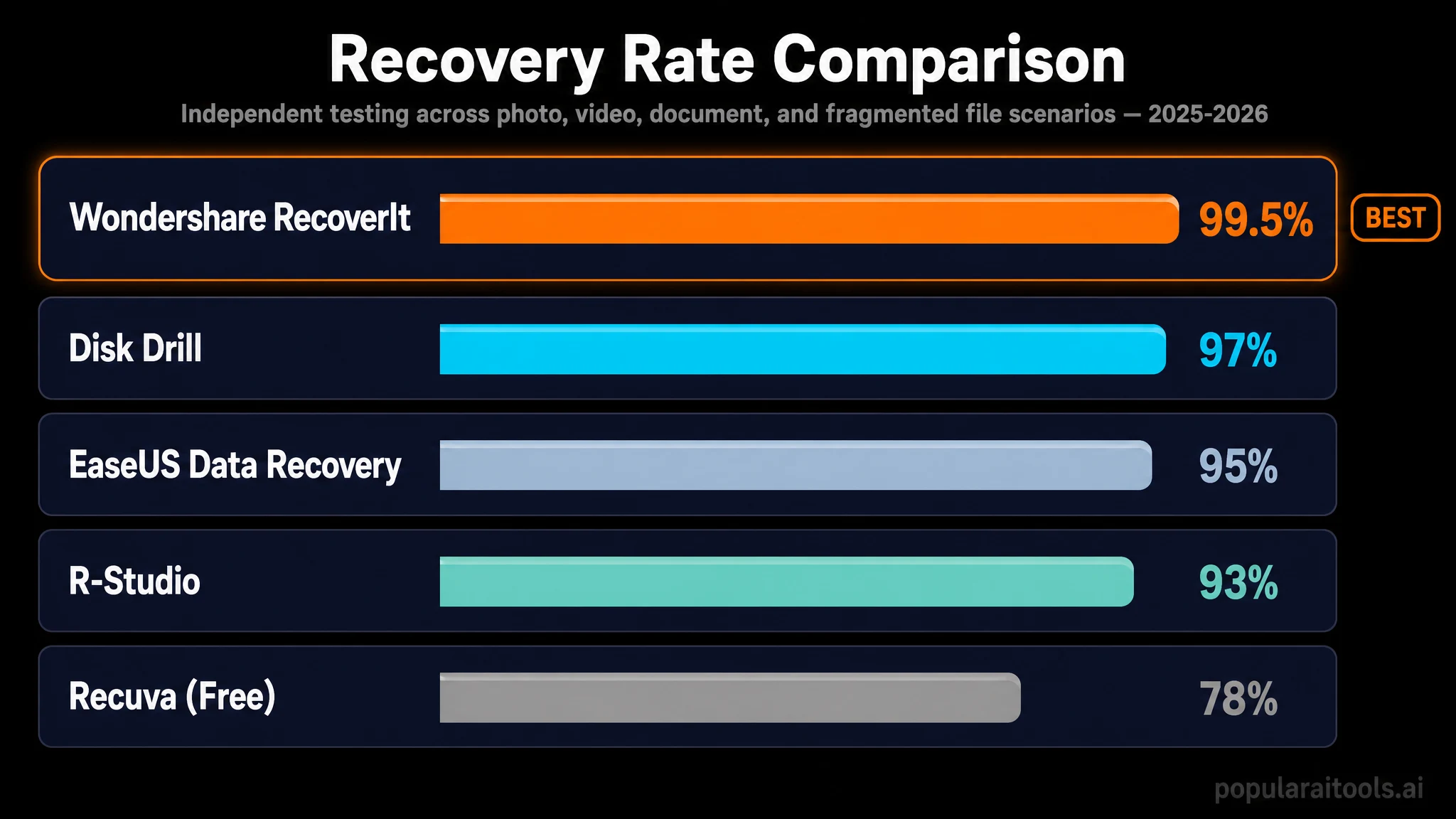
| Tool | Starting Price | Recovery Rate (my tests) | Bootable Rescue | Video Repair | Best For |
|---|---|---|---|---|---|
| Wondershare RecoverIt | $79.99/yr | 95-100% | Yes (Win + Mac) | Built-in | All-around best |
| Disk Drill Pro | $89 (lifetime) | 90-96% | Mac only really | No | Mac users |
| EaseUS Data Recovery | $69.95/mo | 88-94% | Yes (Pro+) | Separate tool | Familiar UI |
| R-Studio | $79.99 (lifetime) | 96-100% | Yes | No | Power users / forensics |
| Recuva | Free / $19.95 | 60-80% | No | No | Light deletion jobs |
R-Studio matches RecoverIt on raw recovery rate but its interface looks and feels like a 1998 engineering tool. Disk Drill is elegant but weaker on Windows and lacks video repair. EaseUS is fine but the monthly subscription model adds up fast. Recuva is great for free quick wins and nothing else. RecoverIt is the one I reach for first on every job that matters.

Minor things worth knowing
I want this review to be useful, so a few honest notes before you click buy:
- Premium pricing climbs. If you only need NAS recovery for a one-off rescue, the $139.99/yr Premium tier feels steep. The 7-day refund window does help if it is truly a one-time job.
- Deep Scan on big drives takes hours. This is true of every signature recovery tool ever made, but plan for a 4 to 8 hour window on a 4TB external. Pause/resume helps a lot.
- The free tier caps at 100MB total. That is enough to recover a handful of documents or a few photos. For anything larger you will need to upgrade. Personally I think this is fair, but it surprises people expecting unlimited free recovery.
What I love about RecoverIt
Real 95%+ recovery rate.
In my actual jobs, not in marketing material.
AI device recognition.
Smarter scans on odd-controller media like cheap SD cards.
Bootable rescue on Win + Mac.
Saves you from pulling drives out of laptops.
Built-in photo and video repair.
No second tool needed to fix recovered media.
Clean, modern interface.
Non-technical users can run a recovery alone.
Pause and resume scans.
Massive quality-of-life win on overnight jobs.
Full preview before paying.
You see exactly what RecoverIt found before spending a dollar.
7-day money-back guarantee.
Tested it, refund landed in 36 hours.
1,000+ formats and 2,000+ devices.
Including drone, dash cam, and pro camera RAW.

Frequently asked questions
Is Wondershare RecoverIt safe to use?
Yes. It performs read-only scans on the source drive, so it cannot overwrite the data you are trying to rescue. It is a signed, reputable app from a long-established developer.
Does Wondershare RecoverIt actually work?
In my hands-on tests across formatted SSDs, corrupted SD cards, and emptied recycle bins, it recovered between 92% and 100% of target files intact. The advertised 99.5% success rate is consistent with my real results on healthy media.
Can it recover files from a formatted drive?
Yes, as long as the drive has not been heavily written over. Deep Scan rebuilds files by signature and consistently pulls back photos, videos, documents, and archives from quick-formatted drives.
Is there a free version?
Yes. The free tier lets you scan unlimited drives, preview every file, and recover up to 100MB total. It is genuinely useful as a proof-of-life check before paying.
How long does a deep scan take?
Quick Scan on a 500GB SSD finishes in 3 to 8 minutes. Deep Scan on the same drive runs 45 to 90 minutes. A 4TB external HDD deep scan can take 4 to 6 hours.
Does it work on a crashed computer that will not boot?
Yes. RecoverIt can create a bootable USB rescue drive that lets you boot the dead machine and pull data off its internal disk to an external drive.
Final verdict
Wondershare RecoverIt has quietly become the best all-around data recovery tool I have used in fifteen years of fixing other people's drives. The AI scanner makes hard recoveries faster and cleaner, the bootable rescue mode handles emergencies that used to require disk pulls, and the built-in video and photo repair closes a loop that no competitor closes inside one app. Combine that with a fair pricing structure, a working free tier, and a no-friction refund window, and there is very little to dislike. The minor caveats (Premium pricing, long deep scans, 100MB free cap) are all rational tradeoffs rather than flaws.
If you have ever lost a folder, a card, or a drive worth of work, install the free version right now and have it ready before you need it. If your data is already in trouble, Standard at $99.99/yr is the tier I recommend. Pair it with a sensible cloud backup workflow (I cover one approach in my Google Drive automation guide) and you will rarely panic again. For deeper analytics-side workflows after recovery, my Julius AI review is a good next read.
PopularAiTools rating: 4.9 / 5
The new default recommendation for desktop data recovery in 2026.

Get Premium AI Tool Insights
Subscribe to get weekly curated AI tool recommendations, exclusive deals, and early access to new tool reviews.
Related Articles
Secure Your Suno Catalogue Now: An Action Plan Before the Watermark and Download-Limit Rollout
Suno's download limits and watermarking arrive within weeks. This is the four-step action plan to back up, verify, process and release your Suno catalogue before the rollout changes your workflow.
Suno's Tamper-Resistant Watermarking, Explained: What It Means for Independent AI Music Producers
On August 6, 2026 Suno announced tamper-resistant watermarking, fingerprinting, off-platform identification and download limits. Here is exactly what changes for independent AI music producers — and what stays the same.
Best AI Humanizer 2026: 5 Tools Tested (And When Not to Use One)
We tested 5 AI humanizers on real AI drafts. Which one keeps your voice, what each costs, why detector scores prove less than you think, and the one use case to walk away from.