
CapCut Review 2026: Features, Pricing, Pros & Cons
Updated March 2026 · 12 min read · By PopularAiTools.ai
TL;DR
CapCut is the most feature-rich free video editor available in 2026. With AI auto-captions, text-to-speech, background removal, and script-to-video generation all included in the free tier, it offers capabilities that competitors charge $20+/month for. The Pro plan at $7.99/month unlocks 4K export and advanced AI features. Best for social media creators and anyone making short-form video content. Rating: 4.5/5
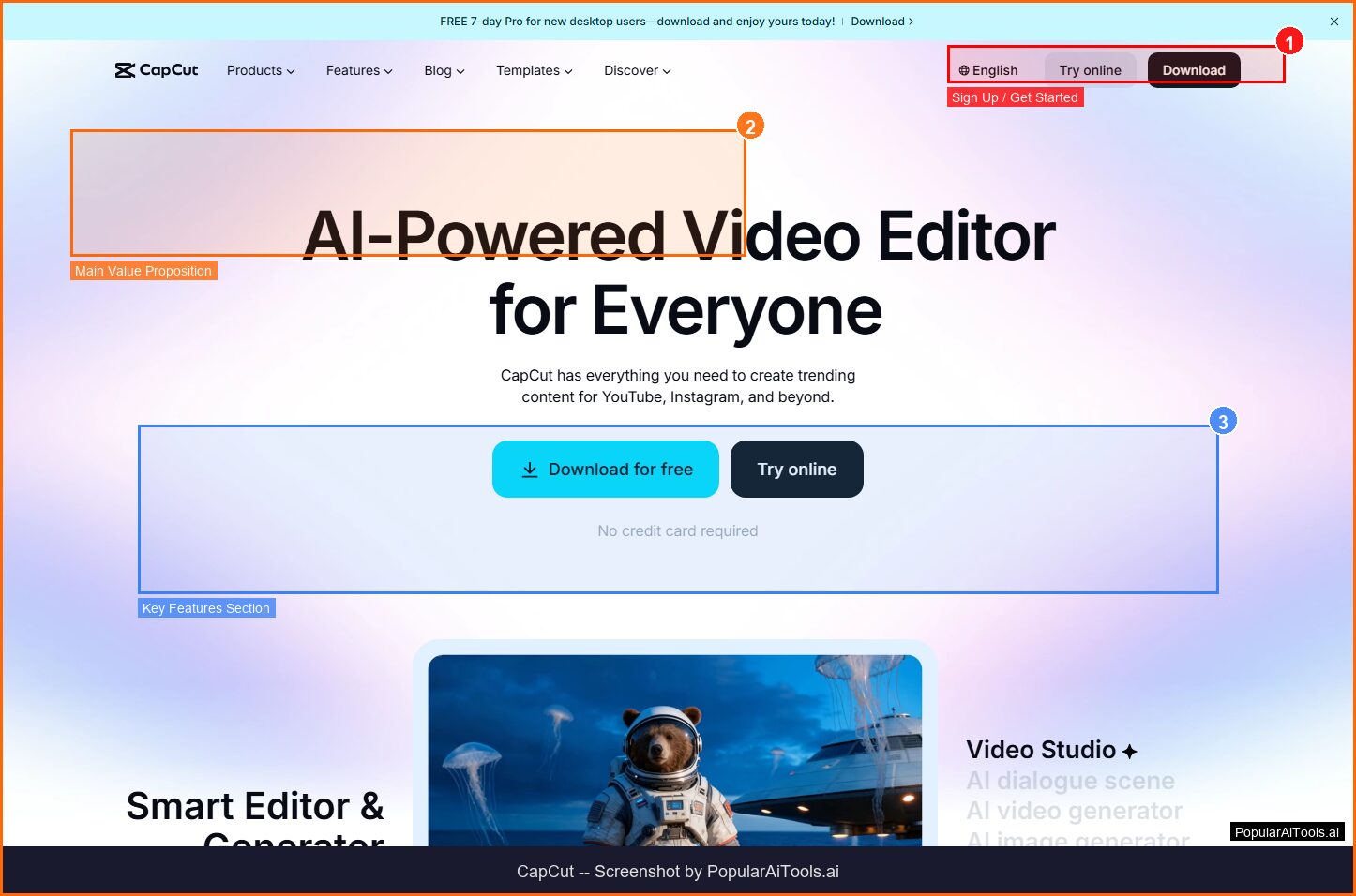
The CapCut homepage — key features and navigation highlighted
What is CapCut?
CapCut is an AI-powered video editing platform developed by ByteDance (the company behind TikTok) that has rapidly become the go-to editor for social media creators, content marketers, and casual video makers. Available as a desktop app, mobile app, and browser-based editor, CapCut combines professional-grade editing tools with AI automation that dramatically reduces the time needed to produce polished video content.
What makes CapCut remarkable in 2026 is the sheer amount of capability packed into its free tier. While competitors like Adobe Premiere Pro charge $22.99/month and DaVinci Resolve’s advanced features require a $295 license, CapCut offers AI auto-captions, text-to-speech voiceover, multi-track timeline editing, keyframe animation, chroma key (green screen), and basic stabilization — all completely free. The only real limitation on the free tier is a watermark on exports and a 1080p resolution cap.
The platform has evolved far beyond basic cutting and trimming. CapCut’s 2026 feature set includes generative AI video creation from text prompts, an AI Clipper that automatically transforms long-form videos into optimized short clips for social media, AI-powered background removal and replacement, and vocal isolation technology that separates speech from background noise. These aren’t experimental features tucked behind beta flags — they’re production-ready tools that millions of creators use daily.
CapCut’s deep integration with TikTok gives it a natural advantage for short-form video creators, but the editor is equally capable for YouTube content, Instagram Reels, marketing videos, and educational content. The learning curve is significantly gentler than professional editors like Premiere Pro or DaVinci Resolve, making it accessible to beginners while still offering enough depth for experienced editors.
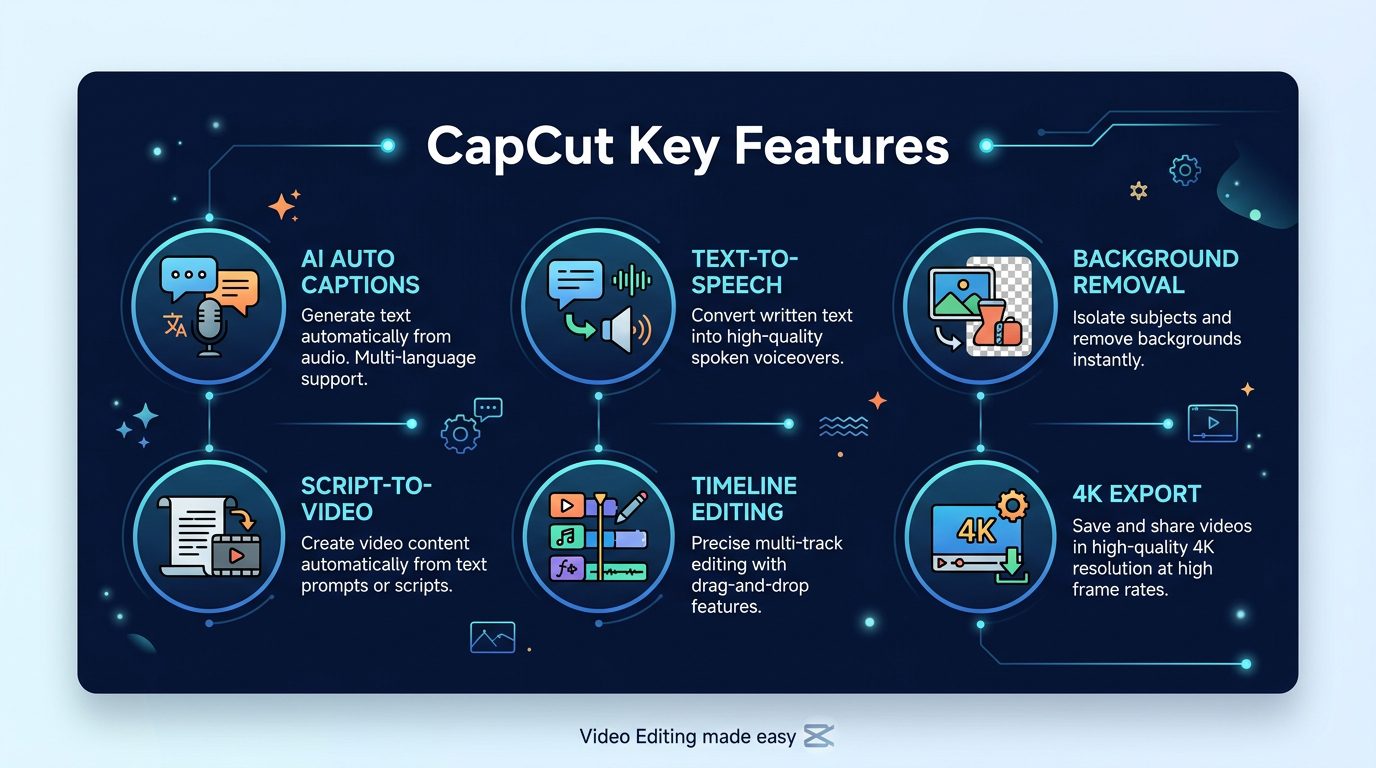
CapCut’s standout features at a glance
Key Features
1. AI Auto-Captions & Subtitles
CapCut’s auto-caption feature uses speech recognition AI to automatically transcribe spoken audio into synchronized subtitles. The accuracy is impressive — typically 90-95% for clear English speech — and supports multiple languages. Captions are fully editable with customizable fonts, colors, animations, and positioning. For social media content where 85% of videos are watched on mute, this feature alone justifies using CapCut. The free tier includes this feature with no limits on usage.
2. AI Text-to-Speech Voiceover
Generate natural-sounding voiceovers from text using CapCut’s AI voice engine. Choose from dozens of voice styles — professional narrators, casual conversational tones, character voices, and multilingual options. The quality has improved dramatically in 2026, with voices that sound remarkably human and support for emotional inflection. This eliminates the need for separate voiceover recording or expensive text-to-speech services.
3. Script-to-Video AI Generation
One of CapCut’s most powerful features lets you input a text script and generate a complete video with matching visuals, transitions, and background music. The AI selects relevant stock footage, applies appropriate editing styles, and produces a draft video that you can then customize. Available in the Pro plan, this feature can produce a polished 60-second video from a paragraph of text in under a minute.
4. AI Background Removal & Replacement
CapCut’s AI masking technology can isolate subjects from their backgrounds in video — not just photos. The edge detection is precise enough for complex scenarios like hair, semi-transparent objects, and moving subjects. You can replace backgrounds with solid colors, images, videos, or AI-generated scenes. The Pro plan includes advanced masking with real-time preview.
5. Multi-Track Timeline Editing
The editing interface features a full multi-track timeline supporting multiple video, audio, text, and effect layers. You can cut, split, trim, merge, and rearrange clips with precision. Keyframe animation allows smooth transitions, zoom effects, and custom motion paths. The timeline supports drag-and-drop operations and keyboard shortcuts that experienced editors expect.
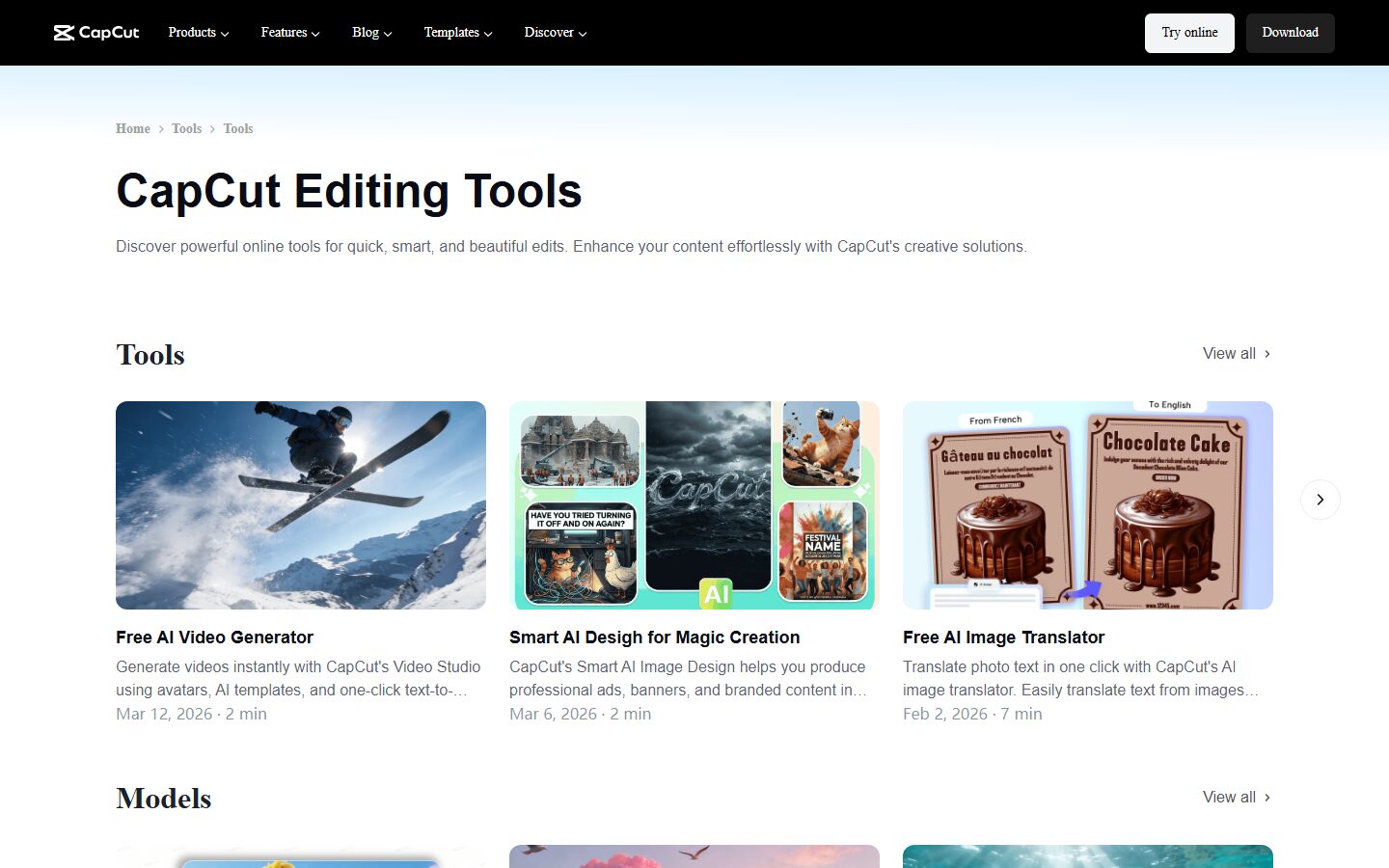
CapCut’s AI tools and editing capabilities
6. AI Clipper (Long-to-Short Conversion)
The AI Clipper analyzes long-form videos and automatically identifies the most engaging moments, then creates multiple short-form clips optimized for TikTok, Instagram Reels, and YouTube Shorts. It handles reframing (landscape to vertical), adds captions, and suggests music. For content repurposing — turning a 30-minute podcast or webinar into a week’s worth of social clips — this feature is a massive time-saver.
7. Pro-Grade Effects & Filters
CapCut includes hundreds of video effects, transitions, filters, and stickers. The effect quality is notably higher than most free editors, with options ranging from subtle color grading to dramatic glitch effects, light leaks, and cinematic overlays. New effects are added regularly, often tied to trending styles on TikTok and Instagram.
8. 4K Export & Cloud Storage (Pro)
The Pro plan unlocks 4K resolution exports, which is essential for YouTube and professional content. It also includes expanded cloud storage for projects and assets, priority rendering times, and access to the full library of premium effects, music, and stock footage. Watermarks are removed from all exports.
How to Use CapCut (Step-by-Step)
Step 1: Choose Your Platform
Download CapCut for desktop (Windows/Mac), mobile (iOS/Android), or use the browser-based editor at capcut.com. The desktop version offers the most complete feature set. Create a free account using email, Google, or TikTok login.
Step 2: Start a New Project
Click “New Project” and import your video clips, images, and audio files. You can also start with Script-to-Video (Pro) by pasting your script text. Choose your project aspect ratio — 16:9 for YouTube, 9:16 for TikTok/Reels, 1:1 for Instagram feed.
Step 3: Edit on the Timeline
Drag clips to the multi-track timeline. Use the split tool to cut segments, trim handles to adjust clip length, and drag to rearrange order. Add transitions between clips from the transitions panel. Apply keyframe animation for zoom, pan, and rotation effects.
Step 4: Add AI Enhancements
Enable auto-captions to generate subtitles. Add text-to-speech voiceover for narration. Use AI background removal to swap backgrounds. Apply the AI Clipper to generate short-form versions. Each AI feature is accessible from the toolbar with one-click activation.
Step 5: Export and Share
Choose your export quality (1080p free, 4K Pro), format, and frame rate. Click export and wait for rendering. CapCut offers direct sharing to TikTok, Instagram, YouTube, and other platforms. Desktop exports save as MP4 files that you can upload anywhere.
Pricing Plans
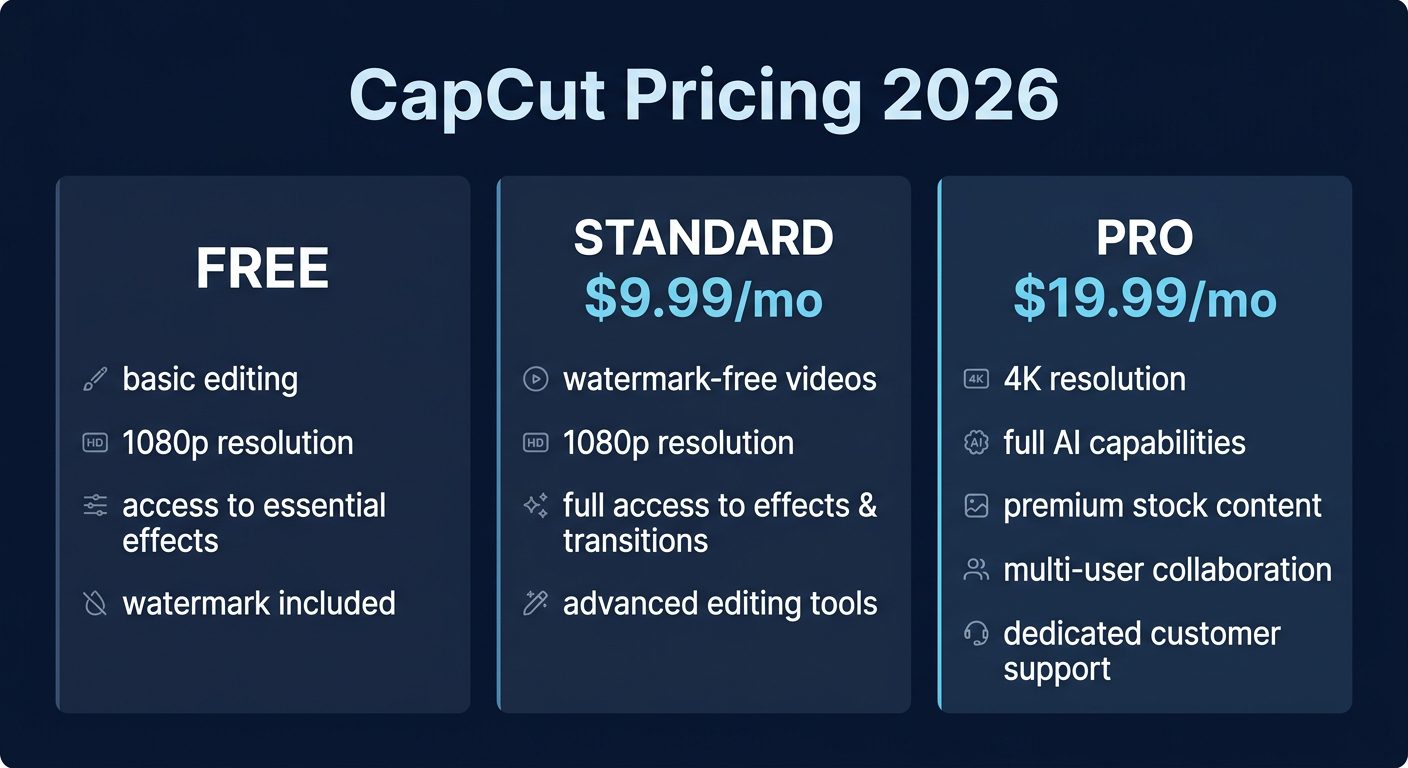
CapCut pricing plans for 2026

CapCut’s official pricing page (March 2026)
The free tier is genuinely generous — most casual creators will never need to upgrade. The Standard plan at $9.99/month is designed primarily for mobile users who want watermark-free exports but don’t need advanced AI features. The Pro plan at $7.99/month (or $74.99/year) is the best value, unlocking 4K exports, all AI capabilities, and the full effects library.
Note that CapCut’s pricing can vary by region and platform. The annual Pro subscription often has promotional pricing as low as $74.99/year (about $6.25/month), making it one of the most affordable professional video editing solutions available.
Pros and Cons
Pros
- ✓ Most generous free tier of any video editor
- ✓ AI auto-captions are free and highly accurate
- ✓ Available on desktop, mobile, and web
- ✓ Beginner-friendly with low learning curve
- ✓ Script-to-video AI creates content from text
- ✓ Pro plan is very affordable ($7.99/mo)
- ✓ Massive library of effects, music, and templates
Cons
- ✗ Watermark on free exports
- ✗ Owned by ByteDance — data privacy concerns
- ✗ Not suitable for advanced color grading or VFX
- ✗ Free tier limited to 1080p export
- ✗ Desktop version can be resource-heavy
- ✗ TikTok-centric ecosystem may not suit all workflows
Best CapCut Alternatives
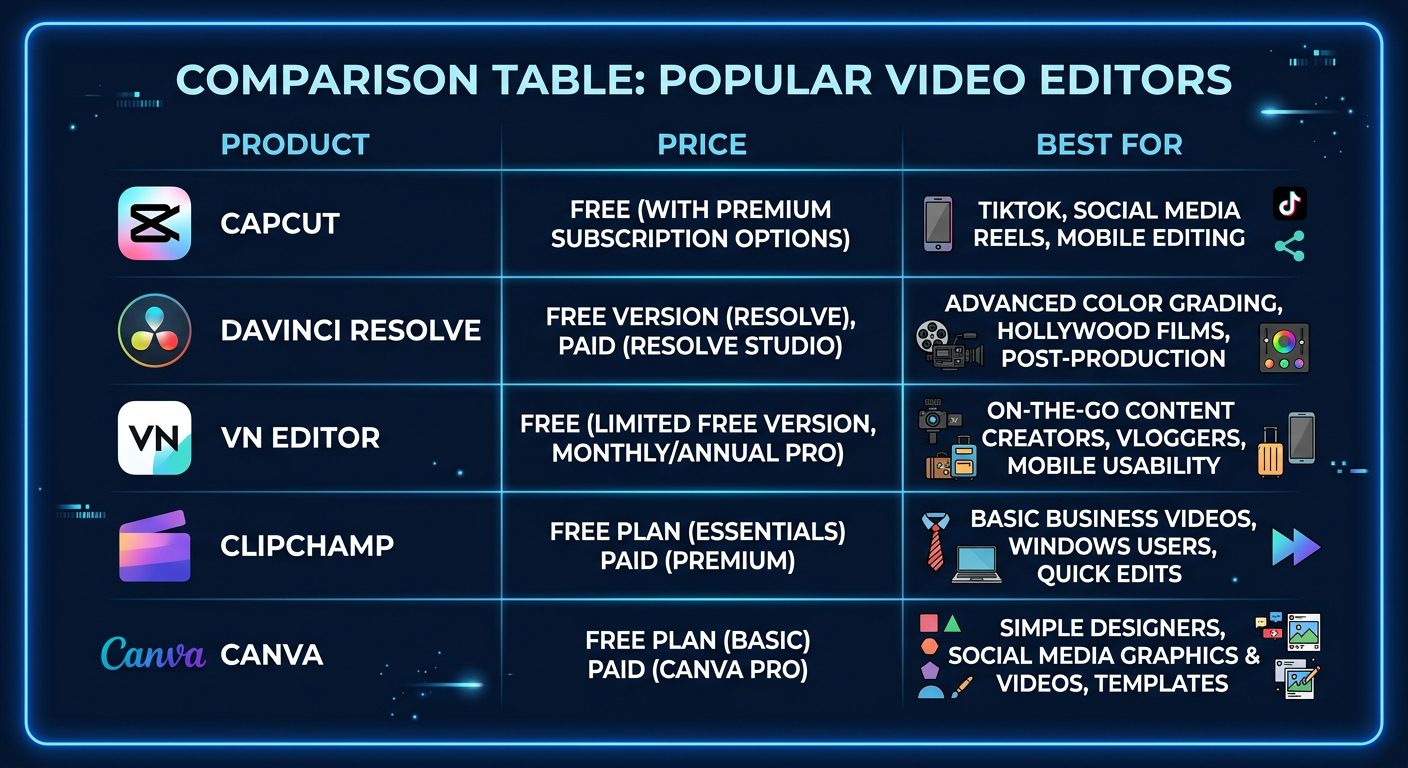
How CapCut compares to top video editing alternatives
DaVinci Resolve is the professional alternative for serious editors. Its free version includes capabilities that rival $300+ software — industry-leading color grading, Fusion visual effects, and Fairlight audio editing. The trade-off is a steep learning curve and desktop-only access.
VN Video Editor is the closest direct replacement for CapCut — completely free, no watermark, with timeline editing, text, music, speed controls, and keyframes. If CapCut’s ByteDance ownership concerns you, VN is the most seamless alternative.
Clipchamp (now owned by Microsoft and included with Windows 11) is the easiest browser-based editor. It’s ideal for beginners and Microsoft ecosystem users, though its AI features and effects library lag behind CapCut.
Canva Video excels at template-based video creation. If you need quick branded social media clips with consistent styling, Canva’s template system is faster than building from scratch in CapCut. However, it lacks the timeline editing depth for complex projects.
Final Verdict: Is CapCut Worth It?
CapCut has earned its position as the most popular video editor for social media creators, and for good reason. The free tier alone outperforms most paid competitors in terms of AI features and ease of use. For anyone creating content for TikTok, Instagram Reels, YouTube Shorts, or social media marketing, CapCut is the obvious first choice.
The Pro plan at $7.99/month is an easy recommendation for creators who need 4K output or the advanced AI features like script-to-video and AI Clipper. At that price point, no competitor offers comparable value.
The only real concern is the ByteDance ownership and associated data privacy questions. If this is a dealbreaker for your organization, DaVinci Resolve or VN Video Editor are solid alternatives. But purely on features and value, CapCut is the best video editor available for the price in 2026.
Our Rating: 4.5 / 5
Build an AI Tool? Get It in Front of the Right Audience
PopularAiTools.ai reaches thousands of qualified AI buyers monthly.
Frequently Asked Questions
Is CapCut really free?
Yes, CapCut’s free tier includes comprehensive editing tools, AI auto-captions, text-to-speech, multi-track timeline, keyframe animation, and hundreds of effects. The main limitations are a watermark on exports and 1080p maximum resolution. No credit card required.
Is CapCut safe to use?
CapCut is developed by ByteDance, the same company behind TikTok. While the app itself is safe to download from official sources, some users and organizations have concerns about data collection practices associated with ByteDance products. CapCut’s privacy policy outlines the data it collects.
Can I use CapCut for YouTube videos?
Absolutely. CapCut supports 16:9 landscape format and exports in 1080p (free) or 4K (Pro). Many YouTubers use CapCut for editing, especially for short-form content. For complex long-form YouTube content, professional editors like DaVinci Resolve may be more suitable.
How do I remove the CapCut watermark?
Upgrade to the Standard plan ($9.99/month) or Pro plan ($7.99/month) to remove watermarks from exports. Both paid plans include watermark-free exports for all video content.
Does CapCut work on PC?
Yes, CapCut has a desktop application for Windows and macOS, plus a browser-based editor at capcut.com. The desktop version offers the most complete feature set, while the browser version is convenient for quick edits without installing software.
What is CapCut Pro vs Standard?
Standard ($9.99/mo) is mobile-focused with watermark-free exports at 1080p. Pro ($7.99/mo) includes everything in Standard plus 4K export, advanced AI features (script-to-video, AI masking, camera tracking, vocal isolation), and the full premium effects library. Pro offers significantly more value at a lower price.
{
“@context”: “https://schema.org”,
“@type”: “FAQPage”,
“mainEntity”: [
{“@type”: “Question”, “name”: “Is CapCut really free?”, “acceptedAnswer”: {“@type”: “Answer”, “text”: “Yes, CapCut’s free tier includes comprehensive editing tools with AI auto-captions, text-to-speech, and multi-track timeline. Limitations are watermark and 1080p max.”}},
{“@type”: “Question”, “name”: “Is CapCut safe to use?”, “acceptedAnswer”: {“@type”: “Answer”, “text”: “CapCut is developed by ByteDance. The app is safe from official sources but some have concerns about ByteDance data collection practices.”}},
{“@type”: “Question”, “name”: “Can I use CapCut for YouTube videos?”, “acceptedAnswer”: {“@type”: “Answer”, “text”: “Yes, CapCut supports 16:9 format and exports in 1080p (free) or 4K (Pro), suitable for YouTube content.”}},
{“@type”: “Question”, “name”: “How do I remove the CapCut watermark?”, “acceptedAnswer”: {“@type”: “Answer”, “text”: “Upgrade to Standard ($9.99/mo) or Pro ($7.99/mo) for watermark-free exports.”}},
{“@type”: “Question”, “name”: “Does CapCut work on PC?”, “acceptedAnswer”: {“@type”: “Answer”, “text”: “Yes, CapCut has desktop apps for Windows and macOS plus a browser-based editor.”}},
{“@type”: “Question”, “name”: “What is CapCut Pro vs Standard?”, “acceptedAnswer”: {“@type”: “Answer”, “text”: “Standard is mobile-focused with watermark-free 1080p. Pro adds 4K, advanced AI features, and premium effects at a lower price.”}}
]
}
{
“@context”: “https://schema.org”,
“@type”: “Review”,
“itemReviewed”: {
“@type”: “SoftwareApplication”,
“name”: “CapCut”,
“applicationCategory”: “MultimediaApplication”,
“operatingSystem”: “Web, Windows, macOS, iOS, Android”
},
“reviewRating”: {
“@type”: “Rating”,
“ratingValue”: “4.5”,
“bestRating”: “5”
},
“author”: {
“@type”: “Organization”,
“name”: “PopularAiTools.ai”
},
“datePublished”: “2026-03-20”
}