
Claude Code /loop Command: Turn Your Terminal Into an Automated Monitoring System
Most of us have been there — babysitting a deployment, refreshing a PR page every few minutes, or manually re-running a test suite while we wait for a flaky integration to stabilize. It is tedious, error-prone, and a massive waste of developer time. With the release of Claude Code v2.1.71, Anthropic shipped a feature that eliminates this entire category of busywork: the /loop command.
In this guide, we break down everything you need to know about /loop — what it does, how to use it, real-world workflows that save hours every week, and where it fits compared to traditional cron jobs and CI pipelines.
Table of Contents
- What Is the /loop Command?
- Syntax and Interval Options
- Getting Started: Your First Loop
- Practical Use Cases That Actually Matter
- /loop vs Traditional Cron Jobs
- Setting Up Automated Workflows
- Managing Your Loops
- Tips, Limits, and Gotchas
- FAQ
What Is the /loop Command?
The /loop command is a bundled skill in Claude Code that turns your terminal session into a recurring task scheduler. Instead of manually typing the same prompt over and over, you define a prompt and an interval, and Claude executes it automatically on a repeating schedule — right inside your active session.
Have an AI tool? Get it listed on PopularAiTools.ai — DR 50+ backlinks, featured placement, expert verification.
Think of it as cron for your AI coding assistant. You describe what you want done in plain English, set a frequency, and walk away. Claude handles the scheduling, execution, and output.
Under the hood, /loop converts your interval into a cron expression and registers it as a session-scoped scheduled task. The task fires automatically while your Claude Code session is running and idle. There is no daemon, no external service, and no infrastructure to manage — it lives entirely within your terminal process.
This is a fundamental shift in how we interact with AI coding tools. Claude Code is no longer just a reactive assistant that waits for your next question. With /loop, it becomes an autonomous agent that monitors, checks, and reports on your behalf.
Syntax and Interval Options
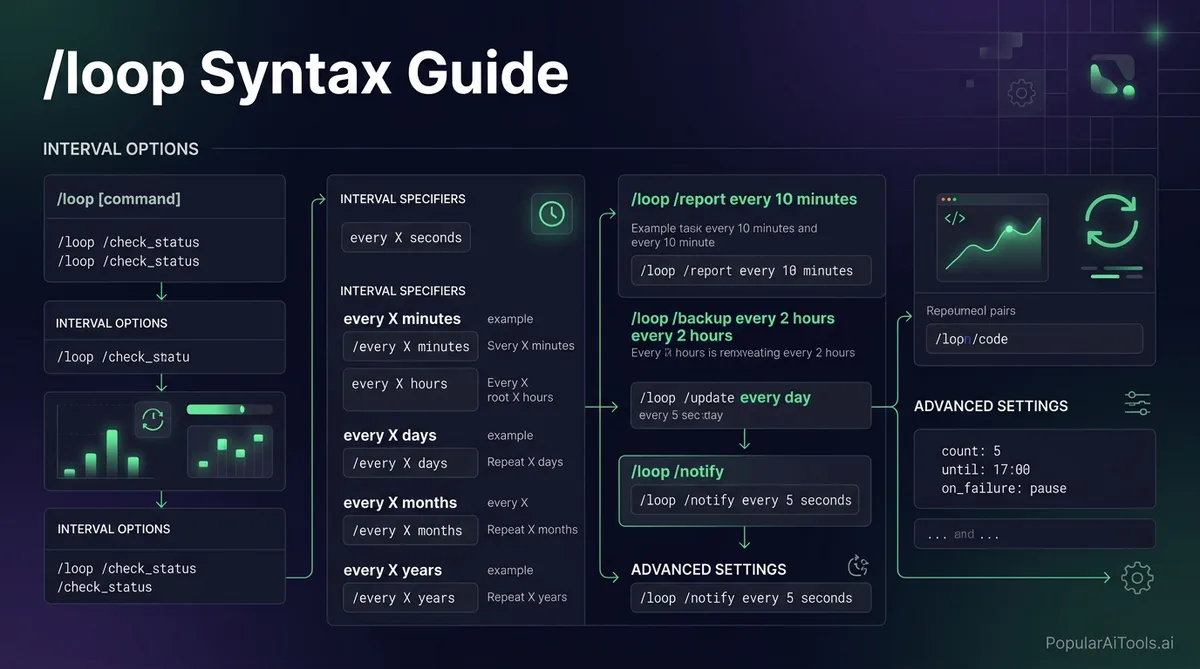
The basic syntax is straightforward:
/loop The interval can appear at the start or end of the command, and it supports these units:
If you omit the interval entirely, /loop defaults to 10 minutes.
For advanced users, /loop also accepts standard five-field cron expressions via the --cron flag:
/loop --cron "*/15 9-17 * * 1-5" check for new PRs and summarize themThat example runs every 15 minutes during business hours, Monday through Friday — exactly the kind of schedule that would take multiple lines of crontab configuration and a separate script to achieve the old way.
Getting Started: Your First Loop
Let us walk through a simple example. Say you have just kicked off a deployment and want Claude to keep an eye on it:
/loop 5m check the deploy status for our staging environment and alert me if anything looks wrongThat is it. Claude will:
- Parse the
5minterval - Convert it to a cron expression
- Register the scheduled task
- Confirm the cadence and return a job ID
- Execute the prompt every 5 minutes
You will see output in your terminal each time the task fires. If Claude spots an issue — a failed health check, a pod crash loop, an error spike — it reports immediately in the session.
Here is another quick example for watching test results:
/loop 10m run the test suite and summarize any failuresOr for monitoring a log file:
/loop 2m tail the last 50 lines of /var/log/app.log and flag any errors or warningsThe beauty is that the prompt is just natural language. You do not need to learn a DSL or write wrapper scripts. If you can describe the task to Claude, you can loop it.
Practical Use Cases That Actually Matter
We have tested /loop across a range of real development workflows. Here are the patterns that deliver the most value.
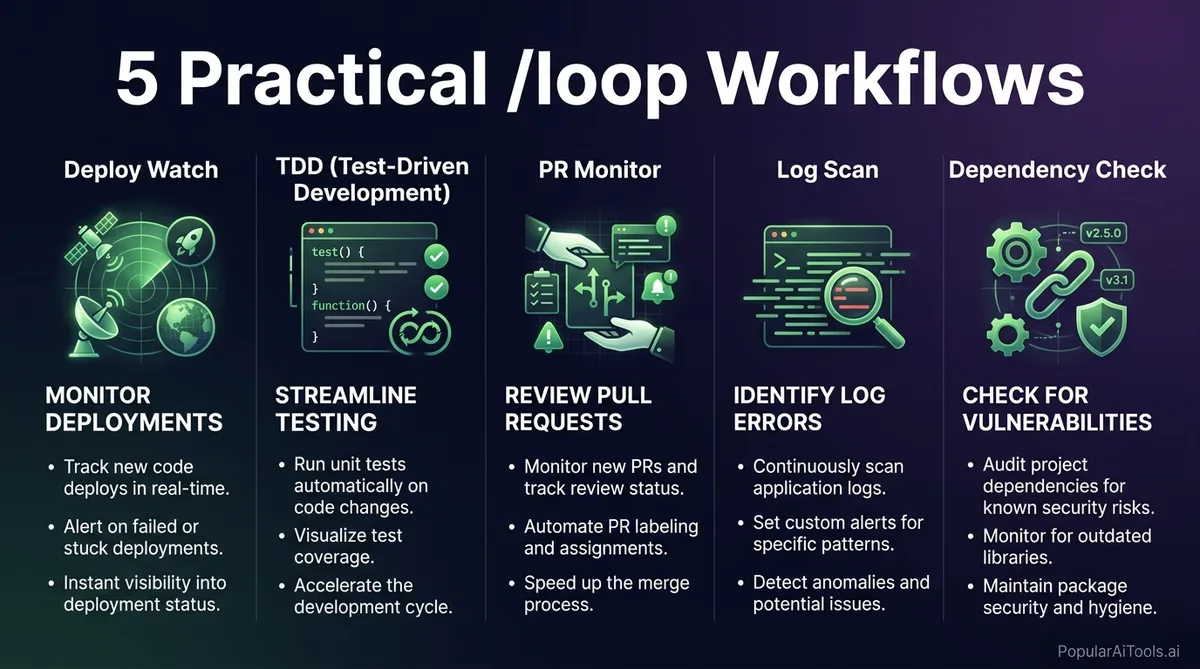
1. Deployment Monitoring
This is the killer use case. Instead of watching a Kubernetes rollout or refreshing your cloud dashboard, set a loop:
/loop 3m check the deployment rollout status, verify all pods are healthy, and report any CrashLoopBackOff or ImagePullBackOff errorsClaude will poll the deployment, parse the status, and surface problems the moment they appear. We have caught rolling update failures within minutes using this pattern — failures that would have gone unnoticed for much longer with manual checks.
2. Pull Request Watching
If you are a team lead reviewing PRs, this is a game-changer:
/loop 30m check for new open PRs in our repo, review each one for security issues and performance concerns, and write a structured summaryEvery new PR gets a thorough automated review within 30 minutes, including security checks, performance analysis, and a structured report. You still make the final call, but the initial review is done before you even look at it.
3. Test-Driven Development Loops
Test-driven development is arguably the strongest pattern for working with agentic coding tools. With /loop, you can automate the red-green-refactor cycle:
/loop 20m run the test suite. If any tests fail, attempt to fix them and re-run. Report what changed.Claude runs your tests, identifies failures, attempts repairs, and reports back — all on autopilot. We have seen entire test suites go from red to green while we focused on architecture decisions instead of debugging individual assertions.
4. Log Analysis and Error Detection
For applications that write to log files, /loop turns Claude into a real-time log analyst:
/loop 5m analyze the last 100 lines of the application log, identify any new error patterns, and suggest root causesThis is particularly powerful because Claude does not just grep for error strings — it understands context, correlates timestamps, and identifies patterns that regex-based alerting would miss entirely.
5. Dependency Update Monitoring
Keeping dependencies current is one of those tasks that everyone agrees is important but nobody wants to do:
/loop 1d check for outdated npm packages, identify any with known security vulnerabilities, and draft a PR description for the updateRun this daily and you will never fall behind on dependency updates again. Claude checks for outdated packages, cross-references security advisories, and even drafts the PR description so you can ship the update with minimal effort.
6. Documentation Drift Detection
Code changes but docs stay the same — until /loop:
/loop 1h compare the current API endpoints with our API documentation and flag any mismatchesThis catches documentation drift before it becomes a problem for your users or your team.
/loop vs Traditional Cron Jobs
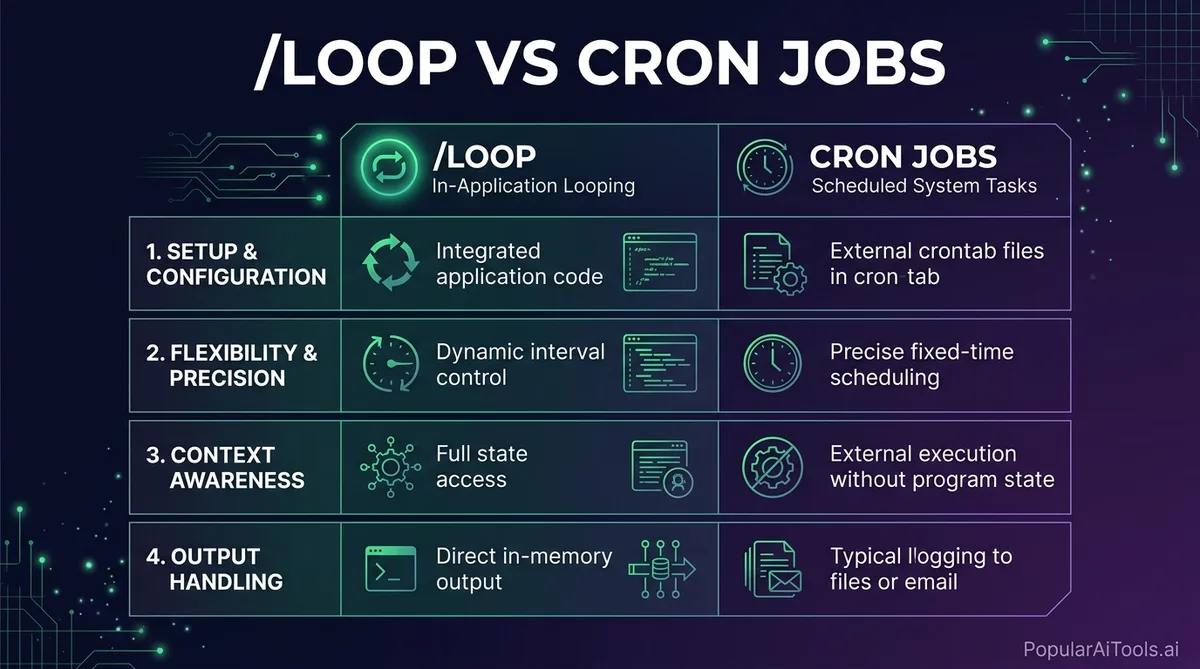
The obvious question: why not just use cron? We already have a perfectly good scheduling system built into every Unix machine. Here is how they compare:
The key distinction is intelligence vs persistence. A cron job will faithfully execute curl https://myapp.com/health every five minutes for the next decade, but it cannot interpret what a 503 response means in the context of your recent deployment, suggest a rollback strategy, or check whether the database migration that ran 20 minutes ago is related.
/loop brings reasoning to scheduled tasks. The tradeoff is that it only lives as long as your session. For production monitoring that must survive reboots and network drops, traditional cron (or better yet, a dedicated monitoring service) is still the right call. But for development-time automation — the kind of recurring checks you do during active work sessions — /loop is strictly superior.
For workflows that need true persistence, you can combine both: use /loop during active development, then graduate critical checks to GitHub Actions with a schedule trigger or OS-level cron jobs for long-term automation.
Setting Up Automated Workflows
The real power of /loop emerges when you combine it with other Claude Code capabilities to build complete automated workflows.
Workflow 1: The Morning Standup Bot
Start your day by launching Claude Code with a pre-configured loop:
/loop 1h summarize all commits since yesterday, list open PRs needing review, check CI status for main branch, and identify any failing testsEvery hour, you get a fresh standup-style briefing without asking for it.
Workflow 2: The Deployment Guardian
When you deploy, spin up a multi-concern monitoring loop:
/loop 2m check the following: 1) deployment rollout status 2) error rate in the last 2 minutes 3) response time p95 4) any new exceptions in the logs. Summarize in a table.This is your deployment babysitter. Let it run for an hour after deploy, then cancel it once you are confident everything is stable.
Workflow 3: The Security Sentinel
For security-conscious teams:
/loop 6h scan our dependencies for new CVEs published today, check if any of our exposed endpoints have changed, and verify our .env files are still in .gitignoreCombining /loop with System Cron
For workflows that need to start automatically, you can use system cron to launch Claude Code with a /loop command:
# In your crontab
0 9 * * 1-5 claude-code --command "/loop 30m check for new PRs and review them" &
This launches Claude Code at 9 AM on weekdays and starts the PR review loop automatically. The session will auto-expire after 3 days, and you can set up a fresh one the following week.
Managing Your Loops
Once you have loops running, you need to manage them. Claude Code provides simple commands for this:
List all active loops:
/loop listThis shows every scheduled task with its job ID, interval, prompt, and next execution time.
Cancel a specific loop:
/loop cancel Cancel all loops:
/loop cancel --allA few management tips we have learned:
- Name your loops clearly. Start prompts with a descriptive prefix like “DEPLOY-WATCH:” or “PR-REVIEW:” so
/loop listoutput is scannable at a glance. - Stagger intervals. If you have multiple loops, offset their intervals slightly (3m, 7m, 11m instead of 5m, 5m, 5m) to prevent them from all firing simultaneously and congesting the API.
- Clean up after yourself. Loops auto-expire after 3 days, but do not rely on that. Cancel loops you no longer need to keep your session clean and avoid burning unnecessary API tokens.
Tips, Limits, and Gotchas
We have been using /loop extensively since it shipped in v2.1.71, and here are the things we wish we had known from day one.
Session-scoped means session-scoped. If you close your terminal, every loop dies instantly. There is no persistence across restarts. If you need a loop to survive, keep the terminal open or use a terminal multiplexer like tmux or screen.
No catch-up for missed fires. If Claude is busy processing a long task when a loop was supposed to fire, it will fire once when Claude becomes idle — not once per missed interval. For time-sensitive monitoring, keep your loop prompts lightweight so Claude can process them quickly and stay available.
The 50-task limit is real. A session can hold up to 50 scheduled tasks at once. That sounds like a lot, but if you are building complex workflows with multiple loops, you can hit it. Plan accordingly.
The 3-day auto-expiry is a feature, not a bug. Recurring tasks automatically expire 3 days after creation. This prevents forgotten loops from running indefinitely and consuming resources. If you need something longer, re-create it.
Token consumption adds up. Every loop execution costs tokens. A complex prompt running every 2 minutes for 8 hours is a lot of API calls. Be intentional about your intervals — the shortest interval that catches issues in time is the right interval.
The “Unknown skill: loop” bug. Some users on v2.1.71 reported Claude returning “Unknown skill: loop” when attempting to use the command. If you hit this, update to the latest version — this was resolved in subsequent patches.
Seconds round up to minutes. If you set 30s, it rounds up to 1 minute. Cron granularity is one minute minimum, and /loop respects that constraint.
Use deterministic offsets. If you are running multiple Claude Code sessions (for different projects, for example), stagger them. Deterministic offsets prevent parallel sessions from hitting the API simultaneously and running into rate limits.
FAQ
What happens to my /loop tasks if my terminal crashes?
All /loop tasks are session-scoped, meaning they exist only within the active Claude Code process. If your terminal crashes, your machine restarts, or you accidentally close the window, every scheduled task is gone. There is no recovery mechanism. We strongly recommend using tmux or screen to keep your session alive through disconnections. For truly critical monitoring, pair /loop with a system-level backup like a cron job or a GitHub Actions workflow.
Can I use /loop in headless or CI environments?
Yes. Claude Code can run in non-interactive mode, and /loop works within that context. You can launch Claude Code from a CI pipeline or a system cron job with a pre-configured /loop command. However, the session still needs to stay alive for the loops to fire, so you will need to manage process persistence yourself — a background process with nohup or a systemd service, for example. Keep in mind that the 3-day auto-expiry still applies.
How does /loop affect my API usage and costs?
Every time a loop fires, Claude processes the prompt and generates a response, which consumes tokens just like a manual interaction. A loop running every 5 minutes for 8 hours generates 96 API calls. If each call consumes 2,000 tokens on average, that is 192,000 tokens per day for a single loop. Multiply that by several loops and the costs add up. We recommend using the longest interval that still meets your monitoring needs and keeping prompts concise to minimize token consumption per execution.
Can /loop run shell commands or only Claude prompts?
/loop can execute any prompt you would normally type into Claude Code, which includes asking Claude to run shell commands, analyze files, execute scripts, run tests, and interact with APIs. You can also chain /loop with other slash commands — for example, /loop 20m /test to run your test suite every 20 minutes if you have a /test skill configured. The prompt is fully flexible; if Claude can do it in a normal interaction, it can do it in a loop.
What is the difference between /loop and /schedule?
/loop is designed for recurring tasks within an active session — it repeats at fixed intervals until cancelled or expired. /schedule (available in Claude Desktop’s Cowork mode) is for one-time future tasks or persistent scheduled operations that are tied to the desktop application. If you are working in the terminal with Claude Code, /loop is your tool. If you want something that persists beyond a terminal session and integrates with the desktop experience, /schedule in Claude Desktop is the better fit. Many developers use both: /loop for active development sessions and /schedule for long-running background tasks.
The Bottom Line
The /loop command is one of those features that seems simple on the surface but fundamentally changes how you work. It transforms Claude Code from a tool you talk to into a tool that works for you — autonomously, continuously, and intelligently.
We have replaced dozens of manual monitoring habits, ad-hoc cron scripts, and “I should check on that” mental notes with simple one-line loop commands. Deployments get watched. PRs get reviewed. Tests get run. Dependencies get checked. All while we focus on the work that actually requires human judgment.
If you have not tried /loop yet, start with the simplest possible use case: monitoring your next deployment. Once you see Claude catching an issue before you even thought to check, you will never go back to manual polling again.
Start building smarter workflows today. Try Claude Code and put /loop to work in your next development session. For more AI developer tools and automation guides, explore our full library at PopularAiTools.ai.
Further reading: