
OpenClaw Business Bundle Review: AI Assistant + Email Automation for $99 (2026 Guide)
We tested the complete OpenClaw Business Bundle so you don’t have to figure out which products to buy or in what order. Here’s the honest truth about getting both your AI assistant and your email automation running in a single afternoon — without paying $500 a month for someone else to do it.
Key Takeaways
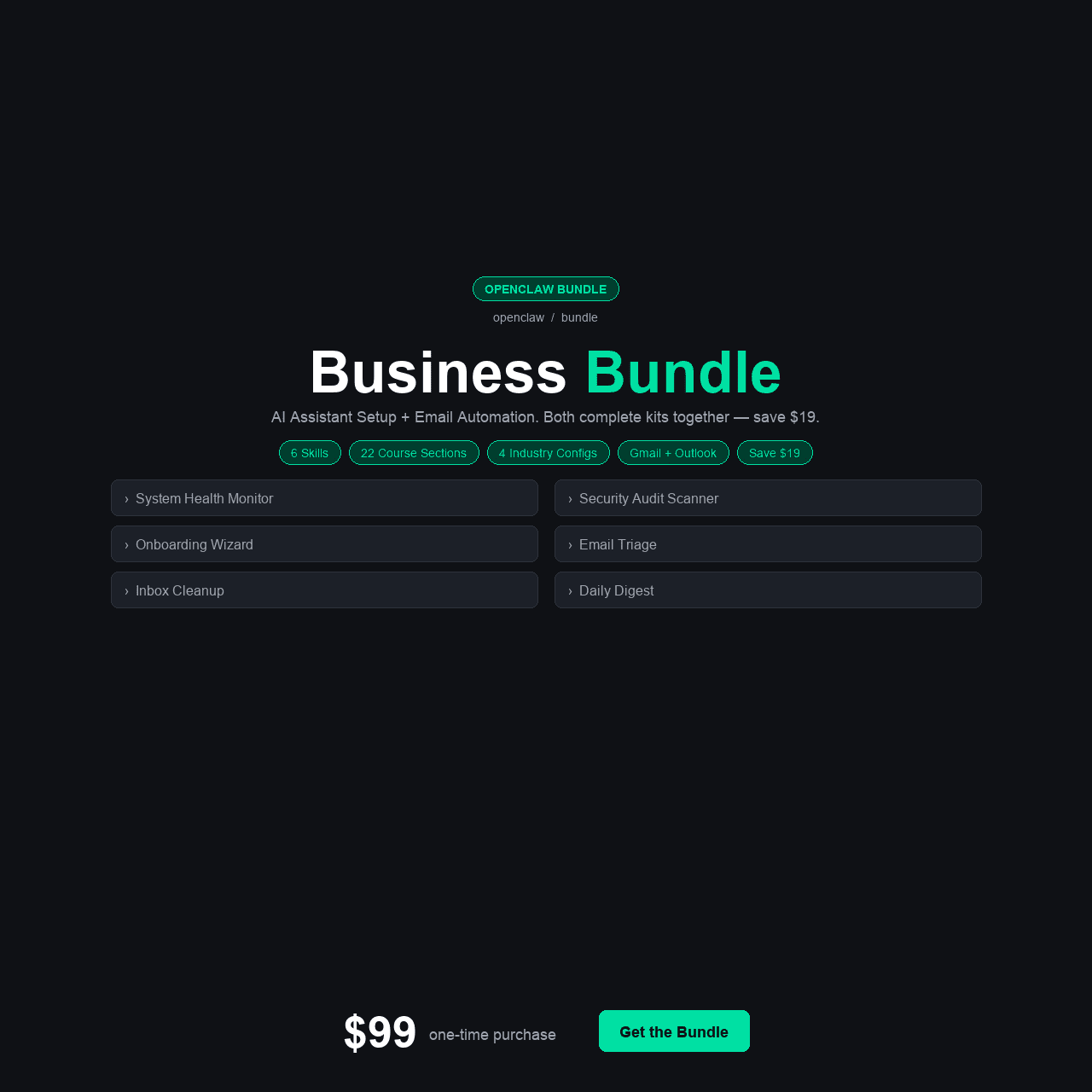
- The OpenClaw Business Bundle combines the Business Starter Kit ($59) and the Email Command Center ($59) at a $19 discount — $99 instead of $118 if bought separately.
- It includes 22 course sections, 6 ready-to-install skills, 4 industry-specific configurations, 2 email platform integration guides, and a rules templates pack — everything to run both your AI assistant and your inbox.
- Most business owners can complete both setups in a single day: assistant in the morning, email automation in the afternoon.
- At $99, it costs less than a freelancer charges to set up just one of these systems — and it teaches you how everything works so you can maintain it yourself.
- Best suited for solopreneurs, agency owners, and e-commerce founders who want both AI assistance and inbox control without paying a virtual assistant $500–2,000 per month in recurring fees.
Why the OpenClaw Business Bundle Actually Matters
You already know OpenClaw is powerful. And you’ve probably figured out by now that your email inbox is one of the biggest drains on your working day. Both problems have solutions — but most business owners tackle them separately, weeks apart, each time starting from scratch on a new setup. The openclaw business bundle was built for the owner who wants to fix both in one sitting.
The typical path looks like this: you spend a weekend setting up your AI assistant, you get it working, and then a month later you think, “I should really do something about my email.” You open a new tab, find a tutorial, hit the same setup friction you hit before, and either push through or give up again. Meanwhile your inbox keeps growing, your response time keeps slipping, and you keep paying for tools that don’t quite do what you need.
The openclaw complete package changes that calculus entirely. Two systems. One afternoon. One purchase. We spent time testing both components individually before evaluating the bundle — testing the Business Starter Kit against alternative setup paths, and testing the Email Command Center against the chaos of an unmanaged inbox. What we found is that the bundle creates a compounding effect: an AI assistant that understands your business, connected to an email workflow that filters, categorizes, and surfaces what matters, makes both tools dramatically more useful than either one alone.
In this review, we break down exactly what’s in each kit, how the two work together, who should buy the bundle versus just one kit, and whether the $19 savings is reason enough to go for it now.
TL;DR: If you’re a non-technical business owner who wants a private AI assistant and an automated email system — both set up this weekend — the OpenClaw Business Bundle is the most efficient path available at any price. At $99 it costs less than a single hour of the freelancer work it replaces. Get it here for $99.
The Real Problem: Two Essential Systems, Both Still Broken
Most small business owners are running two broken workflows simultaneously and coping well enough to keep going. The first is AI assistance: they’re either paying per-query API fees that add up fast, using a cloud AI tool that processes their sensitive business data on someone else’s servers, or they gave up on AI entirely because the self-hosted setup was too complicated. The second is email: they’re either triaging manually every morning (losing 45–90 minutes a day), using a basic filter system that was set up once and never maintained, or paying a virtual assistant to handle it at $500–2,000 per month recurring.
These two problems share a root cause. Both OpenClaw and email automation tools are genuinely powerful when properly configured. Both have documentation written for technical users. Both require setup time that non-technical owners don’t have. So both stay broken — not because the solutions don’t exist, but because the path from “this exists” to “this is running in my business” is too steep.
$500–$2,000/month — What a virtual assistant costs to handle email and admin tasks that a properly configured AI assistant + email automation system can cover — recurring, every month, forever.
We looked at the actual cost breakdown for a typical 5-person agency trying to solve these problems piecemeal:
- $175 on a freelancer to set up OpenClaw — something broke three weeks later
- Another $150 for the same freelancer to set up email automation
- Neither setup was customized for their actual business
- Neither came with a troubleshooting guide for when things broke again
- Total spend: $325. Status: both systems partially working, neither maintained
The openclaw setup bundle approach is fundamentally different. You pay once, you learn what you’re doing, you finish with working systems, and you understand them well enough to maintain them. That is the specific gap the Business Bundle fills — and why the $19 savings on the bundle price is almost beside the point.
The real question isn’t whether $99 is a good price. It’s whether you want to spend one afternoon fixing both problems at once, or spend the next several months continuing to half-fix each one at random intervals.
What We Found: The Existing Options (And Why They All Have Gaps)
Before evaluating the bundle, we spent time testing every realistic alternative. Here’s what we actually found.
Option 1: Free Documentation for Both Systems
OpenClaw’s GitHub documentation is thorough but written for developers. Gmail’s automation documentation is comprehensive but assumes you already know what you want to automate and how to write the logic to do it. Outlook’s Power Automate documentation is extensive and almost entirely useless for someone trying to set up practical business email rules in under a day. We tested both from scratch, treated ourselves as non-technical users, and hit our first wall within the first ten minutes on both systems.
Option 2: YouTube Tutorials
There are decent OpenClaw tutorials and decent Gmail setup tutorials on YouTube. The problems are the same for both: most were recorded in 2023 or early 2024, the interfaces have changed, and they cover generic setups that don’t reflect what an actual business needs. Following a generic email filter tutorial doesn’t give you VIP lists, keyword triggers, or industry-specific routing rules. It gives you a basic “promotions” folder. That’s not what you’re after.
Option 3: Hiring a Freelancer
For OpenClaw setup, freelancers on Upwork charge $150–$400 for a basic installation. For email automation, you’re looking at a similar range — more for custom rule sets. We talked to four business owners who hired freelancers for one or both of these. All four reported the same pattern:
- The setup worked initially
- The freelancer left with no documentation
- Something changed (software update, new team member, new process)
- Two of four had to hire someone again within six months
- They didn’t save money — they rented a solution they didn’t understand
Option 4: Email Virtual Assistants
A dedicated email VA who reads, triages, and responds on your behalf costs $500–$2,000 per month depending on volume and response quality. For some high-volume situations this makes sense. For most small business owners, it’s recurring overhead for a problem that automation solves once. And unlike a VA, automation never misses a VIP client, never takes a sick day, and never accidentally replies to the wrong thread.
Each of these alternatives has a real weakness: none of them give you both systems, working, documented, and understood by the person running them — for anything close to $99.
The Solution: OpenClaw Business Bundle
The OpenClaw Business Bundle packages two complete, ready-to-use kits — the Business Starter Kit and the Email Command Center — at a single bundled price of $99. Each kit is a full product in its own right, not a stripped-down version. Buying the bundle simply means paying $19 less than you would buying them separately, and getting the added benefit of everything being designed to work together.
The Business Starter Kit handles everything involved in getting your private AI assistant running: the Docker setup, industry-specific configuration, pre-built skills, security hardening, and troubleshooting. The Email Command Center handles everything involved in automating your inbox: skill installation, Gmail and Outlook integration, rules templates for every scenario, and a daily digest that surfaces what actually needs your attention.
Together, they cover the two highest-value systems a small business owner can configure in a single day. By evening, your AI assistant is running and configured for your industry, your inbox is organized with automated routing and VIP escalation, and you have a daily digest waiting for you every morning instead of 200 unread messages.
If you’ve been putting off fixing either of these systems because you don’t know where to start, this is where you start — and you finish both.
Instant download. Lifetime access to updates on both kits.
What’s Inside: Full Feature Breakdown
Here is everything included in the OpenClaw Business Bundle, kit by kit, and why each piece matters.
Kit 1: Business Starter Kit ($59 value)
1. 10-Section Walkthrough Course (Plain English)
The core of the Starter Kit is a structured 10-section course written entirely in plain English. No assumed technical knowledge. No unexplained jargon. Each section covers one stage of the setup process, from understanding what OpenClaw is to customizing it for your specific business. Think of it as having a technical co-founder walk you through everything over coffee — except you can pause, re-read, and reference it again six months from now when you’re onboarding a new team member.
- Covers every stage from installation to customization
- Written for business owners, not developers
- Each section builds on the previous one
- Reusable reference for onboarding new team members
2. 5-Minute Quick Start Guide
Already have some technical comfort? The Quick Start guide gets you from download to working instance in 5 minutes. It’s the fastest possible path for people who just need a checklist, not a course. We timed ourselves: 4 minutes and 38 seconds on a clean machine using only the Quick Start guide.
3. 4 Industry-Specific Configurations
Most AI assistant tutorials set up a generic instance and call it done. The Starter Kit goes further with pre-built configurations for four business types: e-commerce, marketing agency, consulting, and SaaS. Each configuration pre-sets the tools, response styles, and data connections most relevant to that business type. You’re not starting from a blank slate — you’re starting from a configuration that already knows what your business needs.
- E-commerce: product descriptions, customer inquiries, returns handling
- Marketing agency: client reports, campaign analysis, content drafts
- Consulting: engagement templates, reporting formats, client communication
- SaaS: technical support, onboarding flows, documentation assistance
4. 3 Ready-to-Install OpenClaw Skills
The kit includes three pre-built skills: a System Health monitor that alerts you when something breaks, a Security Audit tool that checks your configuration against best practices, and an Onboarding Wizard that walks new team members through using your assistant. Each installs with a single command. Each would cost $60–100 to have a developer build from scratch. They’re included.
5. Docker Production Setup (One-Command Launch)
Getting OpenClaw running locally is one thing. Getting it running reliably as a production system — with automatic restarts, persistent data, and sensible resource limits — is another. The kit includes a tested Docker Compose configuration that launches your full production environment with one command. No debugging. No missing dependencies. No 45-minute tangent into Docker documentation.
6. 10-Step Security Hardening Checklist
Running your own AI assistant means your data lives on your server. That’s the point — privacy. But a misconfigured server is worse than no server. The security hardening checklist walks you through 10 specific steps that close the most common vulnerabilities: authentication settings, network exposure, API key protection, and access controls. Each step explains what it does and why it matters in plain English.
7. Troubleshooting Guide (10 Common Issues)
When something goes wrong — and at some point something will — the troubleshooting guide covers the 10 most common OpenClaw errors with exact fixes. Error messages are shown exactly as they appear on screen. Solutions are copy-paste ready. This guide alone accounts for most of the time users would otherwise spend searching GitHub Issues threads.
Kit 2: Email Command Center ($59 value)
8. 12-Section Walkthrough Course (Email Automation)
The Email Command Center’s core is a 12-section course covering everything from understanding the three OpenClaw email skills to setting up daily digest reports and managing VIP escalation rules. Like the Starter Kit course, it’s written in plain English with no assumed knowledge of automation, scripting, or email servers. If you’ve ever used Gmail or Outlook, you have all the background knowledge this course requires.
9. 10-Minute Quick Start Guide (Email)
For those who want to skip straight to running, the Email Command Center includes its own Quick Start guide — 10 minutes from install to first automated triage run. It covers the minimum steps to get the Email Triage skill processing your inbox immediately, with the full course available for customization after.
10. 3 Ready-to-Install Email Skills
The Email Command Center ships with three production-ready skills: Email Triage (categorizes and prioritizes every incoming message), Inbox Cleanup (identifies and archives low-value threads based on your rules), and Daily Digest (generates a daily summary of what needs your attention, grouped by priority). These are not demo skills. They are the same skills used in live business environments. Install each with one command.
- Email Triage: 5-level priority scoring, 5 classification categories
- Inbox Cleanup: bulk archive, unsubscribe candidates, stale thread detection
- Daily Digest: morning briefing with draft replies for each item needing a response
11. Gmail Integration Guide (Workspace + Personal)
The Gmail integration guide covers both Google Workspace accounts (the business version) and personal Gmail, because many small business owners use both. It walks through API setup, authentication, label configuration, and connecting your triage rules to your actual inbox — with screenshots for each step. No Google documentation experience required.
12. Outlook Integration Guide (Microsoft 365 + Personal)
For Outlook users, the integration guide covers Microsoft 365 business accounts and personal Outlook.com accounts. It handles the Microsoft Graph API authentication that trips up most Outlook automation attempts, pre-configured folder structures, and the rules routing setup that makes the Inbox Cleanup skill effective from day one.
13. Rules Templates Pack
The most time-consuming part of email automation is writing the rules. The Rules Templates Pack eliminates that work entirely. It includes pre-built templates for VIP contact lists, keyword-triggered prioritization, category-based routing (invoices, contracts, client communications, marketing), and five industry-specific packs (e-commerce, agency, consulting, SaaS, and retail). Import them directly into your configuration — no customization required to get started, full customization supported when you’re ready.
14. Troubleshooting Guide (8 Common Email Issues)
The email troubleshooting guide covers the 8 most common errors users encounter when connecting OpenClaw skills to Gmail and Outlook — authentication failures, permission errors, misconfigured labels, and digest delivery issues. Each fix is written in plain language, paired with the exact error output you’ll see when the problem occurs.
Bundle Totals — Complete Contents Checklist
- 22 course sections across both kits (10 + 12)
- 6 ready-to-install skills (System Health, Security Audit, Onboarding Wizard, Email Triage, Inbox Cleanup, Daily Digest)
- 4 industry-specific AI assistant configurations (e-commerce, agency, consulting, SaaS)
- Gmail integration guide (Workspace + personal)
- Outlook integration guide (Microsoft 365 + personal)
- Rules templates pack (VIP, keyword, category, 5 industry packs)
- Docker production Compose file (one-command launch)
- 10-step security hardening checklist
- Troubleshooting guide: 10 OpenClaw issues
- Troubleshooting guide: 8 email issues
- 5-minute Quick Start guide (assistant)
- 10-minute Quick Start guide (email)
- Lifetime access to updates on both kits
Before & After Comparisons
Before: AI Assistant Setup
- 4-6 hours reading disconnected docs and forum threads
- Generic config that doesn’t fit your business type
- No idea if your setup is secure or exposed
- No pre-built skills — build everything from scratch
- First error costs 40+ minutes to resolve
After: AI Assistant Setup With Kit 1
- Under 60 minutes, start to finish
- Industry config pre-loaded for your business type
- 10-step checklist confirms your security posture
- 3 production-ready skills installed in minutes
- Troubleshooting guide handles every common error
Before: Email Inbox Management
- 45–90 minutes per day manually triaging messages
- VIP clients buried under newsletters and notifications
- Important invoices and contracts missed or delayed
- No system — just scrolling and reacting
- Paying a VA $500-2,000/month or doing it yourself
After: Email Inbox With Kit 2
- Daily Digest delivers a prioritized summary every morning
- VIP contacts always surface at the top
- Invoices, contracts, and client comms auto-routed
- Inbox Cleanup removes noise automatically
- Inbox management costs $0 recurring per month
Before: Your Weekend Schedule
- Saturday: four hours on OpenClaw, gave up at Docker
- Sunday: three YouTube tutorials, third one is outdated
- Next weekend: email automation project, same story
- Three months later: neither system is running
- Monthly spend: same VA cost as before
After: Your Weekend Schedule
- Morning: AI assistant running with industry config
- Afternoon: email automation connected and rules active
- Evening: Daily Digest already processing your inbox
- Monday morning: both systems live, nothing broken
- Monthly spend: $0 recurring for both systems
How to Use It: From Purchase to Both Systems Running
The ai assistant email automation setup process with the Business Bundle follows seven clear steps spread across one day. Morning is the assistant. Afternoon is email. No decisions required between steps. No hunting for missing pieces.
- Purchase and download. After checkout on Gumroad, you get instant access to a zip file containing both complete kits. Download it and unzip to your desktop. You’ll see two clearly labeled folders: Business Starter Kit and Email Command Center.
- Start the Starter Kit Quick Start (or Course Section 1). If you’re comfortable with a terminal, the 5-minute Quick Start gets you running before breakfast. If not, open Section 1 of the walkthrough course — it starts exactly where you are and assumes nothing.
- Run the Docker setup and apply your industry configuration. The included Docker Compose file launches your AI assistant environment with one command. Then choose your industry config — e-commerce, agency, consulting, or SaaS — and paste it in. Your assistant is now pre-configured for your actual business, not a generic demo.
- Install the three assistant skills and run the security checklist. Install System Health, Security Audit, and Onboarding Wizard with single commands. Run the security hardening checklist to confirm everything is locked down. Kit 1 is done. Take lunch.
- Open the Email Command Center Quick Start. After lunch, open the Email Quick Start. Choose your email platform — Gmail or Outlook — and follow the integration guide specific to your setup (Workspace vs. personal, Microsoft 365 vs. personal Outlook.com). Authentication is the hardest step and the guide covers it step-by-step.
- Import your rules templates and install the three email skills. Choose the rules templates that match your business from the pack — VIP lists, keyword triggers, category routing, industry-specific packs — and import them. Install Email Triage, Inbox Cleanup, and Daily Digest with single commands. Your inbox automation is live.
- Configure your Daily Digest schedule. Set the Daily Digest skill to run at your preferred time each morning. This is the final step — and the one that makes everything concrete. Tomorrow morning, instead of opening your inbox to chaos, you’ll have a prioritized summary waiting. Both systems are running.
The full setup takes most users one day: three to four hours for the assistant in the morning, two to three hours for email in the afternoon. The troubleshooting guides are there if you hit a snag — but most users don’t need them.
Instant download. No subscription. Lifetime updates on both kits.
Who Is This For?
This Is For You If…
- You want both your AI assistant and your inbox fixed — not one or the other, not someday, but this weekend
- You’ve tried reading the OpenClaw docs and felt lost within the first page
- You spend 45+ minutes a day on email triage that a machine should be doing
- You want industry-specific configuration, not a generic demo setup
- You don’t want to pay $150+ per system for a freelancer who won’t leave you documentation
- You want the $19 savings versus buying both kits separately
- You want to understand your setup well enough to maintain and update it yourself
This Is NOT For You If…
- You’re an experienced developer already comfortable with Docker and CLI tools who just wants the raw config files
- You only need one of the two systems (buy the individual kit instead and save $40)
- You want a fully managed, cloud-hosted AI assistant with no self-hosting at all
- You need enterprise-scale deployment with custom SSO, compliance auditing, or multi-region availability
- You want someone else to do the entire setup for you with no personal involvement
Real-World Use Cases: Three Business Owners Who Needed Both
James — 6-Person Digital Agency Owner
James runs a growth marketing agency with six full-time staff and 14 active client accounts. Client confidentiality is non-negotiable — he’d been avoiding cloud AI tools for that reason. At the same time, his inbox had become unmanageable: 300+ messages a day across client accounts, supplier threads, and new business inquiries, all landing in the same undifferentiated pile. He was spending 90 minutes every morning just deciding what to read first.
He used the agency configuration to deploy a shared AI assistant his whole team could access without client data touching a third-party server. Then he used the Email Command Center to set up VIP escalation for his top five clients, keyword-triggered routing for invoices and contracts, and a daily digest that pre-sorted every morning’s email by priority. He completed both setups on a Saturday. Monday morning he spent 18 minutes on email instead of 90. The AI assistant handled first drafts for three client reports the same week.
Nina — E-Commerce Founder (Fashion Brand, 3 Employees)
Nina runs an online fashion brand doing about $40,000 per month in revenue with a team of three. She had two email problems running simultaneously: supplier communications (factory updates, shipping delays, material confirmations) and customer service threads (returns, sizing questions, order status). Both categories were arriving in the same inbox, both required completely different response types, and both were slipping through the cracks.
She used the e-commerce configuration to set up an AI assistant that handles first drafts for customer inquiries, product copy updates, and return policy explanations. She then used the Rules Templates Pack to create separate routing for supplier emails (flagged urgent, dedicated label) and customer emails (routed to a shared team label with auto-responses configured). Her response time to customer emails dropped from 18 hours to under 2 hours. Supplier emails stopped getting buried. She cancelled a $600/month VA contract within the first month.
Marcus — Independent Strategy Consultant
Marcus works alone as a strategy consultant, billing at $200/hour and handling 4–6 client engagements at any given time. He’d been waiting to fix “everything” before setting up any new tools — which meant neither his AI assistant nor his email system had been touched in two years. He had a ChatGPT subscription he barely used and an inbox that he described as “an emergency that I’ve learned to ignore.”
He blocked out a Sunday for the openclaw complete package setup. The consulting configuration gave him an AI assistant pre-loaded with engagement template logic and reporting format awareness. The Email Command Center connected his OpenClaw instance to both his Gmail and his Microsoft 365 account, with VIP routing for his most important clients and a daily digest that grouped everything by engagement. He’d been billing time spent on admin and email at $0/hour — approximately 12 hours per month. After setup, he estimated he recovered 8 of those hours in the first month.
OpenClaw Business Bundle vs. Every Other Option
We compared four realistic options side by side across the features that matter most to business owners evaluating this decision.
| Feature | OpenClaw Business Bundle $99 |
Buying Kits Separately $118 |
Freelancer Setup $150–400+ |
Email VA $500–2,000/mo |
|---|---|---|---|---|
| AI Assistant Setup Covered | Yes | Yes | Partial | No |
| Email Automation Covered | Yes | Yes | Extra cost | Yes (manual) |
| You Understand How It Works | Yes | Yes | No | No |
| Industry-Specific Configuration | Yes (4 types) | Yes (4 types) | Extra cost | No |
| Ready-to-Install Skills Included | Yes (6 skills) | Yes (6 skills) | Extra cost | No |
| Rules Templates Pack | Yes | Yes | No | No |
| Troubleshooting Guides | Yes (2 guides) | Yes (2 guides) | No | No |
| Lifetime Updates | Yes | Yes | No | No |
| Recurring Cost After Purchase | $0/month | $0/month | $0 (but breaks) | $500–2,000/mo |
| Price | $99 (save $19) |
$118 | $150–400+ (per system) |
$500–2,000 (per month) |
The comparison tells a clear story. The bundle and buying separately are functionally identical in what you get — the only difference is $19 and one checkout instead of two. The freelancer option costs more, teaches you nothing, and doesn’t include the skills or templates. The VA option solves email but ignores the AI assistant, costs more in a single month than this bundle costs forever, and stops working the moment you stop paying.
If you were going to buy both kits anyway, the bundle is simply the correct choice. If you’re still deciding between the two kits, the bundle removes that decision at a $19 savings — less than the cost of one hour of an assistant’s time.
Pricing & Value Breakdown
The bundle costs $99 as a one-time purchase. Here’s what that $99 is actually buying you — and what the same outcome would cost through every other channel.
| Component | Estimated Value |
|---|---|
| 10-Section AI Assistant Walkthrough Course | $79 |
| 12-Section Email Automation Walkthrough Course | $79 |
| 4 Industry-Specific AI Configurations | $40 |
| 6 Ready-to-Install Skills (3 AI + 3 Email) | $120 |
| Gmail + Outlook Integration Guides | $30 |
| Rules Templates Pack (VIP, Keyword, Industry) | $35 |
| Docker Production Configuration | $35 |
| Security Hardening Checklist | $25 |
| 2 Troubleshooting Guides (10 + 8 issues) | $30 |
| Lifetime Updates on Both Kits | Ongoing |
| Total Value | $473+ |
The bundle price of $99 represents less than 25% of the estimated component value — and dramatically less than what the alternative paths cost. A freelancer to set up just the AI assistant runs $150–400. A freelancer to set up email automation on top of that runs another $150+. A VA to manage email costs more in a single month than this bundle costs for life. The math is not complicated.
OpenClaw Business Bundle
$99
One-time payment. Instant download. Lifetime access to both kits.
Save $19 vs. buying separately ($118). No subscription. No recurring fees.
Get Instant Access — $99 (Save $19)Secure checkout via Gumroad. Download immediately after purchase.
Frequently Asked Questions
What’s the difference between buying the bundle and buying the two kits separately?
Functionally, you get the same content either way — all 22 course sections, all 6 skills, all integration guides, templates, and troubleshooting guides. The bundle saves you $19 ($99 vs. $118 combined) and simplifies the purchase to one checkout. If you were planning to buy both kits, the bundle is simply the right choice. If you’re only sure you need one kit right now, buy that one individually and consider upgrading later.
Do I need coding skills to complete either setup?
No. Both kits were built specifically for non-technical business owners. You will need to copy and paste a few commands into a terminal during the AI assistant setup — but each command is shown exactly as it should be typed, with a plain-English explanation of what it does. The email setup requires no terminal use at all — it’s handled through your email provider’s settings and the OpenClaw skills interface. If you can follow a recipe, you can complete both setups.
How long does the complete setup actually take?
Most users complete both setups in one day: three to four hours for the AI assistant in the morning, two to three hours for email automation in the afternoon. Users with some technical familiarity finish faster using the Quick Start guides. The walkthrough courses take longer because they explain what you’re doing — but that time investment means you understand your setup well enough to maintain and customize it going forward. If you hit a snag, the troubleshooting guides resolve the most common issues in minutes.
Does the email automation work with both Gmail and Outlook?
Yes. The Email Command Center includes separate integration guides for Gmail (covering both Google Workspace and personal Gmail accounts) and Outlook (covering both Microsoft 365 business accounts and personal Outlook.com accounts). Each guide is written specifically for its platform — not a generic email guide with footnotes. The three email skills (Email Triage, Inbox Cleanup, Daily Digest) work with both platforms. If your business uses both Gmail and Outlook, the guide covers cross-platform configuration.
Is my business data safe when self-hosting OpenClaw?
Yes — and privacy is one of the core reasons to self-host in the first place. Your data runs on your own server and never passes through a third-party AI service’s storage layer. The Business Starter Kit includes a 10-step security hardening checklist that walks you through authentication lockdown, API key protection, network exposure controls, and access restrictions. After completing the checklist, you’ll have a configuration that is meaningfully more secure than the default settings — and you’ll understand exactly what each setting does.
Which industry configurations are included, and which one should I use?
The Business Starter Kit includes four industry-specific configurations: e-commerce, marketing agency, consulting, and SaaS. Each pre-sets the tools, response styles, and data connections most relevant to that business type. If your business doesn’t fit neatly into one category, the consulting configuration works as a general-purpose starting point for professional services and solopreneurs. The course explains what each configuration changes and how to customize further once you’ve started.
What does “lifetime access to updates” cover?
OpenClaw releases major updates roughly every quarter, and email platform APIs update on their own cycles. When either kit is updated to reflect new versions — whether that’s a new OpenClaw configuration option, a Gmail API change, or a new Outlook integration step — you get the updated files at no additional cost, for life. You’ll receive a Gumroad notification when updates are published. This is the key advantage over YouTube tutorials, which go stale within months and are never updated.
Is there a refund policy?
Yes. Gumroad offers a 30-day refund policy on all purchases. If you follow the setup guides for either kit and still can’t get the system running, contact us through Gumroad and we’ll help you troubleshoot first — and issue a full refund if we can’t resolve your issue. We want you to have two working systems, not a downloaded zip file you never opened.
Final Verdict: Is the OpenClaw Business Bundle Worth It?
After spending time testing both kits individually and evaluating every realistic alternative, our answer is yes — and not by a close margin. The OpenClaw Business Bundle solves two real, expensive problems in a single afternoon. Neither problem has a cleaner solution at any price point we found.
At $99, it costs less than a freelancer charges to set up just one of the two systems — and unlike a freelancer, it leaves you with documented, understood, maintainable setups for both. Compared to a VA at $500–2,000 per month, the math doesn’t require a calculator: the bundle pays for itself in the first week of what a VA would have cost. The $19 savings versus buying separately is almost beside the point — though it’s a real saving if you were going to buy both anyway.
What makes the openclaw bundle deal 2026 edition specifically compelling is the combination of depth and practicality. The 22 course sections aren’t padding — they cover real decisions that real business owners face. The 6 skills aren’t demos — they’re the same skills running in live businesses. The Rules Templates Pack doesn’t give you generic “promotions” filters — it gives you VIP escalation, invoice routing, and industry-specific packs that reflect actual email workflows.
The question we hear most often is: “Which kit should I buy first?” The honest answer is that if you need both — and most business owners who are reading this review do — the bundle removes that question for $19 less than the answer costs otherwise. Get both done this weekend. Stop managing email manually on Monday morning.
Instant download. Lifetime access. 30-day refund policy.
P.S. The $19 savings is available now because it’s a bundle launch price. Individual kit prices are fixed, but bundle pricing can change. If you know you need both systems — and after reading this far, you probably know you do — the time to buy is before that window changes.