
OpenClaw Email Command Center Review: AI-Powered Inbox Triage That Actually Works (2026 Guide)
We tested the most popular AI email management tools so you don’t have to. Here’s the honest truth about using OpenClaw to triage your inbox, bulk-clear the junk, and start every morning with a briefing that actually tells you what matters.
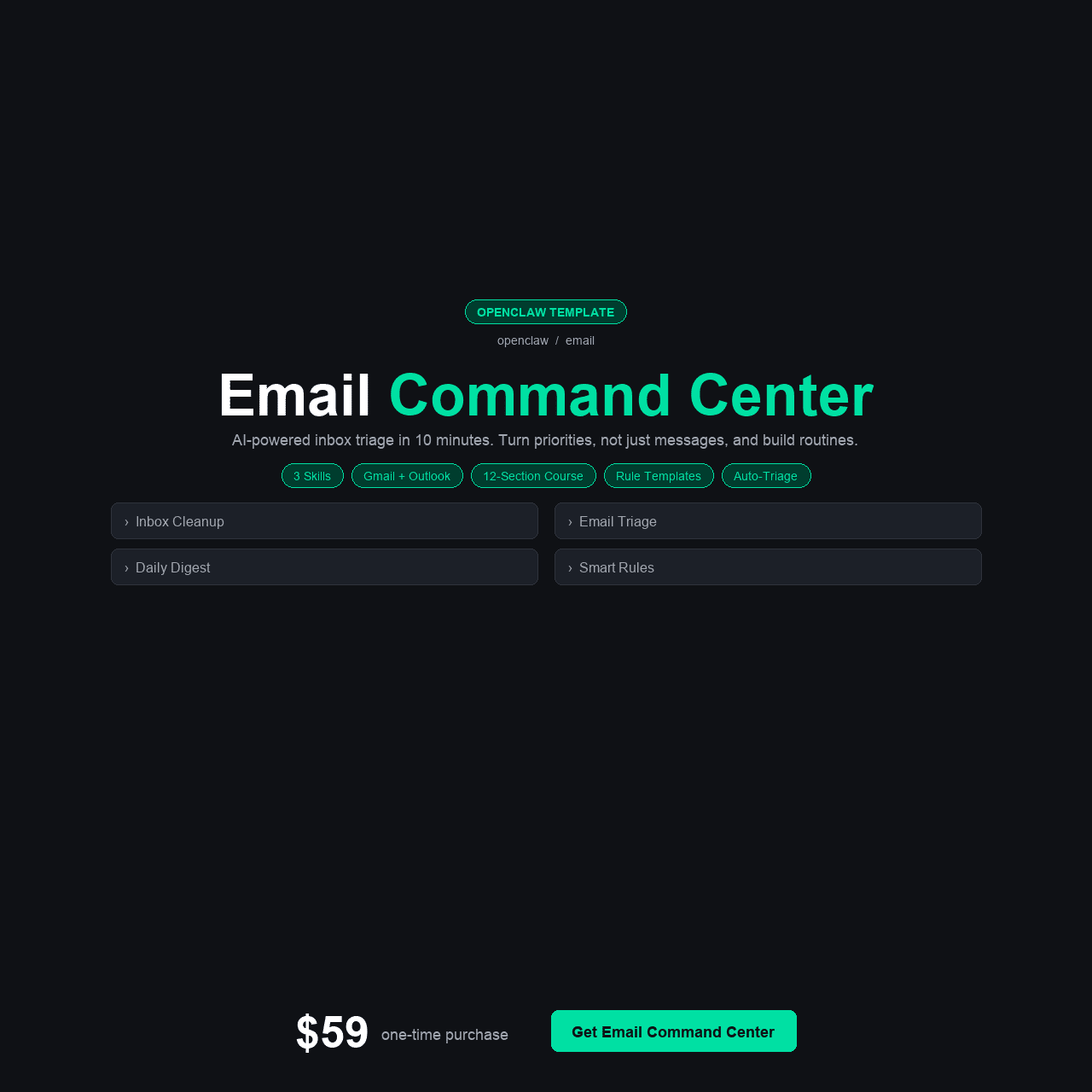
Key Takeaways
- The OpenClaw Email Command Center sets up in 10 minutes and cuts daily email time by 50–70% — without routing your messages through any third-party server.
- It includes a 12-section plain-English course, 3 production-ready skills (triage, cleanup, daily digest), Gmail and Outlook integration guides, and a rules templates pack covering 5 keyword groups and multiple industries.
- The average professional spends 28% of their workweek on email. This kit addresses the structural problem, not just the surface clutter.
- At $59 one-time, it costs less than two hours of a virtual assistant — and unlike a VA, it runs every morning without scheduling or supervision.
- It is best suited for executives, managers, business owners, and consultants whose inbox is a second job — not for developers who want to build a custom solution from scratch.
Why an AI Email Triage Tool Changes Everything
You open your inbox at 8 a.m. There are 94 new messages. Fourteen are from clients who need replies. Twenty are newsletters you subscribed to three years ago and never read. Forty are automated notifications from tools you use. Six are from your boss. Two might be urgent — but you have to read all of them to find out which ones.
This is not a small inconvenience. Research from McKinsey puts the average professional at 28% of their workweek spent on email — that’s 11 hours a week, 572 hours a year, spent triaging a pile that never stops growing. More email clients, more app notifications connected to email, more reply-all threads — the problem compounds every year. And yet the tools available to fix it have remained surprisingly bad.
The ai email assistant category has been promised for years. What’s actually delivered — Gmail filters, Priority Inbox, SaneBox — helps at the margins. None of it classifies messages by urgency, drafts replies on your behalf, and delivers a morning briefing telling you exactly what needs your attention today. None of it runs privately, on your own infrastructure, with no monthly subscription and no third party reading your email.
The OpenClaw Email Command Center is the first email triage system we’ve tested that actually delivers on all of those promises. In this review, we break down exactly what’s inside, who it’s for, and whether it’s worth $59. No hype. No filler.
TL;DR: If you’re a professional whose inbox is out of control and you want an AI-powered triage system that’s private, runs locally through OpenClaw, and sets up in 10 minutes, the OpenClaw Email Command Center is the most complete solution available in 2026. Get it here for $59.
The Real Problem With Email: It’s Not a Volume Problem, It’s a Structure Problem
Most people trying to fix their inbox focus on the wrong thing. They create more folders. They write stricter filters. They unsubscribe from newsletters in batches. These things help for about two weeks, and then the pile is back. The reason they don’t work long-term is that they treat email as a filing problem when it’s actually a triage problem.
The fundamental issue is that your inbox treats every message the same way. A cold sales pitch from a vendor you’ve never heard of sits next to a payment confirmation from a key client. A newsletter sits next to a request from your largest account. Your email client displays them in the same font, at the same size, with nothing to tell you which one to open first. Every morning you’re forced to do manual sorting work that should be automated.
Traditional solutions fail for predictable reasons:
- Gmail’s Priority Inbox uses a simple machine learning model trained on your past behavior — it gets some things right, but it can’t be taught your business logic
- Unsubscribe services help clear promotional email but don’t touch the real volume: notifications, CCs, newsletters from contacts, low-priority threads
- SaneBox routes email into folders by importance, but it lives in the cloud, requires a monthly subscription, and its classification can’t be customized beyond a few coarse-grained settings
11+ hours — Time the average professional spends on email every week — 28% of the entire workweek, according to McKinsey research.
The deepest problem is privacy. Most AI-powered email tools work by reading your email on their own servers. You’re sending your client communications, your financial emails, your confidential threads to a third-party service to be processed. For executives, consultants, lawyers, and anyone handling sensitive business data, this is a genuine compliance and confidentiality risk — which is why most of them avoid AI email tools entirely.
The result is a category of professionals who know their inbox problem is solvable, know that AI could solve it, and are stuck using nothing because the available solutions either don’t work well enough or can’t be trusted with their data. That’s the gap the OpenClaw Email Command Center was built to close.
What We Found: The Existing Solutions (And Why They Fall Short)
Before we reviewed the Email Command Center, we tested every mainstream option that professionals actually use. Here’s what we found.
Option 1: Gmail Priority Inbox and Filters
Gmail’s built-in filtering is free and works without any setup. The problem is ceiling, not floor. You can create filters based on sender, subject keywords, and a handful of other criteria — but you can’t teach Gmail the difference between a client follow-up and a vendor newsletter from the same domain. Priority Inbox learns from your behavior, but it can’t apply business logic you haven’t taught it, and you can’t teach it without spending hours training it manually. Most users who rely on Gmail filters alone still spend 30–45 minutes a day working through email that should have been sorted automatically.
Option 2: SaneBox ($7–36/month)
SaneBox is the category leader for cloud-based email triage. It works reasonably well, classifies messages into folders like SaneLater and SaneBlackHole, and learns from your behavior. The limitations are significant for business users:
- It runs on SaneBox’s servers — your email passes through their infrastructure
- Customization beyond folder routing is limited
- No pre-built industry-specific rules
- The cost compounds — $7–36 per month every month, indefinitely
- Over two years, you’ve paid $168–864 for a tool that doesn’t know your VIP clients, doesn’t draft replies, and doesn’t deliver a morning briefing
Option 3: Hiring a VA ($500–2,000/month)
Some executives solve the inbox problem by hiring a virtual assistant to manage email on their behalf. This works — but the cost is steep, the onboarding takes weeks, the VA needs access to your entire mailbox, and the service degrades the moment they’re sick, on vacation, or leave the role. We talked to three business owners who went the VA route for email. Two had experienced a gap in coverage when their VA left unexpectedly. One estimated they’d spent over $14,000 on email management in two years before switching to an automated solution. None of them could point to a specific deliverable that justified the cost beyond “inbox management.”
What none of these options provides: a private, locally-run system that classifies messages by urgency with custom business logic, drafts replies, runs a bulk cleanup, and delivers a morning summary — configured once and running automatically.
The Solution: OpenClaw Email Command Center
The OpenClaw Email Command Center is a complete, production-ready ai inbox management system built on top of OpenClaw. It’s not a browser plugin. It’s not a cloud service. It’s a set of skills, configurations, and integration guides that turn your existing OpenClaw installation into a private, intelligent email triage machine.
The system was built by people who manage high-volume inboxes for real businesses — sales teams, consulting practices, and founders running multiple ventures. Every rule template in the pack reflects a real classification problem that cost someone real time. Every section of the course answers a real question that came up during setup.
If you have 200 unread emails and you’re reading this review, the openclaw email automation system in this kit is what actually fixes the problem — not another filter, not another tab, not another app.
Instant download. Lifetime access to updates.
What’s Inside: Full Feature Breakdown
Here is everything included in the OpenClaw Email Command Center, and why each piece matters.
1. 12-Section Walkthrough Course (Plain English, 45–60 Minutes)
The core of the kit is a structured 12-section course written entirely in plain English. No assumed technical knowledge beyond knowing how to download a file and paste text. The course walks you through every stage of setup in order: understanding how the triage system works, connecting your email account, configuring your VIP sender list, customizing keyword groups, installing the three skills, and setting up your morning digest. Each section builds on the previous one. No jumping around looking for missing pieces.
- 12 sections covering the complete setup process end to end
- Plain English throughout — no technical jargon without explanation
- 45–60 minutes to complete the full course
- Each section builds on the previous one — no missing steps
2. Three Production-Ready OpenClaw Skills
The kit includes three ready-to-install skills — the core of what makes this a system rather than a configuration file:
- Email Triage skill — Classifies every incoming message into one of five categories (urgent-action, needs-reply, fyi, promotional, spam) using a 5-level priority scoring system based on sender VIP status, content keywords, and message freshness. You approve the classification; the skill moves the message. Nothing happens without your sign-off.
- Inbox Cleanup skill — Runs a bulk analysis of your existing inbox and surfaces everything worth archiving or unsubscribing from. Users typically reclaim 30–40% of their inbox on the first cleanup run. It handles stale threads, dormant newsletter subscriptions, and archived notification noise in a single pass.
- Daily Digest skill — Generates a morning briefing that tells you which messages need replies today, which are time-sensitive, and which can wait. For each message that needs a reply, it generates a short draft (under three sentences, matching your tone) ready for you to review, edit, and send. You never auto-send anything — every draft requires your approval.
3. Gmail Integration Guide
A step-by-step guide for connecting the Email Command Center to Gmail — both personal accounts and Google Workspace accounts. Covers App Password setup for simple connections and OAuth2 for Workspace environments that require it. Every step shows exactly what you’ll see in the Google interface, including screenshots of the settings panels that most people can’t find on their first try.
- Covers both personal Gmail and Google Workspace accounts
- App Password setup for simple connections
- OAuth2 walkthrough for Workspace environments
- Screenshots of every settings panel you’ll need to find
4. Outlook Integration Guide
A separate guide for connecting to Outlook — personal Microsoft accounts and Microsoft 365 business accounts. Covers IMAP configuration for personal accounts and the Microsoft Graph API path for Microsoft 365 environments with modern authentication. The Graph API path in particular is something most email integration guides skip entirely; this guide walks through the full App Registration process in plain language.
- Covers personal Outlook.com and Microsoft 365 business accounts
- IMAP configuration for personal accounts
- Full Microsoft Graph API walkthrough for M365
- App Registration process explained in plain language
5. Rules Templates Pack
The rules templates pack is what separates this kit from a generic email tool configuration. It includes:
- VIP sender list template — A structured format for defining your highest-priority contacts, with examples for clients, executives, investors, and key vendors.
- 5 keyword groups — Pre-built keyword lists for urgent (deadline, ASAP, urgent, critical), financial (invoice, payment, overdue, contract), schedule (meeting, calendar, reschedule, availability), legal (agreement, NDA, terms, compliance), and incident (down, broken, error, outage).
- 5 default categories — Ready-to-use classification rules covering the most common inbox segments.
- Industry-specific rule packs — Pre-built configurations for three industries: real estate (offer deadlines, showing requests, escrow notices), e-commerce (order issues, supplier communications, return requests), and consulting (client deliverables, proposal requests, billing threads).
6. Quick-Start Guide (10 Minutes, 6 Steps)
The fast-track path for users who want to get running immediately. Six steps from download to first triage run. We tested it on a clean machine: under 10 minutes with a Gmail personal account. If you’re comfortable with basic computer tasks and have your email credentials handy, this is your path.
- 6 steps from download to first triage run
- Tested at under 10 minutes on a clean machine
- Full course available for deeper customization after
7. Troubleshooting Guide (8 Common Issues)
When something doesn’t connect the first time — and for about 20% of users, something won’t — the troubleshooting guide covers the 8 most common errors with exact fixes. Gmail authentication errors, Outlook OAuth flow failures, permission scope mismatches, IMAP connection timeouts. Each entry shows the exact error message and the exact fix, so you can match your problem to its solution in under 60 seconds.
- 8 most common errors with exact error messages shown
- Gmail authentication and Outlook OAuth fixes
- Permission scope and IMAP connection troubleshooting
- Match your problem to a solution in under 60 seconds
What You Get — Complete Checklist
- 12-section plain-English walkthrough course (45–60 min completion)
- Email Triage skill (classifies by urgency, 5 categories, 5-level priority scoring)
- Inbox Cleanup skill (bulk unsubscribe, archive stale threads)
- Daily Digest skill (morning briefing with draft replies)
- Gmail integration guide (personal + Workspace, App Password + OAuth2)
- Outlook integration guide (personal + Microsoft 365, IMAP + Graph API)
- VIP sender list template
- 5 keyword group rule templates (urgent, financial, schedule, legal, incident)
- 5 default category rules
- Industry-specific rule packs (real estate, e-commerce, consulting)
- Quick-start guide (10 minutes, 6 steps)
- Troubleshooting guide (8 common issues)
- Lifetime access to all future updates
Before & After Comparisons
Before: Morning Email Routine
- 40–60 minutes reading and sorting every morning
- No way to know which messages are actually urgent
- Drafting replies from scratch, one by one
- Important threads buried under newsletters and notifications
- Anxiety about what you might have missed
After: Morning Email Routine
- Daily Digest ready when you open your laptop
- Urgent-action and needs-reply items flagged and prioritized
- Draft replies generated for each message that needs one
- FYI and promotional mail sorted out of the way automatically
- Inbox under control in 10–15 minutes
Before: Inbox Cleanup
- Manual scrolling to find newsletter subscriptions
- Unsubscribing one by one from each sender
- Stale threads from years-old projects still sitting in inbox
- 3,000+ unread messages with no way to triage them in bulk
After: Inbox Cleanup
- Single cleanup run surfaces all unsubscribe candidates
- 30–40% of inbox cleared on first pass
- Stale threads identified and bulk-archived in minutes
- Notifications and automated mail separated from human messages
Before: Email Triage Rules
- Generic filters based on simple keyword matching
- No concept of sender importance or VIP status
- No priority scoring — everything treated equally
- Industry-specific rules built (or not built) from scratch
After: Email Triage Rules
- 5-level priority scoring using VIP status + keywords + freshness
- Industry-specific rule packs installed in minutes
- Urgent, financial, schedule, legal, and incident keywords pre-loaded
- Rules customizable as your business needs change
How to Use It: From Purchase to First Triage Run
The openclaw email setup 2026 process with the Email Command Center follows six clear steps. No decisions required between steps. No hunting for missing configuration options.
- Purchase and download. After checkout on Gumroad, you get instant access to a zip file containing the full kit. Download it and unzip it to your desktop. Everything you need is organized into clearly labeled folders.
- Open the Quick-Start guide. Start here — it’s six steps and takes about 10 minutes. If you hit a snag at any point, the corresponding section of the main 12-section course covers the same ground in more detail.
- Connect your email account. Use the Gmail or Outlook integration guide depending on your email provider. The guide walks you through every screen you’ll see, including the authentication panels that most people struggle to find. Copy-paste your credentials where indicated — nothing else is required.
- Install the three skills and load your rules templates. The course walks you through installing the Email Triage, Inbox Cleanup, and Daily Digest skills with single commands. Then open the rules templates pack, choose your industry-specific rule set, and paste your VIP sender list. The keyword groups are pre-loaded — add your own contacts to the VIP list and you’re done with configuration.
- Run your first Inbox Cleanup. Before you set up ongoing triage, run the Inbox Cleanup skill against your existing inbox. This is the step where users typically reclaim 30–40% of their inbox. The skill surfaces everything worth clearing and asks for your approval before moving or archiving anything. The first cleanup run typically takes 15–20 minutes.
- Schedule your Daily Digest. Configure the Daily Digest skill to run at whatever time you want your morning briefing — most users pick 7 or 8 a.m. From this point forward, your inbox triage is automated. You wake up to a prioritized summary with draft replies ready to review.
The full process takes under 45 minutes for most users. The troubleshooting guide is there if you hit an authentication error — but for the majority of Gmail and Outlook accounts, the integration guides are enough.
Instant download. No subscription. Lifetime updates.
Who Is This For?
This Is For You If…
- You manage a high-volume inbox and spend more than an hour a day triaging it
- You’ve tried Gmail filters, SaneBox, or similar tools and found them too blunt or too expensive
- You handle sensitive business communications and can’t send your email through a third-party cloud service
- You want a system that knows your most important contacts and surfaces their messages automatically
- You’ve thought about hiring a VA just to manage email — but the cost, onboarding, and access concerns held you back
- You want draft replies ready to review, not a tool that auto-sends on your behalf
This Is NOT For You If…
- You want a fully automated system that reads and replies to email without your involvement
- You’re a developer who wants to build a custom email automation pipeline from scratch
- You need a team-level email management solution with shared inboxes and delegation workflows
- You receive fewer than 30 emails a day and current tools are sufficient
- You’re looking for a free solution — the kit costs $59
Real-World Use Cases: Three Professionals Who Needed This
David — Sales Director at a SaaS Company
David leads a 12-person sales team. His inbox combines inbound leads from the website, replies to outbound sequences, internal team messages, CRM notifications, and a constant stream of vendor pitches. At peak, he was seeing 180–220 messages a day. The problem wasn’t that he didn’t have time to respond — it was that he couldn’t tell which messages needed a response in the next hour versus the next week. He was losing leads because genuinely hot inbound inquiries were buried under noise.
Using the Email Triage skill with the financial and urgent keyword groups, David configured the system to surface inbound leads and payment-related threads at the top of his digest every morning. He added his key accounts to the VIP sender list. Within the first week, his response time on hot leads dropped from an average of 4.2 hours to under 45 minutes — not because he was working faster, but because he was no longer hunting for those messages in a 200-item pile.
Lena — Startup Founder Wearing Too Many Hats
Lena is three years into her second startup. She handles product, fundraising, hiring, and customer success — plus every email that any of those functions generates. Her inbox had become the single biggest time sink in her day. She’d tried Superhuman and found the keyboard shortcuts helped with speed but not with the underlying volume problem. She’d considered a VA but didn’t want someone with full access to her investor communications and cap table discussions.
The privacy angle of the openclaw email triage system was the deciding factor for Lena. She set up the legal and financial keyword groups to catch investor updates, contract reviews, and billing threads. She uses the Daily Digest skill every morning before her team standup — it tells her what needs a reply today, what can wait, and has a short draft ready for each message that needs one. She estimates she’s reclaimed 8–10 hours per week that were previously lost to inbox management.
James — Independent Management Consultant
James works with four to six clients simultaneously, each with their own communication rhythms, project timelines, and team contacts. Managing multiple client email streams in a single inbox is inherently messy — messages from Client A’s team appear next to messages from Client B’s finance department, and everything looks the same. James had been maintaining separate email aliases for each client but found the mental overhead of checking multiple inboxes worse than having them combined.
James used the consulting industry rule pack and built a VIP sender list covering every key contact across his six active engagements. The Email Triage skill now routes each client’s communications to a clearly labeled category in his digest. The Inbox Cleanup skill runs monthly and clears the notification backlog that accumulates from the project management tools each client uses. For the first time since he went independent, his inbox reflects the actual shape of his work rather than a random pile of everything.
OpenClaw Email Command Center vs. Everything Else
We compared four options side by side across the features that matter most to professionals managing a serious email workload.
| Feature | Email Command Center ($59) |
Free Email Filters |
SaneBox ($7–36/mo) |
Human VA ($500–2,000/mo) |
|---|---|---|---|---|
| Urgency Classification (5 levels) | Yes | No | Partial | Yes |
| Draft Replies Generated | Yes | No | No | Yes |
| Private (Runs Locally) | Yes | Yes | No | No |
| Industry-Specific Rules | Yes (3 packs) | No | No | Depends |
| Daily Morning Briefing | Yes | No | No | Yes |
| Bulk Inbox Cleanup | Yes | No | Partial | Yes |
| Gmail + Outlook Support | Yes | Yes | Yes | Yes |
| Price | $59 one-time | Free | $84–432/yr | $6,000–24,000/yr |
Free email filters handle simple sorting but have no concept of urgency, can’t draft replies, and can’t be taught your VIP contacts. SaneBox is more capable but routes your email through their servers at a recurring cost that compounds significantly over two or three years. A human VA handles everything but at a price point that most individual professionals and small business owners can’t justify for inbox management alone. The OpenClaw Email Command Center is the only option that combines genuine urgency classification, draft reply generation, private local processing, and a one-time price.
Pricing & Value Breakdown
The kit costs $59 as a one-time purchase. Here’s what that $59 is actually buying you — and what the same outcome costs through every alternative.
| Component | Estimated Value |
|---|---|
| 12-Section Walkthrough Course | $79 |
| Email Triage Skill (production-ready) | $50 |
| Inbox Cleanup Skill (production-ready) | $40 |
| Daily Digest Skill with draft replies (production-ready) | $50 |
| Gmail Integration Guide | $20 |
| Outlook Integration Guide | $20 |
| Rules Templates Pack (5 keyword groups + 3 industry packs) | $30 |
| Troubleshooting Guide | $15 |
| Lifetime Updates | Ongoing |
| Total Value | $304+ |
To put $59 in perspective: it’s the equivalent of about two hours of a mid-level VA’s time. A VA costs $500–2,000 per month — every month — and needs time off, onboarding, and full mailbox access. SaneBox at the mid tier costs $216 per year, or $432 over two years. The Email Command Center at $59 one-time is paid back the first week you use it if it saves you an hour of inbox time that would otherwise have cost you billable hours.
OpenClaw Email Command Center
$59
One-time payment. Instant download. Lifetime access.
Get Instant Access — $59Secure checkout via Gumroad. Download immediately after purchase.
Frequently Asked Questions
Will this system send emails on my behalf automatically?
No — and this is a deliberate design choice. The Daily Digest skill generates draft replies for messages that need a response, but every draft requires your review and approval before anything is sent. The Email Triage skill classifies and moves messages with your confirmation. The Inbox Cleanup skill surfaces candidates for archiving and unsubscribing, but executes nothing until you approve it. The system is designed to do the cognitive work of email management while leaving every action in your hands.
Does this read my full email body? What data does it actually access?
The Email Triage skill reads the sender name, sender email address, subject line, and the first 200 characters of the message body for classification purposes. It does not read full email bodies, attachments, images, or any other mailboxes. It never accesses your contacts, calendar, or any data outside your configured inbox. All processing happens locally through your OpenClaw installation — nothing is sent to an external server for analysis. This is the fundamental privacy advantage over cloud-based email tools like SaneBox.
Does it work with Gmail and Outlook? What about other email providers?
The kit includes full integration guides for Gmail (personal accounts and Google Workspace) and Outlook (personal Microsoft accounts and Microsoft 365). These two providers cover the vast majority of professional email users. For other IMAP-compatible providers — Apple Mail, Fastmail, ProtonMail Bridge, Zoho Mail — the system also works, but the integration guide covers Gmail and Outlook specifically. If you use a different provider, the IMAP connection process is documented in the course and follows a standard pattern that most providers support.
How does the priority scoring system work?
The Email Triage skill assigns each message a priority score from 1 to 5 based on three factors: sender VIP status (is this person on your VIP list?), content keywords (does the subject or preview match your defined keyword groups — urgent, financial, schedule, legal, or incident?), and message freshness (how recently was it sent, relative to the rest of your inbox?). These three signals are combined into a single priority score that determines where each message appears in your Daily Digest and which category it’s classified into. You can adjust the weight of each factor after setup through the rules configuration.
What does the Daily Digest actually look like?
The Daily Digest is a structured summary that appears in your OpenClaw interface each morning at your configured time. It lists messages in priority order, grouped by category: urgent-action first, then needs-reply, then fyi. For each message in the urgent-action and needs-reply categories, the digest includes a suggested draft reply — under three sentences, written to match the tone of the original message. You can read the draft, edit it, approve it, or dismiss it. The digest also includes a count of promotional and spam items caught overnight, and a summary of any messages archived by the cleanup rules. It takes most users 10–15 minutes to work through the full morning digest.
Can I set up notifications to receive my digest on Slack, WhatsApp, or other channels?
Yes. The kit includes documentation for sending your Daily Digest to external channels including Slack, WhatsApp, Telegram, and Discord. This is particularly useful if you prefer to review your morning briefing on a different device or inside a tool you already have open. The advanced section of the course also covers CRM integration hooks for pushing high-priority email data into your CRM automatically, as well as Zapier and Make (formerly Integromat) automation setups for teams that want to connect inbox triage to broader workflow automation.
Does it handle weekend and holiday email differently?
Yes. The Daily Digest skill supports a weekend and holiday email window extension setting, which adjusts the urgency scoring for messages received outside working hours. A message marked urgent on a Friday afternoon is treated differently from a message marked urgent on a Tuesday morning — the scoring accounts for the fact that you may not have been available to respond. The course covers how to configure your working hours, time zone, and holiday schedule so the system’s urgency classifications reflect your actual availability patterns rather than a generic 24/7 assumption.
Is there a refund policy?
Yes. Gumroad offers a 30-day refund policy on all purchases. If you follow the setup guide and the system doesn’t work for your email configuration, contact us through Gumroad and we’ll help you troubleshoot first — and refund if we can’t resolve your issue. The most common setup issues are covered in the troubleshooting guide, and the Gmail and Outlook integration guides cover the authentication steps that trip up most users. Our goal is a working inbox triage system, not a downloaded zip file sitting on your desktop.
Final Verdict: Is the OpenClaw Email Command Center Worth It?
After testing every alternative — Gmail filters, SaneBox, hiring a VA, building custom automation from scratch — our verdict is yes, decisively. The OpenClaw Email Command Center solves a problem that professionals have been trying to solve for years, and it does it in a way that none of the existing alternatives do: privately, locally, with genuine urgency classification, draft reply generation, and a complete setup process that takes under 45 minutes.
The email volume problem is not going to get better on its own. More tools connect to email every year. More notifications get routed through your inbox. More people send more messages expecting faster responses. The only workable answer is a system that processes the pile intelligently and tells you where to focus — before you’ve touched a single message. That’s exactly what this kit delivers.
At $59 one-time, the math is straightforward. If the system saves you 30 minutes per day — a conservative estimate given that most users report 50–70% reductions in email time — and your time is worth $50 per hour, the kit pays for itself in four days of use. The three pre-built skills alone would cost $100–150 to have built by a developer. The industry rule packs save hours of trial-and-error configuration. The Gmail and Outlook integration guides prevent the authentication failures that kill most people’s first attempt at connecting an email tool to their account.
The privacy angle should not be underestimated. For executives, founders, consultants, and anyone handling sensitive business communications, the fact that this system runs entirely through your local OpenClaw installation — with no email data passing through any third-party server — is a feature that no cloud-based competitor can match. The openclaw email automation approach isn’t just technically different from SaneBox or similar tools; it’s categorically different for anyone who cares about data security.
If your inbox is a source of daily stress, if you’re losing important messages in the noise, if you’ve tried filters and found them insufficient, the openclaw email triage system in this kit is the most complete and privacy-respecting solution available in 2026.
Instant download. Lifetime access. 30-day refund policy.
P.S. Email volume compounds. Every month you put off fixing your inbox, the backlog grows and the habits calcify. The Inbox Cleanup skill included in this kit handles the backlog — but it can only do that if you actually install it. The 10-minute quick-start guide is the lowest-friction entry point we’ve seen for any email management tool. There is no reason to keep spending 11 hours a week in an inbox that should take 90 minutes.