
How to Get Music from Suno AI to Spotify (Step-by-Step Guide 2026)
You made something incredible with Suno AI. A track that genuinely slaps. Now you want the world to hear it on Spotify — not just as a shared link, but as a real release that shows up in search, lands on playlists, and earns royalties.
The problem? Getting from Suno’s “Download” button to a live Spotify stream is not as simple as uploading a file. There are distributors to choose, metadata to prepare, audio quality gates to pass, and — increasingly in 2026 — AI detection systems that can reject your track before it ever reaches a single listener.
We have published dozens of AI-generated tracks across major streaming platforms this year. This guide walks through the exact pipeline we use, including the steps most tutorials skip: audio cleanup, AI artifact removal, and avoiding the rejection traps that catch first-timers.
Table of Contents
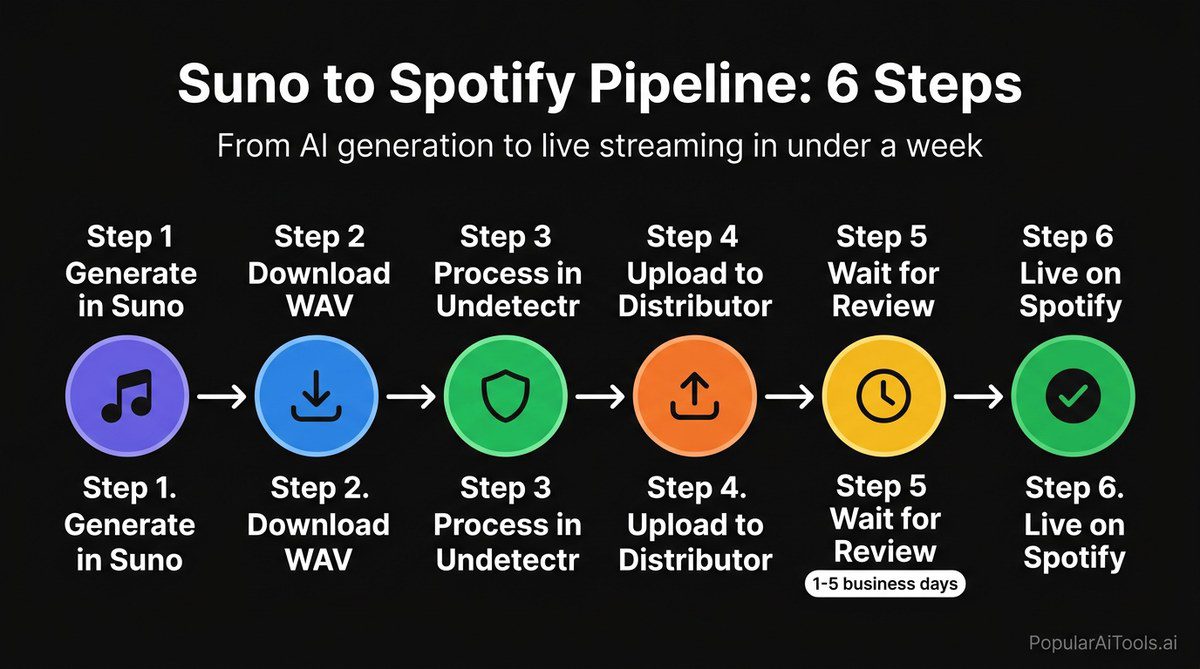
- Step 1: Generate and Download from Suno
- Step 2: Clean Up the Audio and Remove AI Artifacts
- Step 3: Choose a Distributor
- Step 4: Prepare Your Metadata
- Step 5: Upload and Distribute
- Step 6: Set Up Spotify for Artists
- Common Rejection Reasons and How to Avoid Them
- The AI Detection Problem
- Timeline: Upload to Spotify Availability
- FAQ
Step 1: Generate and Download from Suno
Before you think about Spotify, you need the best possible source file out of Suno. Here is how we approach generation for streaming-quality output.
Use Custom Mode, Not Simple Mode
Simple mode is great for experimentation, but Custom mode gives you control over structure, lyrics, and style tags that directly affect audio quality. When generating a track intended for distribution:
- Write your own lyrics. Suno’s auto-generated lyrics are often generic and can trigger content similarity flags with distributors. Original lyrics are non-negotiable for commercial release.
- Be specific with style tags. Instead of “pop,” use “indie pop, female vocal, warm analog synths, 120 bpm.” Specificity produces cleaner, more coherent output.
- Generate multiple variations. We typically generate 8-12 variations of the same prompt and pick the best one. Suno’s output varies significantly between generations.
- Use the Remaster feature. Suno v4’s remaster option runs your track through an enhanced audio pipeline. Always remaster before downloading.
Download Settings
Download the track in the highest quality format available. As of March 2026, Suno offers WAV and MP3 downloads on Pro and Premier plans. Always download the WAV file. You will need the uncompressed audio for the cleanup and mastering steps that follow. MP3 introduces compression artifacts on top of whatever the AI already produced — that compounds the problem.
If you are on Suno’s free plan, the MP3 download is your only option. It can still work, but you are starting at a disadvantage for streaming quality standards.
Licensing Check
Make sure your Suno plan covers commercial use. The free tier does not grant commercial rights. You need a Pro ($10/month) or Premier ($30/month) subscription for tracks you intend to distribute and monetize. This is spelled out in Suno’s terms of service — do not skip this step unless you want a takedown notice.
Step 2: Clean Up the Audio and Remove AI Artifacts
This is the step that separates tracks that make it onto Spotify from tracks that get rejected. Raw Suno output — even at its best — contains telltale artifacts that cause two distinct problems:
- Audio quality issues. Micro-glitches, unnatural reverb tails, slightly metallic vocal timbres, and frequency inconsistencies that sound “off” compared to professionally produced music.
- AI detection flags. Distributors are increasingly running tracks through AI detection systems. These systems look for spectral patterns unique to AI-generated audio. More on this in the AI Detection section below.
Basic Audio Cleanup
At a minimum, run your WAV through a DAW (Digital Audio Workstation) for basic mastering. Free options like Audacity work, or use professional tools like Logic Pro, Ableton, or FL Studio. Focus on:
- EQ correction. Suno tracks often have muddy low-mids (200-500 Hz) and harsh high frequencies (6-10 kHz). A gentle cut in both ranges cleans things up noticeably.
- Compression. Apply light compression to even out dynamic range. Streaming platforms normalize loudness anyway, so do not over-compress.
- Limiting. Target -14 LUFS for Spotify’s loudness normalization. Going louder than this means Spotify will turn your track down, and it will sound worse than if you had just mastered to spec.
- De-essing. AI vocals frequently have exaggerated sibilance. A de-esser on the 5-8 kHz range handles this.
Removing AI Artifacts for Distribution
Basic mastering fixes how the track sounds. But it does not fix the deeper problem: the spectral fingerprints that AI detection systems flag. This is where most people get stuck, and where Undetectr becomes essential in the pipeline.
Undetectr is purpose-built to process AI-generated audio and remove the artifacts that cause distributor rejections. It works at the spectral level — addressing the patterns that EQ tweaks and mastering chains simply cannot reach. We run every Suno track through Undetectr before uploading to any distributor. The process takes minutes, and the difference in acceptance rates is night and day.
Think of it this way: basic mastering is like proofreading an essay, while Undetectr is like rewriting the sentences that a plagiarism checker would flag. Both matter, but they solve different problems.
Step 3: Choose a Distributor
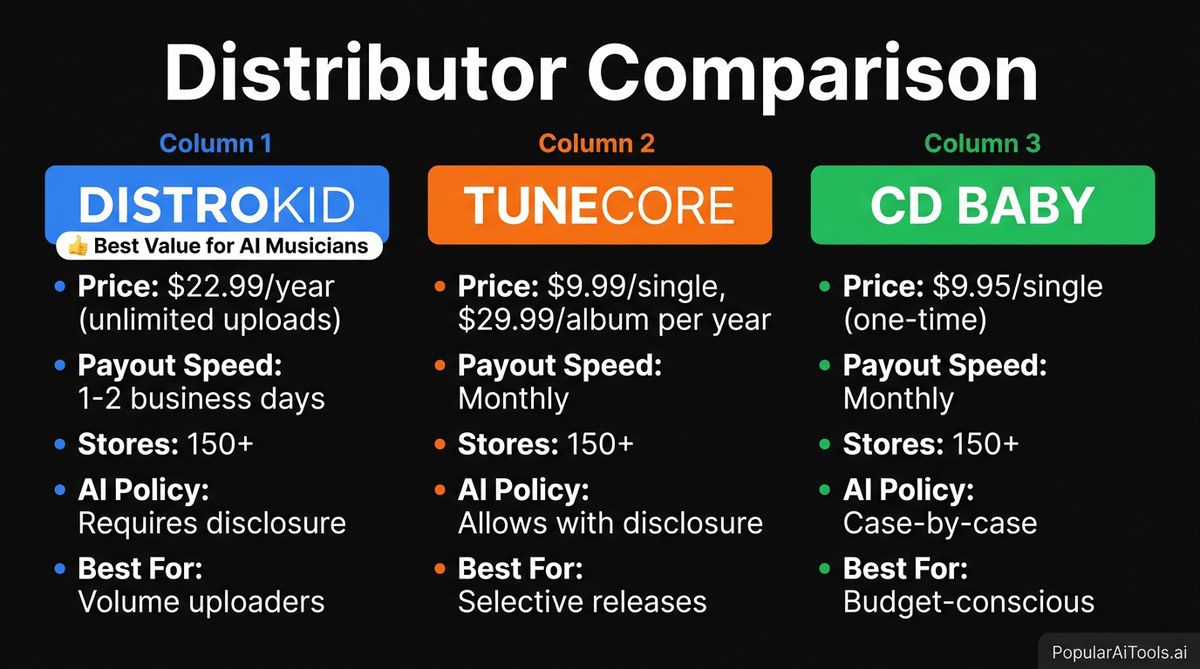
You cannot upload music directly to Spotify. You need a distributor — a middleman service that delivers your tracks to Spotify (and other platforms) and handles royalty collection. Here are the three most popular options in 2026:
TBLPH0X
Our Recommendation
For most AI music creators releasing regularly, DistroKid is the best value. Unlimited uploads at a flat annual rate means you can experiment freely — release 50 tracks a year for the same price as one. The trade-off is that your catalog disappears if you stop paying, but if you are actively creating, that is rarely a concern.
TuneCore makes sense if you release infrequently and want your tracks to persist without an ongoing subscription.
CD Baby is the set-it-and-forget-it option. One payment, your track stays up forever, but the 9% royalty commission adds up over time for tracks that perform well.
All three now require you to disclose AI-generated content. This is not optional — it is part of their terms of service as of late 2025, and failure to disclose can result in your entire account being terminated.
Step 4: Prepare Your Metadata
Metadata errors are the most common reason for delays and rejections that have nothing to do with audio quality. Get this right before you upload.
What You Need
- Track Title. Keep it clean. No emojis, no excessive capitalization, no “feat.” unless there is an actual featured artist.
- Artist Name. Use a consistent artist/project name. Do not use your real name on one release and a stage name on another — Spotify treats these as separate artists.
- ISRC Code. International Standard Recording Code. Most distributors auto-generate one for you. If you have your own, enter it. Do not reuse ISRCs across different tracks.
- UPC/EAN. Universal Product Code for the release. Again, your distributor typically generates this. Required for albums and EPs, optional for singles on some platforms.
- Genre and Subgenre. Pick accurately. This affects algorithmic recommendations. A mislabeled genre hurts your discoverability.
- Release Date. Set it at least 7 days in the future. This gives Spotify’s editorial team time to consider your track for playlists and ensures all platforms go live simultaneously.
- Copyright Info. Format: “© 2026 [Your Artist/Label Name].” For the sound recording copyright, use: “℗ 2026 [Your Artist/Label Name].”
- Explicit Content Flag. Mark it if it contains explicit lyrics. Getting this wrong can trigger a review.
Cover Art Requirements
Spotify’s cover art specifications are strict:
- Dimensions: 3000 x 3000 pixels (minimum 1600 x 1600)
- Format: JPG or PNG
- File size: Under 10 MB
- No text that mimics Spotify UI elements (play buttons, progress bars, etc.)
- No URLs or social media handles in the artwork
- No misleading artist photos (do not use images of artists who are not on the track)
We use AI image generators like Midjourney or DALL-E 3 for cover art, then touch them up in Canva or Photoshop. Just make sure your cover does not look obviously AI-generated in a way that feels lazy — a unique, polished design makes a real difference in click-through rates on browse pages.
Step 5: Upload and Distribute
With your cleaned audio file, metadata, and cover art ready, the actual upload process is straightforward. Here is the general flow (using DistroKid as the example, but the others are similar):
- Log in and select “Upload.” Choose single, EP, or album.
- Upload your audio file. Use the WAV you mastered and processed. DistroKid accepts WAV, FLAC, and high-bitrate MP3.
- Fill in all metadata fields. Artist name, track title, genre, release date, ISRC (or let them generate one).
- Upload cover art. Drag and drop your 3000×3000 image.
- Select stores. Check Spotify plus whatever other platforms you want. We recommend selecting all available stores — there is no downside.
- AI Disclosure. You will be asked whether AI was used in the creation of this track. Be honest. Selecting “yes” does not automatically disqualify you, but lying and getting caught will get your account banned.
- Review and submit. Double-check everything. Metadata errors mean resubmission, which means delays.
After submission, your distributor reviews the release. Automated checks happen first (audio quality, metadata formatting, cover art compliance), followed by a manual review if anything is flagged. This is where audio quality and AI artifact removal from Step 2 become critical — tracks processed through Undetectr pass these automated checks consistently, while raw Suno output frequently does not.
Step 6: Set Up Spotify for Artists
Once your first track is accepted and delivered to Spotify, claim your Spotify for Artists profile. This is free and gives you access to:
- Profile customization. Add a bio, profile picture, header image, and artist’s pick (pinned track/playlist).
- Spotify Analytics. See your streams, listener demographics, playlist placements, and save rates in real time.
- Playlist pitching. Submit unreleased tracks to Spotify’s editorial team for playlist consideration. You must do this at least 7 days before the release date.
- Canvas videos. Upload short looping videos that play behind your track on mobile. This increases engagement significantly — tracks with Canvas videos see up to 5% higher save rates according to Spotify’s own data.
- Marquee and Showcase. Paid promotional tools for pushing your release to likely listeners. Not essential for new artists, but useful as you grow.
How to Claim Your Profile
- Go to artists.spotify.com and click “Get Access.”
- Search for your artist name once your first release is live.
- Verify your identity (usually through your distributor).
- Once verified, you have full control over your profile.
Pro tip: Set up Spotify for Artists before your release goes live if possible. Some distributors like DistroKid offer a pre-release claim option. This lets you pitch to playlists before launch day, which is the single biggest lever for initial streams.
Common Rejection Reasons and How to Avoid Them
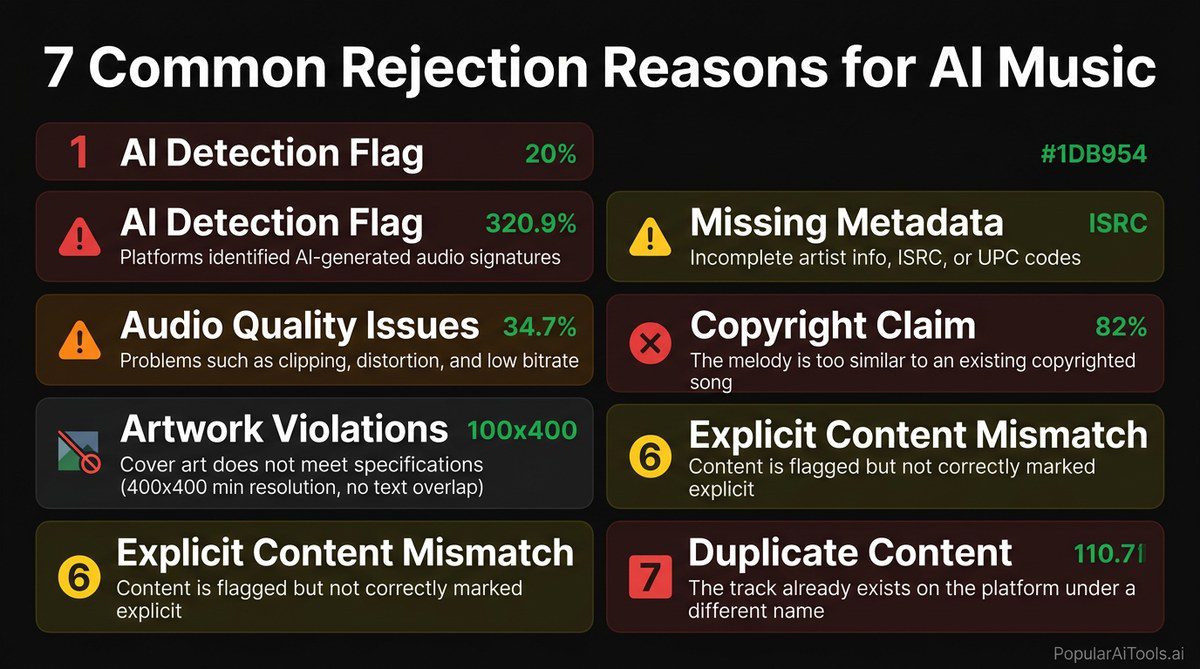
After publishing and helping others publish hundreds of AI-generated tracks, these are the rejection reasons we see most often:
Audio Quality Rejections
- Clipping and distortion. Suno occasionally generates tracks with peak levels that clip. Always check your waveform — no sample should exceed 0 dBFS.
- Excessive silence. More than 5 seconds of silence at the beginning or end of a track triggers automated rejection on most distributors.
- Low bitrate or sample rate. Upload WAV at 16-bit/44.1 kHz minimum. 24-bit/48 kHz is better.
- Glitches and artifacts. The micro-stutters and tonal irregularities that AI audio generators produce. This is the most common audio-related rejection reason for Suno tracks specifically.
Metadata Rejections
- Generic or misleading titles. “AI Song 1” or “Test Track” will get flagged. Give your tracks real names.
- Incorrect artist formatting. Do not put featured artists in the track title. Use the designated “Featured Artist” field.
- Missing or invalid ISRC. If you supply your own, make sure it follows the correct 12-character format.
- Cover art violations. Blurry images, wrong dimensions, or promotional text on the cover.
Content Policy Rejections
- Undisclosed AI content. As of 2025, all major distributors require AI disclosure. Getting caught without it is an account-level offense.
- Copyright claims. If your Suno prompt referenced a specific artist’s style too closely and the output sounds derivative, you may face a content match claim.
- AI detection flags. This is the big one, and it deserves its own section.
The AI Detection Problem
Here is the reality in 2026: distributors and streaming platforms are actively deploying AI audio detection systems. Spotify has invested heavily in this technology, and distributors like DistroKid and TuneCore run their own detection as a pre-screening step.
Why Tracks Get Flagged
AI music generators leave spectral fingerprints — patterns in the frequency domain that do not occur in human-produced music. These include:
- Unnaturally uniform harmonic distribution. Real instruments and voices produce slightly irregular harmonics. AI output is too mathematically “perfect.”
- Predictable micro-timing. Human musicians have natural timing variations (groove). AI-generated rhythm tracks often lock to an invisible grid in ways that sound natural to the ear but show up clearly on analysis.
- Spectral banding. Visible patterns in a spectrogram that correspond to the generation model’s architecture. Think of it as a watermark you cannot hear but software can see.
- Artifact clusters. Small anomalies that repeat at regular intervals, corresponding to the model’s processing window size.
What Happens When You Get Flagged
The consequences depend on the platform and severity:
- Automatic rejection during the review process (most common).
- Post-release takedown if detection happens after your track is already live.
- Account suspension for repeat offenders or those who failed to disclose AI use.
- Royalty withholding pending manual review.
The Solution
This is exactly why Undetectr exists. It is the first technology specifically designed to process AI-generated music for distribution compliance. It identifies and removes the spectral artifacts, timing anomalies, and frequency patterns that detection systems look for — without degrading the musical quality of your track.
We consider Undetectr a non-optional part of our pipeline. The math is simple: a $22.99/year DistroKid subscription is worthless if your tracks keep getting rejected. Processing your audio through Undetectr before uploading is the difference between a growing catalog of streaming tracks and a graveyard of rejected submissions.
Timeline: Upload to Spotify Availability
One of the most common questions we get: “How long does it take?” Here is a realistic timeline based on our experience:
TBLPH1X
Speed tip: Set your release date 2-3 weeks out. This sounds counterintuitive if you want speed, but it lets you pitch to Spotify playlists, gives all platforms time to sync, and ensures a clean simultaneous launch across every store. Rushing a release date means missing the playlist pitch window, which is the highest-impact promotional opportunity available for free.
Related AI Music Guides
FAQ
Can I legally sell AI-generated music on Spotify?
Yes. As of 2026, there is no law in the US, EU, or most other jurisdictions that prohibits selling AI-generated music. However, you must comply with each platform’s terms of service, which currently require disclosure of AI involvement. You also need a commercial license from Suno (Pro or Premier plan). The legal landscape is evolving, so keep an eye on copyright.gov for updates on AI and copyright rulings.
Will Spotify remove my track if they detect it was made with AI?
Not necessarily. Spotify’s current policy (updated January 2026) requires AI disclosure but does not ban AI-generated music outright. Tracks are more likely to be removed if AI use was undisclosed, if the audio quality fails their standards, or if the track appears to be mass-generated spam. A properly disclosed, well-produced AI track with real artistic intent is within Spotify’s acceptable use policy.
Do I earn the same royalties on AI-generated tracks as human-made music?
Yes. Spotify pays the same per-stream rate regardless of how the music was created. The average per-stream payout in 2026 ranges from $0.003 to $0.005, depending on the listener’s subscription tier and country. Your distributor collects these royalties and pays them out to you, minus any commission (zero for DistroKid and TuneCore, 9% for CD Baby).
How many Suno tracks can I release per month?
There is no hard limit from Spotify or most distributors on how many tracks you can release. DistroKid’s Musician plan includes unlimited uploads. However, releasing an unusually high volume of low-quality tracks may trigger spam detection. We recommend quality over quantity — 4-8 well-produced tracks per month is a sustainable pace that avoids red flags while building a meaningful catalog.
What if my track keeps getting rejected even after mastering?
If your track fails audio quality checks after proper mastering, the issue is almost certainly AI artifact detection rather than traditional audio quality. Standard mastering does not address the spectral patterns that AI detection systems flag. Process your track through a purpose-built tool like Undetectr to remove these artifacts, then resubmit. If rejections persist after that, contact your distributor’s support team for specific rejection reasons — they can usually tell you exactly what triggered the flag.
Getting AI-generated music from Suno to Spotify is absolutely doable in 2026, but it requires more than just downloading and uploading. The artists who are building real streaming catalogs treat this as a production pipeline: generate, clean, process, distribute, promote. Skip any step and you are leaving streams — and money — on the table.
Ready to make sure your Suno tracks pass distributor checks on the first try? Visit Undetectr.com and process your next track before you upload. It is the fastest way to go from AI-generated idea to live on Spotify without the rejection headaches.