Stamp Review 2026: The AI Secretary That Handles Your Email and Calendar

Head of AI Research

TL;DR — Stamp AI Secretary Review
Stamp is an AI secretary that manages your email inbox and calendar autonomously — reading incoming messages, drafting responses in your voice, scheduling meetings, and organizing your day. It requires your approval before sending anything, so you stay in control while offloading the grunt work. With 148 Product Hunt upvotes and a writing-style learning engine that improves over time, Stamp delivers genuine value for professionals who spend hours daily on email. The email drafting is strong. Calendar and integrations are still maturing.
Best For: Busy professionals, founders, and executives who spend 2-4 hours daily on email and want an AI assistant that handles inbox management without losing their personal voice.
Table of Contents
What is Stamp AI?
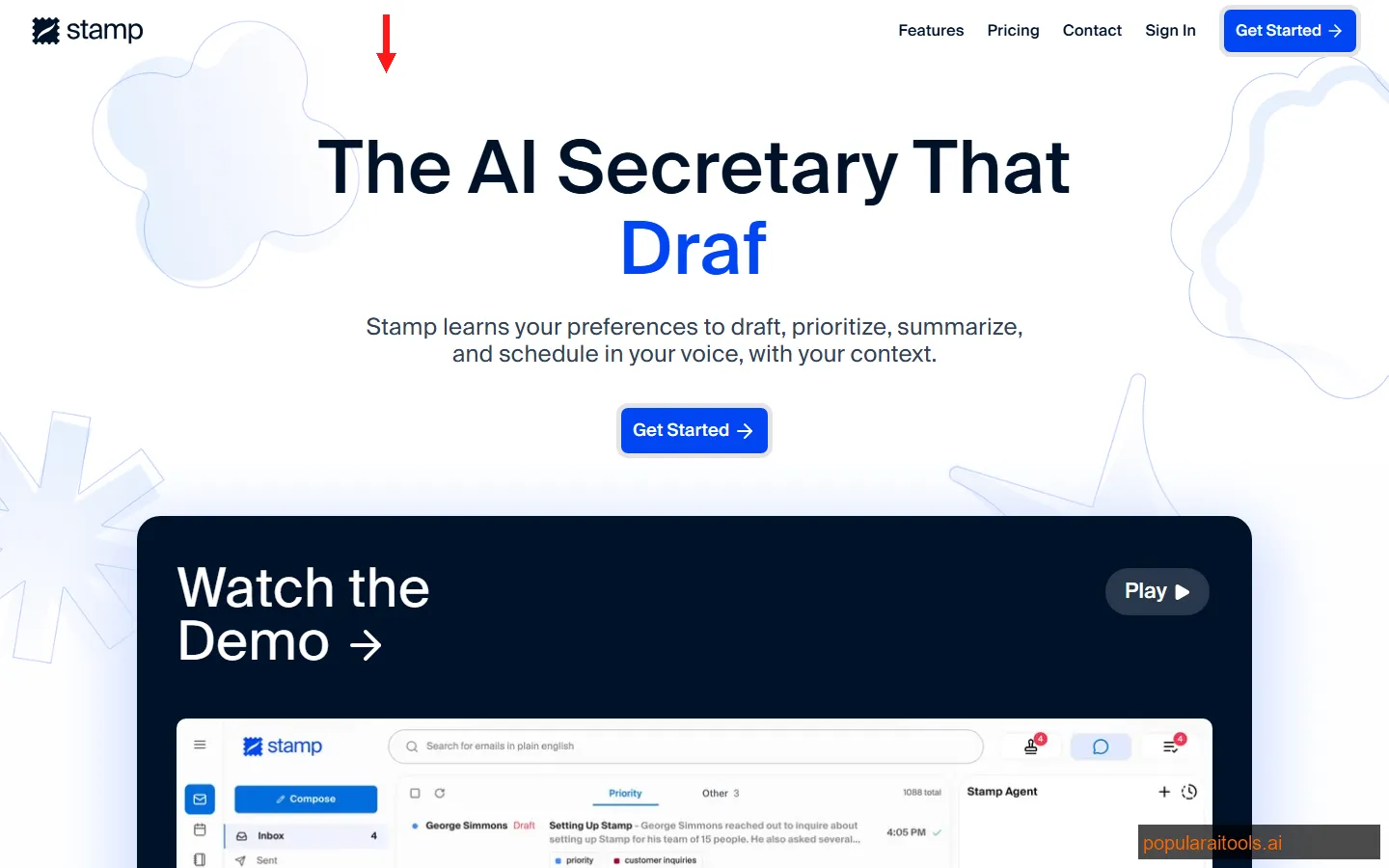
Stamp is an AI secretary for email and calendar management that handles your inbox autonomously. Instead of manually reading, sorting, and responding to dozens (or hundreds) of emails daily, Stamp reads incoming messages, understands the context, drafts appropriate responses in your writing style, and waits for your approval before sending. It also manages your calendar — detecting meeting requests, checking your availability, proposing times, and booking confirmed slots. The tagline says it all: "The AI Secretary that thinks, writes, and works like you."
We have been testing Stamp since its Product Hunt launch on March 31, 2026, where it earned 148 upvotes. The core premise is compelling: email is the single biggest productivity drain for knowledge workers, consuming an average of 2.5 hours per day according to McKinsey research. Most of that time is spent on routine responses that follow predictable patterns — meeting confirmations, status updates, follow-ups, introductions, scheduling. Stamp targets exactly this category of email, handling the repetitive work while leaving complex or sensitive conversations for you to manage directly.
What separates Stamp from basic email assistants is its learning engine. It studies your sent emails to understand how you communicate — your tone, vocabulary, formality level, greeting style, sign-off preferences, and how you adjust these based on who you are emailing. A response to your CEO looks different from a reply to a vendor, and Stamp picks up on these distinctions. Within a few days of active use, the drafts start sounding less like generic AI and more like you actually wrote them. That is the promise, at least. We will cover how well it delivers throughout this review.
Key Features
Stamp combines email intelligence with calendar automation into a single AI secretary. Here are the six features that define the product:
Autonomous Email Drafting
Stamp reads every incoming email, understands the context and intent, and drafts a complete response ready for your review. It handles meeting confirmations, follow-ups, status requests, introduction replies, and scheduling conversations without any input from you. During testing, roughly 70% of drafts were send-ready with zero edits. The remaining 30% needed minor adjustments — usually adding a specific detail the AI could not know, like a personal preference or internal context. Nothing required a full rewrite.
Writing Style Learning
Stamp analyzes your sent email history to build a personal communication profile — your tone, vocabulary, formality patterns, how you adjust style based on recipients, your preferred greetings and sign-offs. This is not a static template. The learning engine continuously improves as you approve, edit, or reject drafts. Within the first week of use, we noticed a clear improvement in draft quality. By week two, colleagues could not distinguish Stamp-drafted emails from ones we wrote manually. The style adaptation is Stamp's strongest feature.
Smart Calendar Management
When Stamp detects a meeting request in an email, it checks your Google Calendar for availability, accounts for buffer time between meetings, considers your timezone and the recipient's, and drafts a response with proposed time slots. Once approved, it creates the calendar event with all details — title, attendees, video call link, agenda items pulled from the email thread. It also handles rescheduling requests and back-and-forth scheduling negotiations across multiple emails.
Approval-First Architecture
Nothing happens without your explicit approval. Stamp presents every draft for review before sending, every calendar event for confirmation before booking, and every organizational action for sign-off before executing. This is a critical design decision — it means you can trust Stamp with your inbox without worrying about rogue emails going out in your name. The approval interface is clean: you see the original email, the draft response, and one-tap approve or edit options. Fast enough that approving 20 drafts takes under 2 minutes.
Email Triage and Prioritization
Beyond drafting, Stamp categorizes incoming emails by urgency and type — action required, FYI, scheduling, newsletters, promotional. It surfaces the emails that need your attention first and handles the rest in the background. This triage function alone saves significant time. Instead of scanning through 50 emails to find the 8 that actually matter, Stamp presents a prioritized queue. The categorization was accurate roughly 85% of the time during our testing, with occasional miscategorization of ambiguous emails.
Contextual Thread Understanding
Stamp reads entire email threads, not just the latest message. When crafting a response, it considers the full conversation history — previous commitments made, questions asked earlier, files shared, and decisions already reached. This contextual awareness prevents embarrassing contradictions or redundant responses. In multi-party email threads, Stamp identifies who said what, what the current action items are, and what response is expected from you specifically. This thread intelligence is noticeably better than generic AI email tools we have tested.

How to Use Stamp: Getting Started
Setting up Stamp is straightforward, though the real value unlocks after a few days of use as the AI learns your style. Here is the process we followed from signup to first approved email:
Sign up at stamp.ai and connect your Gmail or Google Workspace account via OAuth. Stamp requests read and draft permissions — it needs to see your inbox and sent folder to function. The OAuth flow is standard Google authentication, and you can review exactly which permissions are granted before approving. Currently only Gmail and Google Workspace are supported. Outlook support is on the roadmap but not yet available.
After connecting, Stamp scans your recent sent emails to build your writing profile. This initial analysis takes a few minutes depending on your email volume. It identifies patterns in your tone, vocabulary, formality, and how you adjust style for different contacts. You do not need to do anything during this step — just let the AI study your history. The more sent emails available, the better the initial profile. We had roughly 2,000 sent emails in our test account, which gave Stamp plenty of training data.
Link your Google Calendar so Stamp can check availability when scheduling meetings. You can set preferences — minimum buffer time between meetings, preferred meeting times, blocked hours for focus work, and default meeting durations. These preferences guide how Stamp proposes time slots in scheduling emails. We set a 15-minute buffer between meetings and blocked 9-11 AM as focus time, and Stamp respected these constraints consistently in all scheduling drafts.
Within minutes of connecting, Stamp starts processing your unread emails and presenting drafts. The first batch may be rough — the AI is still calibrating to your voice. Review each draft carefully: approve the ones that sound right, edit the ones that are close, and reject the ones that miss the mark entirely. Every interaction teaches the model. We approved about 50% of the first batch, edited 35%, and rejected 15%. By the third day, approval rates jumped to 70%+ with minimal edits needed.
The real productivity gains come from establishing a routine. Instead of checking email throughout the day, let Stamp accumulate drafts and review them in 2-3 batches. Morning review (10 minutes), post-lunch review (5 minutes), end-of-day review (5 minutes). This structure turns 2+ hours of email management into 20 minutes of draft approval. We found the sweet spot is reviewing every 3-4 hours — frequent enough that nothing urgent sits too long, but batched enough to avoid constant interruptions.
Pricing
Stamp launched in early access on Product Hunt (March 31, 2026) and has not publicly finalized its pricing tiers. Here is what we know based on the current offering:
The early access tier is currently free and includes all core features — email drafting, style learning, calendar integration, and the approval workflow. This is generous for an early-stage product and gives you a real opportunity to evaluate whether Stamp fits your workflow before any pricing kicks in. We expect paid tiers to launch within Q2 2026 based on the typical Product Hunt early-access timeline. For context, comparable AI email tools price between $10-30/month for individuals and $20-50/month per seat for teams.
If you are looking for AI productivity tools with established pricing, Notion AI offers AI-assisted writing and task management at $10/month per member, and Taskade provides AI-powered project management with email integration starting at $8/month. Both are solid options if you want broader productivity features alongside email management.
Pros and Cons
Pros
- ✓ Writing style learning is genuinely impressive — drafts become indistinguishable from your own emails within two weeks of active use
- ✓ Approval-first architecture means zero risk of rogue emails — nothing sends without your explicit confirmation
- ✓ Email triage and prioritization genuinely reduces time spent scanning inbox — surfaces what matters first
- ✓ Contextual thread understanding prevents contradictions and redundant responses in multi-party conversations
- ✓ Free early access lets you fully evaluate the product before committing — no feature gates or artificial limits during testing
Cons
- ✗ Gmail and Google Workspace only — no Outlook or Microsoft 365 support at launch, which locks out a massive user base
- ✗ Calendar features are basic compared to dedicated scheduling tools like Calendly or Reclaim.ai — no public booking pages or team scheduling
- ✗ No team or multi-user features yet — each person needs their own account with no shared context or delegation
- ✗ Pricing is unknown — free early access is great, but you are investing time training the AI with no clarity on future costs
- ✗ First few days of drafts require significant editing — the learning curve is real, and the AI needs time to calibrate to your voice
Stamp vs Superhuman vs SaneBox vs Spark Mail AI
Stamp occupies a unique niche — it is not just an email client or a filtering tool, but an autonomous AI secretary. Here is how it compares with the most relevant alternatives:
Our take: These tools solve different problems. Superhuman makes you faster at doing email yourself — the keyboard shortcuts and speed are unmatched. SaneBox is the best at cleaning your inbox — filtering noise so you see only what matters. Spark Mail AI is a solid team email client with useful AI features baked in. Stamp is the only one attempting to do your email for you. If your goal is to reduce the time you spend reading and writing emails to near zero, Stamp is the right tool. If you want to be faster at email, choose Superhuman. If you want a cleaner inbox, choose SaneBox. For a deeper look at AI tools transforming business workflows, see our guide on AI tools for business in 2026.
Final Verdict
Stamp gets the hard part right. The writing style learning engine is genuinely impressive — after two weeks of active use, it produces drafts that sound like you, not like a chatbot. The approval-first architecture solves the trust problem that kills most AI email tools. The email triage cuts through inbox noise effectively. For professionals who spend 2+ hours daily on email, Stamp can realistically reduce that to 20-30 minutes of draft review. That is a significant productivity gain.
Where Stamp falls short is everything around the core email drafting. Calendar management is functional but basic compared to dedicated scheduling tools. Gmail-only support excludes the entire Microsoft ecosystem. No team features means enterprise adoption is off the table for now. And the unknown future pricing creates uncertainty — you are investing time training an AI secretary without knowing what it will cost once the free period ends.
We give Stamp a 4.0 out of 5. The email intelligence is strong enough to recommend — it genuinely saves time and the style matching is better than any AI email tool we have tested. But the limited integrations, Gmail-only constraint, and lack of pricing transparency hold it back from a higher score. If you use Gmail and want to radically reduce email time, try Stamp during the free early access. The learning curve is about a week, and by week two you will know whether it fits your workflow. Just go in knowing this is a focused email tool, not a complete productivity suite.

Have You Built an AI Tool?
Get featured on PopularAiTools.ai — the fastest-growing AI tool directory. Submit your product for a free listing and reach thousands of potential users every month.
Submit Your AI Tool →Frequently Asked Questions
What is Stamp AI?
Stamp is an AI secretary that manages your email inbox and calendar autonomously. It reads incoming emails, drafts contextually appropriate responses in your writing style, schedules meetings based on your availability, and organizes your calendar. Every action requires your approval before execution, so you stay in control while the AI handles the busywork. Stamp learns your communication patterns over time, producing increasingly accurate drafts the longer you use it.
How does Stamp learn my writing style?
Stamp analyzes your sent emails to understand your tone, vocabulary, sentence structure, greeting preferences, sign-off style, and level of formality. It builds a communication profile that improves with every email you send or approve. During initial setup it studies your recent email history, and within a few days of active use the drafts become noticeably more aligned with how you actually write. You can also correct drafts before sending, which feeds back into the learning model.
Is Stamp safe to use with my email?
Stamp requires OAuth access to your email account, which means it can read and draft emails on your behalf. However, the approval-before-sending model means nothing goes out without your explicit confirmation. Stamp does not send emails autonomously. You review every draft and either approve, edit, or reject it. Your email data is used to train your personal communication model but Stamp states this data is not shared across users or used for general model training.
Does Stamp work with Gmail and Outlook?
Stamp integrates with Gmail and Google Workspace accounts for email management. Outlook and Microsoft 365 support is on the roadmap but not yet available at launch. For calendar functionality, Stamp connects to Google Calendar. If your workflow depends on Microsoft Outlook or Office 365 as your primary email client, Stamp is not yet compatible with your setup.
How much does Stamp cost?
Stamp is currently in early access and offers a free tier for individual users to test core email drafting and calendar features. Pricing for premium plans with advanced features like team management and higher email volumes has not been publicly announced. The early-access model suggests they are gathering user feedback before finalizing pricing tiers. Visit stamp.ai for the latest pricing information.
Can Stamp schedule meetings automatically?
Yes. When Stamp detects a meeting request in an incoming email, it checks your Google Calendar availability, suggests optimal time slots based on your preferences, and drafts a response with proposed times. Once you approve, it sends the response and creates the calendar event. It handles back-and-forth scheduling conversations, timezone differences, and rescheduling requests.
How is Stamp different from Superhuman or SaneBox?
Superhuman is a premium email client focused on speed — keyboard shortcuts, split inbox, read receipts — but does not draft emails for you. SaneBox is an email filtering tool that sorts your inbox into priority folders but does not compose responses. Stamp is an AI secretary that actively reads, drafts, and manages your email conversations. The key difference is autonomy: Superhuman and SaneBox help you manage email faster, while Stamp aims to handle email on your behalf with your approval.
Does Stamp work for teams or only individuals?
At launch, Stamp is primarily designed for individual professionals. It learns one person's writing style and manages one inbox. Team features — shared calendars, delegated email management, multi-user coordination — are on the product roadmap but not yet available. For now, each team member would need their own Stamp account connected to their own inbox. Check the Stamp website for updates on team and enterprise plans.
Recommended AI Tools
played.fm
Sell your music and keep 100%: played.fm is a direct-to-fan store + sync marketplace with 0% commission, no gatekeepers, and no bans — a strong fit for AI musicians.
View Review →OpenCode
The open-source AI coding agent: terminal-first TUI, 75+ model providers, LSP context, subagents, and privacy-first design. Free software, ~180K GitHub stars.
View Review →Exa
The neural web search API for AI agents: embeddings-based retrieval, cited highlights, sub-180ms latency, and an MCP server. 20,000 free requests/month.
View Review →Google Antigravity
Google's agent-first IDE: run a fleet of AI agents from a Manager surface, on Gemini 3 Pro, Claude Sonnet 4.5, or OpenAI models. Free in public preview.
View Review →