Figma MCP Server Review: The Official Design-to-Code Bridge That Changes Everything

AI Creative Tools Specialist
Key Takeaways
- Figma MCP Server is an official first-party product built by Figma — not a community hack
- It exposes 8 tools including bidirectional design-to-code AND code-to-design workflows
- Code Connect maps Figma components to real code across React, SwiftUI, Jetpack Compose, and Vue
- Affirm rebuilt major product flows in under 2 days — down from 6+ weeks
- Teams report 50-70% reduction in initial dev time with mature design systems
- Write-to-canvas is free during beta — AI agents can create native Figma objects directly
- Works with Cursor, Claude Code, VS Code, Windsurf, Codex, and 6+ other editors
- Free tier is nearly useless at 6 calls/month — you need Professional ($15/mo) minimum
Table of Contents
What Is the Figma MCP Server?
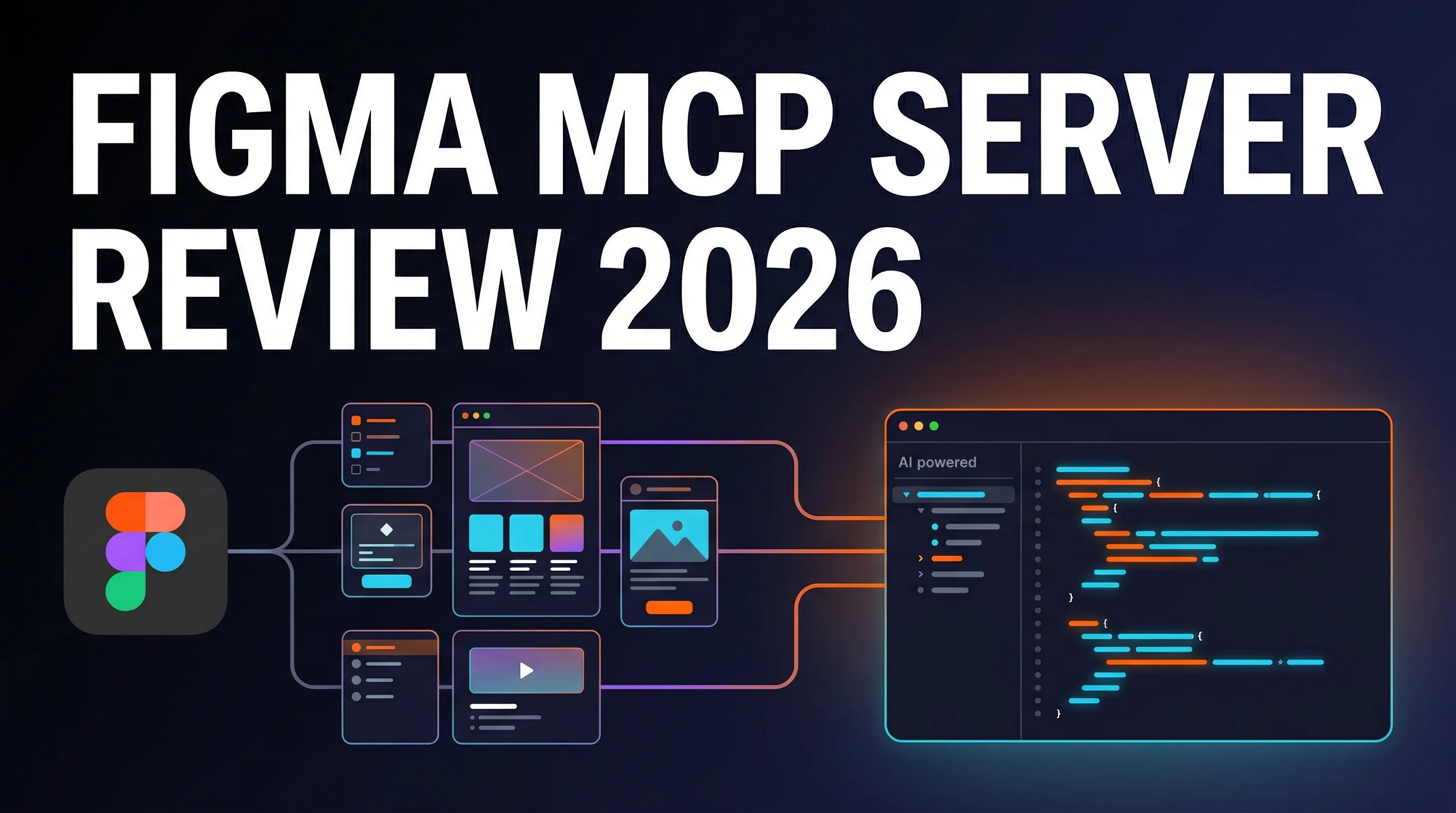
Let me get the most important thing out of the way first: the Figma MCP Server is an official first-party product built by Figma. This is not some community workaround or third-party integration stitched together with API wrappers. Figma built this in-house, partnered directly with Anthropic, Cursor, and the VS Code team, and ships it as a core part of their platform.
That distinction matters enormously. Most design-to-code MCP servers are community builds working with whatever data they can pull from public APIs. The official Figma MCP Server has direct access to Figma's internal design data structures — the full node tree, auto-layout constraints, variant information, design tokens, and component properties that no third-party tool can reach.
The server uses Anthropic's Model Context Protocol (MCP), the open standard for connecting AI tools to external data sources. When you select a frame or component in Figma, the MCP server serializes all that rich structural design data and feeds it directly to your AI coding tool. Your AI does not just see a screenshot — it understands the actual design hierarchy, spacing values, and component relationships.
But here is what genuinely surprised us during testing: the Figma MCP Server is bidirectional. It does not just translate designs into code. It can also capture live running UI from your browser or localhost and turn it back into editable Figma layers. And AI agents can write directly to the Figma canvas, creating native frames, components, and auto-layout structures. No other tool in this space does all three.
Figma first announced the Dev Mode MCP Server in June 2025. As of March 2026, it is in open beta with write-to-canvas features still free. The remote endpoint lives at https://mcp.figma.com/mcp, and a local desktop alternative runs at 127.0.0.1:3845.
Key Features: 8 Tools That Change the Game
The Figma MCP Server exposes eight distinct tools. We tested each one across multiple projects, and the results ranged from "very useful" to "this fundamentally changes how we build UIs." Here is the breakdown.

get_code
Generates code from the current selection or a shared Figma link. Defaults to React + Tailwind but auto-detects your project framework. When paired with Code Connect, it outputs your actual component imports instead of generic markup.
get_screenshot
Captures a screenshot of the current selection for visual context. Useful when you need the AI to see exactly what the final design looks like alongside the structural data.
get_variable_defs
Returns all Figma variables and styles used in your selection — colors, spacing, typography tokens. This is how the AI knows to use --spacing-4 instead of hardcoded 16px.
get_code_connect_map
The killer feature. Retrieves the mapping between Figma node IDs and your actual code components. One Figma Button design maps to React Button, SwiftUI Button, Jetpack Compose Button, and Vue Button simultaneously.
get_metadata
Creates a simplified XML representation with IDs, names, types, positions, and sizes. The fallback tool for large selections where get_code would blow past the context window.
use_figma
Write-to-canvas. Executes Figma Plugin API code to create and modify real Figma objects — components, variables, frames, auto-layout. Currently free during beta. Requires a Full seat.
generate_figma_design
Code-to-canvas. Captures live running UI — production, staging, or localhost — and turns it into editable Figma frames. Completes the roundtrip: code renders UI, Figma captures it, designer edits, code regenerates.
create_design_system_rules
Generates design system rules that give AI agents better context for code generation. Ensures output aligns with your team's established patterns and standards.
Code Connect: The Feature That Makes Everything Else Better
We need to talk about Code Connect separately because it is the single feature that elevates the Figma MCP Server from "useful" to "essential." Without Code Connect, the AI generates generic React code that looks like your Figma design. With Code Connect, it generates code that uses your actual components, your imports, your prop interfaces.
When the MCP server processes a frame with connected components, each element comes wrapped in a CodeConnectSnippet that includes the design properties, import statements, component usage code, and custom instructions. The AI does not have to guess what your Button component looks like — it knows exactly how to use it.
And the one-to-many mapping is genuinely impressive. Connect a single Figma Button to your React, SwiftUI, Jetpack Compose, and Vue implementations. The MCP server automatically serves the right snippet based on your project context. We tested this with a design system spanning React and Vue, and the output was correct for both targets without any prompt engineering.
How to Set Up Figma MCP Server
Setup is straightforward for all major editors. Figma offers two server modes: remote (recommended, no desktop app required) and local desktop (requires the Figma desktop app running with Dev Mode active).

Remote Server (Recommended)
The remote server is hosted by Figma. No local installation needed. Add this to your editor's MCP configuration:
{
  "servers": {
    "figma": {
      "type": "http",
      "url": "https://mcp.figma.com/mcp"
    }
  }
}
Authentication happens via OAuth — your browser opens, you sign in to Figma, click "Allow access," and you are connected. No API tokens to manage.
Editor-Specific Setup
Cursor
Type /add-plugin figma in the chat window and hit Submit. Click "Add Plugin" to install, then "Connect" to authenticate. Ships with pre-built Agent Skills for common Figma workflows.
Claude Code
Type /plugin and press Enter to open the Plugin marketplace. Navigate to the figma server and press Enter. Complete OAuth in your browser. Alternatively: claude mcp add --transport http figma-desktop http://127.0.0.1:3845/mcp
VS Code
Requires GitHub Copilot enabled. Open Command Palette, search "MCP: Open User Configuration" or "MCP: Open Workspace Folder MCP Configuration," and paste the JSON config block above.
Local Desktop
Open the Figma desktop app, open a Design file, toggle to Dev Mode (Shift+D), and click "Enable desktop MCP server" in the inspect panel. Server runs at http://127.0.0.1:3845/mcp.
Setup took us under 5 minutes in every editor we tested. The OAuth flow is clean, and the remote server means you do not need the desktop app installed at all. Codex (OpenAI), Windsurf, Augment, Factory, Firebender, and Warp are also supported.
Pricing and Rate Limits
This is where things get complicated — and where Figma's pricing structure will frustrate some teams. The MCP server is technically available on every Figma plan, but the rate limits make the free tier essentially useless for real work.

The honest assessment: Six calls per month on Starter is a joke. You will burn through that in a single design-to-code session. Professional at $15/month is the realistic entry point, and for teams doing heavy MCP usage, the Organization tier's 200 daily calls provides a more comfortable ceiling.
One important note: write-to-canvas tools are currently free and exempt from rate limits during the beta period. Figma has said this will become a usage-based paid feature, but they have not announced pricing yet. Dev seats only get read access — you need a Full seat for write capabilities.
We also ran into rate limit propagation delays after upgrading a test workspace. It took about 4 hours before the new limits kicked in. Some forum users have reported multi-day Retry-After headers even on paid plans. Worth knowing if you are planning a team rollout.
Pros and Cons
Pros
- Official first-party — direct access to Figma internals no third party can match
- Code Connect maps design components to real code across 4 frameworks
- Bidirectional workflow: design-to-code AND code-to-design
- Write-to-canvas lets AI agents create native Figma objects
- Works with 10+ editors including Cursor, Claude Code, VS Code, Codex
- OAuth authentication — no API tokens to manage
- Remote server means no desktop app required
- FigJam integration for early-stage ideation
- Reusable Skills system reduces repetitive prompting
- 50-70% reduction in dev time with mature design systems
Cons
- Free tier is nearly useless — 6 calls/month is not enough for testing
- Rate limit propagation delays after plan upgrades (hours to days)
- Dev seats are read-only — Full seat required for write features
- Cannot read prototyping interactions, version history, or comments
- No self-hosting or air-gapped deployment option
- Large complex designs may exceed AI context windows
- Write-to-canvas pricing still unannounced (beta ends eventually)
- Generated code still requires developer review and refinement
- Rate limits are workspace-specific — can cause confusion in multi-team orgs
Alternatives Compared
The Figma MCP Server does not exist in a vacuum. Here is how it stacks up against the main alternatives we have tested.

The community Figma-Context-MCP by GLips deserves special mention. With roughly 5,000 GitHub stars and 1.3 million visitors, it is a legitimate alternative that preceded the official server. It simplifies Figma API responses and achieves a 99.5% reduction in response size, making it efficient for Cursor users. But it lacks write-to-canvas, Code Connect, UI capture, and FigJam support — all of which are exclusive to the official server.
Anima and Locofy take different approaches. Anima produces clean functional components with proper prop types but treats the output as a starting point, not production code. Locofy uses what they call Large Design Models for the most accurate plugin-based exports, especially with complex responsive layouts. But neither integrates with your IDE's AI assistant the way MCP does.
Dev Mode is Figma's built-in inspection tool. It shows CSS, iOS, and Android snippets for selected elements and requires zero setup. It is fine for quick reference, but it does not feed structured data to AI tools, does not support code generation, and cannot write back to the canvas. Think of Dev Mode as the manual transmission and the MCP Server as the automatic — both get you there, but one requires far less effort.
Frequently Asked Questions
Is the Figma MCP Server free to use?
Technically yes on the Starter plan, but 6 tool calls per month is barely enough to test. Professional at $15/month is the realistic entry point for actual work. Write-to-canvas features are free during the current beta period.
What is the difference between the MCP Server and Dev Mode?
Dev Mode is an inspection tool that shows code snippets for selected elements. The MCP Server exposes full design structure, variables, and component mappings directly to AI coding tools. It also supports writing back to the canvas and capturing live UI — things Dev Mode cannot do.
Does it work with Cursor?
Yes. Cursor has native support. Type /add-plugin figma in the chat window, install it, and connect via OAuth. Cursor also includes pre-built Agent Skills for common Figma MCP workflows.
What is Code Connect?
Code Connect maps Figma design components to actual code components in your repository. Instead of generating generic markup, the AI uses your real imports, props, and component interfaces. It supports React, SwiftUI, Jetpack Compose, and Vue simultaneously.
Can AI agents write to the Figma canvas?
Yes. The use_figma tool lets agents create and modify native Figma objects including frames, components, variables, and auto-layout. The generate_figma_design tool captures live UI into editable Figma layers. Both require a Full seat.
How does it compare to the community Figma-Context-MCP?
The community server by GLips (~5K GitHub stars) is a solid read-only alternative. However, it lacks Code Connect, write-to-canvas, UI capture, FigJam support, and direct access to Figma internals. For read-only use cases on a budget, the community option works. For full workflows, the official server is significantly more capable.
Which editors are supported?
VS Code (with GitHub Copilot), Cursor, Claude Code, Windsurf, Codex (OpenAI), Augment, Factory, Firebender, Warp, and more. Both remote and local desktop modes are available across all supported editors.
What are the main limitations?
It cannot read prototyping interactions, version history, or comments. Rate limits can be frustrating on lower tiers. There is no self-hosting option. Large complex designs may exceed AI context windows — use get_metadata as a fallback for oversized selections.
Final Verdict
We have tested a lot of design-to-code tools over the years. Plugins that export layouts. AI tools that read screenshots. Third-party MCP servers that simplify API responses. The Figma MCP Server is the first one that made us feel like the design-to-code workflow actually works the way it should.
The reason is straightforward: it is the only tool that combines full structural design data, real component mapping via Code Connect, write-back capabilities, and live UI capture in a single integration. The bidirectional workflow is not a gimmick. Affirm rebuilt major product flows in under two days. Teams are reporting 50-70% reductions in initial development time. These are real numbers from real production use.
Code Connect is the standout feature. When your Figma design components map directly to your React, SwiftUI, Jetpack Compose, and Vue components, the AI stops guessing and starts generating code that actually fits your codebase. That alone justifies the $15/month Professional plan for any team with a design system.
The pricing is the main pain point. The free tier is barely functional. Rate limit issues after plan upgrades are real. And the fact that write-to-canvas will eventually become a paid feature means your costs will likely increase once the beta ends. For individual developers on a budget, the community Figma-Context-MCP is a reasonable read-only alternative.
But for teams that are serious about AI-assisted development — especially those already invested in Figma design systems — this is the tool that ties everything together. We are giving the Figma MCP Server a strong recommendation with one caveat: start on the Professional plan, set up Code Connect early, and budget for the inevitable pricing changes when beta features graduate.
Highly Recommended
The best design-to-code bridge available today. Code Connect and bidirectional workflows set it apart from every alternative.
Ready to Try the Figma MCP Server?
Set it up in under 5 minutes with your favorite editor. Start with the remote server — no desktop app required.
Read the Official Docs Browse the MCP CatalogReview by Eddie Mathews for PopularAiTools.ai. Last updated March 26, 2026. We test every tool we review — no sponsored content, no affiliate bias.
Recommended AI Tools
played.fm
Sell your music and keep 100%: played.fm is a direct-to-fan store + sync marketplace with 0% commission, no gatekeepers, and no bans — a strong fit for AI musicians.
View Review →OpenCode
The open-source AI coding agent: terminal-first TUI, 75+ model providers, LSP context, subagents, and privacy-first design. Free software, ~180K GitHub stars.
View Review →Exa
The neural web search API for AI agents: embeddings-based retrieval, cited highlights, sub-180ms latency, and an MCP server. 20,000 free requests/month.
View Review →Google Antigravity
Google's agent-first IDE: run a fleet of AI agents from a Manager surface, on Gemini 3 Pro, Claude Sonnet 4.5, or OpenAI models. Free in public preview.
View Review →